Research image upload functionality #39

Description

Referencing the following resource>>
https://medium.com/@anaharris/how-to-add-image-upload-functionality-to-your-rails-app-9f7fc3f3d042
How to add image upload functionality using Active storage gem to your Rails app:
- run
rails active_storage:installin your terminal - This will generate a migration that adds two tables to your database:
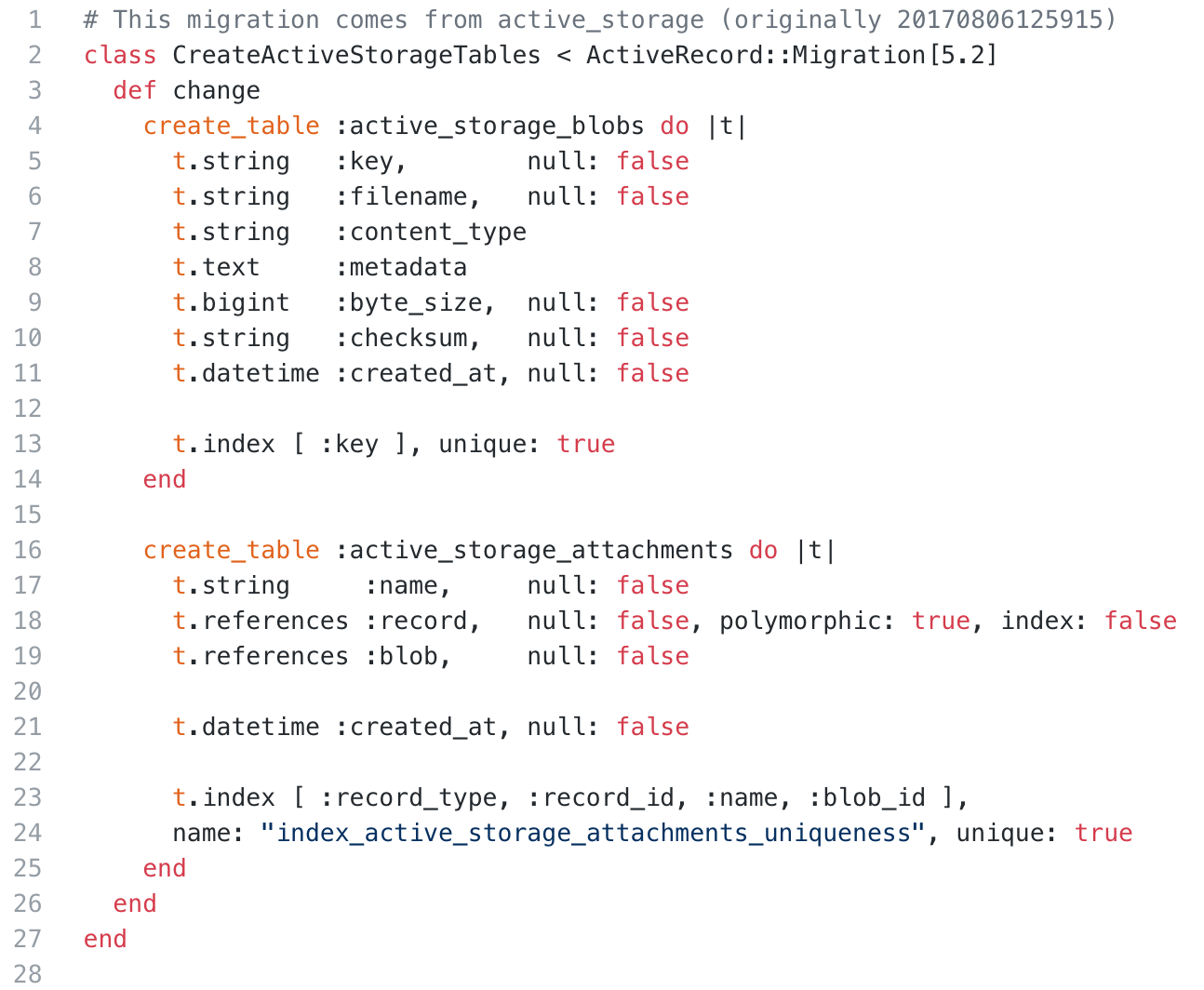
- run
rails db:migrate - Next step is to declare your storage services in
config/storage.ymlIf you’re building a development or test app, or you just want to practice using Ruby and Rails, built-in disk storage is probably enough. To use disk storage, your storage.yml file should have this code:

- Next check youThis is just an exar
config/environments/development.rbIt should look like this:
config.active_storage.service = :local
In order to use tests, make sure yourconfig/environments/test.rbhas this code
config.active_storage.service = :test
Following is an example, not exact steps. We will need to adapt to our design. More likely we will be adding this relationship to worker.rb and organization.rb. It's something to discuss.
- Next step is to attach files to our models. We can use
has_one_attachedrelationship that will allow every user to have only one image added to their profile
Inapp/models/user.rbwe'll add the following relationship.
class User < ApplicationRecord
         has_one_attached :avatar
- Then in user#new and user#edit files add a picture field to the form
<% f.label "Profile Photo" %>
     <% f.file_field :avatar %><br>
- You don’t need to add any special code to your controller, just make sure you include :avatar in your strong params.
- If you want to add image from params to an already existing object (e.g. via an edit form), use the following syntax in your controller:
@user.avatar.attach(params[:avatar])
or if you are uploading it from a folder:
@user.avatar.attach(io: File.open('app/assets/iamges/placeholder.png'),
filename: 'placeholder.png', content_type: 'image/png')
##Displaying Image
- Now that we know how to upload an image, let’s learn how to display it in the browser. We want to display it on a user’s profile (show) page. In user#show we can add the following code:
<% if @user.avatar.attached? %>
  <image src="<%=(url_for(@user.avatar))%>">
<% end %>
Let’s break this down:
.avatar.attached? is a handy built-in method we can call to check if an image(avatar) for that user has been attached. If such file exists, url_for(@user.avatar) will create a URL to it. We can then pass that URL to the HTML image tag source that will display it in the browser.
Notes and tips:
- Keep in mind that when you declare has_one_attached relationship one and only one image can be attached to an object. In order to change it, you’ll have to delete it first (syntax: @user.avatar.purge).
- You can upload more than one image/file per object. Just use has_many_attached macro instead.
3.When you want to upload an image from a folder, make sure you use the full path. Active Storage docs never mention this, but in my experience your upload will work only if you provide the full absolute path (like shown in the code snippet above). You don’t have to declare a content_type but it is considered to be good practice. - Calling .avatar will return an object even when file is not uploaded. Make sure you use .avatar.attached? to check if the image you’re looking for exists.
- Official docs are very well written so make sure you use them!