Teachable Machine is a google machine learning website that lets you collect data into datasets by snapping photos with your webcam or recording audio. This lets you create and train machine learning models without the overhead of creating data processing code or manually setting up a neural network.
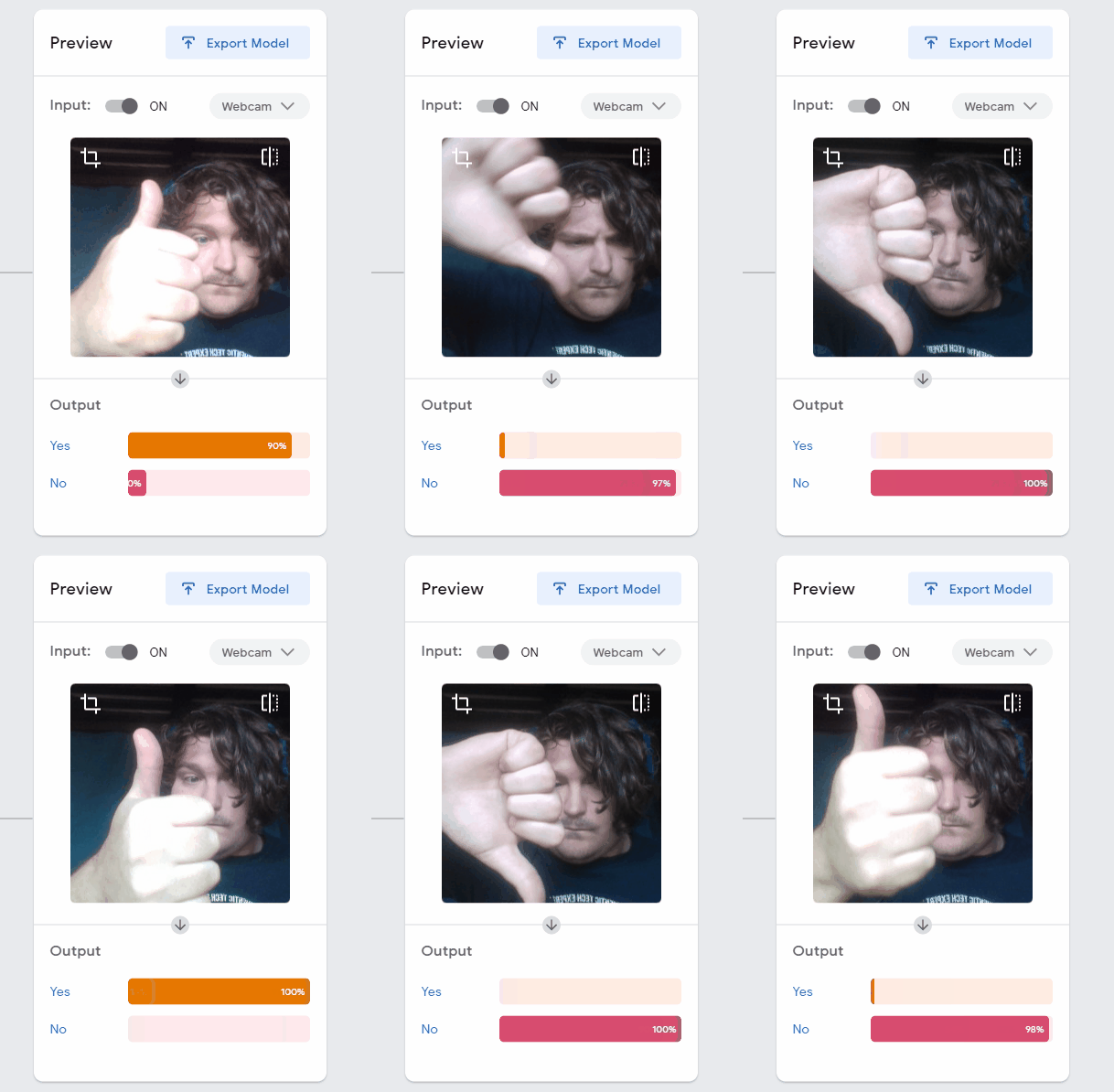
Teachable Machine is perfect for models with small datasets and simple tasks. The example below tests whether the user in the webcam is giving a thumbs-up or thumbs-down.
Click here if it doesn't load Machine learning works by feeding data into a computer program, which uses that data to adjust its parameters and learn how to complete a task.
The Model in a Machine Learning program is the combination of mathematical functions and parameters that the program updates as it learns. This will often include a Neural Network - a series of connected functions and parameters that are well suited to adapting to various tasks.
Models are built and trained for different tasks, so the data that each model reads and the output that they produce will vary based on the model's purpose. Teachable Machine's models are primarily used for Classification problems - deciding which of a number of predetermined classes an input fits into. The model shown in the gif above is classifying whether the current webcam input is a thumbs-up (Yes) or a thumbs-down (No).
You can use Teachable Machine to train your own model to classify webcam input based on data you collect. In this lesson, you'll use Teachable Machine to train a model to recognize the hand poses in Rock Paper Scissors. First, you'll need to create a new Teachable Machine project.
1. Open Teachable Machine and select Image Project to create a new image classification project
2. In the pop-up click Standard image model to create your new model.
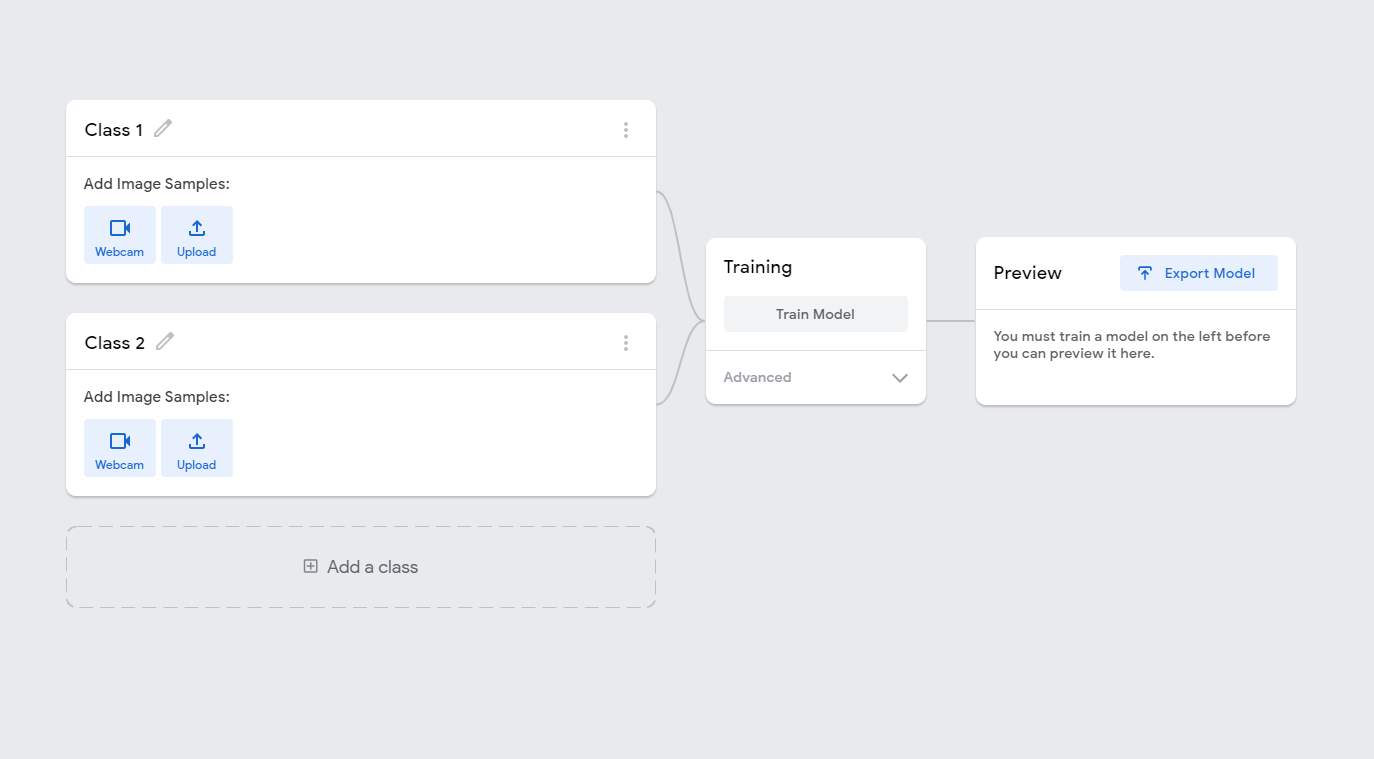
On the left of the project workspace, you can edit the categories your model will attempt to classify.
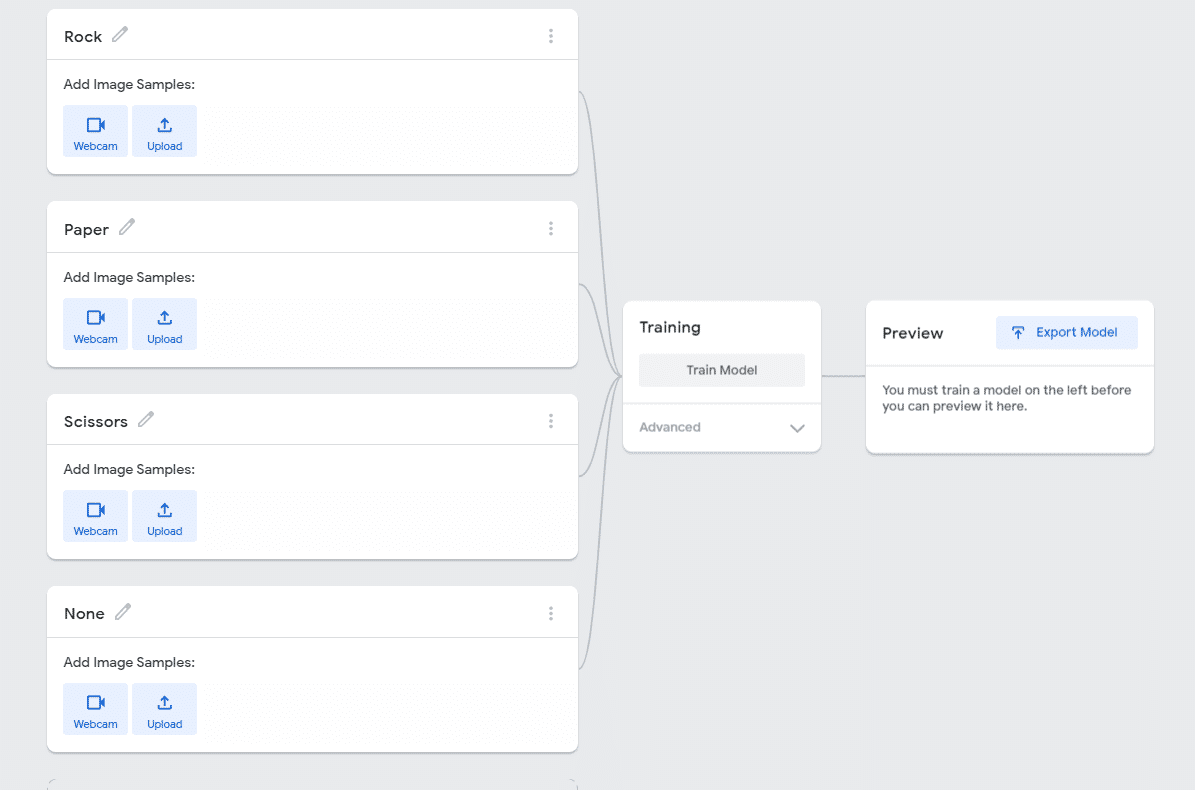
3. Click the pencil next to each category to rename each class: Rename Class 1 to "Rock" and Class 2 to "Scissors".
4. Click Add a class to add new classes: Add two new classes and name them "Paper" and "None".
Rock:
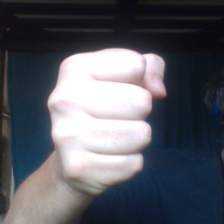
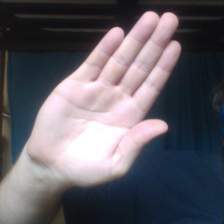
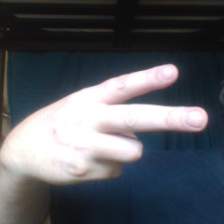
The more data you provide for the model, the better it will be able to learn its job. You'll collect images via your webcam that will form the basis of your dataset.
1. Click Webcam in the Rock class to enable your webcam for data collection
2. Get ready to make the Rock hand sign, then click and hold Hold to Record to automatically take a series of images of your Rock hand sign.
3. Move your hand around a bit and get some slightly different angles of the sign.
4. Repeat this process for each of the different hand signs, including None, where you'll hold up no hand signs.
Click here if it doesn't load
A good dataset is the foundation of an effective machine learning model. The more varied data you provide for each of the classes, the better the model will be able to detect each of the different classes. Now that you've collected your data, you can train the model. Behind the scenes, Teachable Machine is feeding your data for each class into the neural network, which then attempts to guess the correct class for each image. Based on comparing the guesses to the actual correct class for the image, the network adjusts its parameters. By repeating this process and adjusting for each image in the dataset, the model slightly improves its ability to guess the class of a given input.
1. Click Train Model to start processing the data and training the model.
2. Wait a 30 seconds to 1 minute for it to process. "Don't close the window or change the tab while it's running!"
3. Once training finishes, use your webcam to preview the results and see a live feed of the prediction your model is making for the current webcam image.
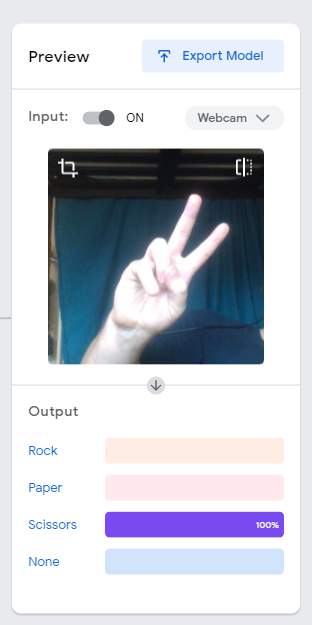
You've got a trained model, but it's probably not perfect at its job! You can improve it by identifying issues and providing more training data. Improving the quality of the provided model allows your network to be more effective.
1. Test your model in the preview window with each of the different poses.
2. Keep written notes: each time the model is making an incorrect prediction, take note of what was confusing.
3. Try to find an incorrect reading for each class and write down what data might be missing for that particular variation of the pose.
The example below shows one incorrect reading a model might make:
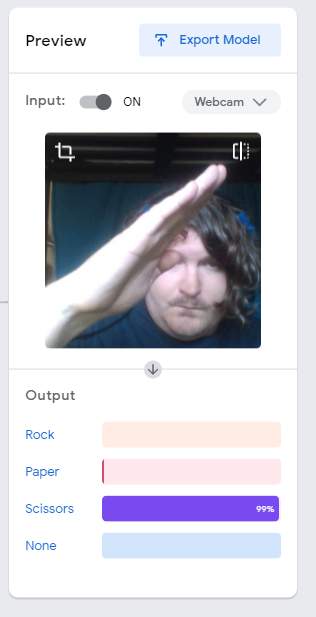
4. Return to the data section on the left and use the webcam recorder to create more data. Try using poses based on the issues you identified to fix any model issues you found.
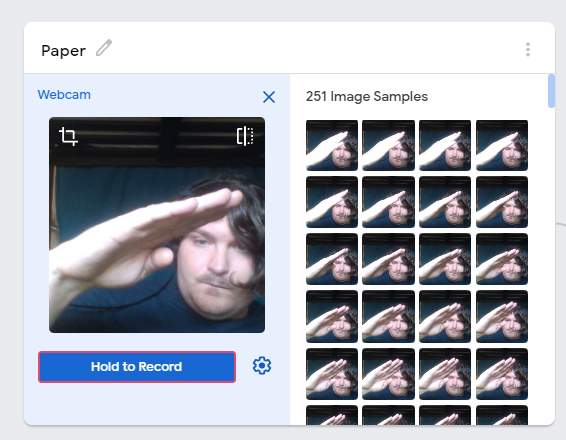
5. Click Train Model to retrain your model with the added data.
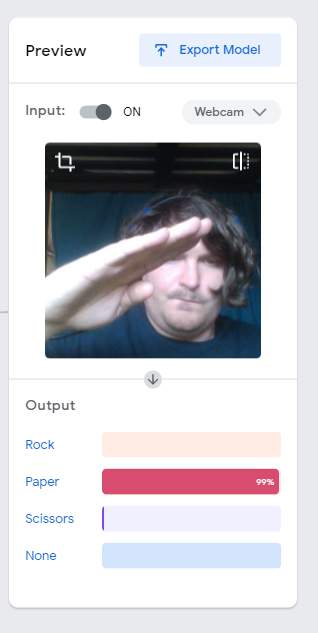
You can keep improving and tuning your model by repeating this process. Once you're satisfied with your changes and training, congratulations! You've created your own dataset, used it to train a neural network, and refined the results by improving the quality of your data!
This process is a simplified version of exactly what machine learning researchers do to create, train, and improve their machine learning models for any number of applications. Machine learning models work by using input data to adjust and improve parameters over repeated tests. With quality training data, the model can learn to accomplish a variety of tasks, like classifying the contents of images.
- Collect data from the webcam for each class you want to classify.
- Train your model to learn from the data you collected.
- Test the results and improve your data via experimentation.