In this project, When the Rest Endpoint being called, Producer Application writes data on the Kafka Topic named as json and ConsumerApplication reads data from the same topic.
About Apache Kafka: https://medium.com/analytics-vidhya/apache-kafka-architecture-getting-started-with-apache-kafka-771d69ac6cef
Steps to Follow for Running this project:
- Setup Java and Maven
- Setup Apache Kafka
- Download this project
To setup Java: https://devwithus.com/install-java-windows-10/
To setup Maven: https://medium.com/@aman.sharma163/maven-installation-on-windows-60d073c0653
To setup Apache Kafka:
-
Download the latest tar.gz from this link: https://kafka.apache.org/quickstart
-
Unpack the package : tar -xzf "your downloaded kafka file" (without quote)
-
Rename the folder to Kafka (Not a mandatory step but it shorten the path)
-
Move the folder to your suitable location. (If we want to have it specific location, as it's not a mandatory step)
-
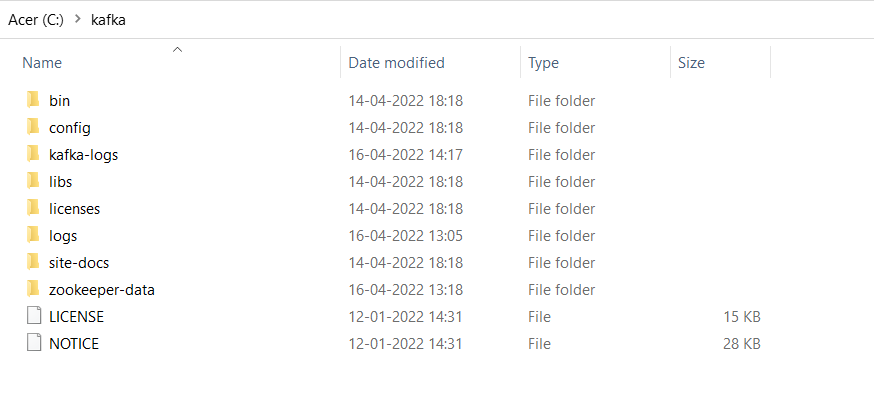
Inside your kafka, create directory kafka-logs and zookeeper-data
-
Open config/zookeeper.properties and modify dataDir -> dataDir=C:/kafka/zookeeper-data and save it
-
Open config/server.properties and modify log.dir -> log.dirs=C:/kafka/kafka-logs and save it
-
To start Zookeeper, go to your Kafka directory, open another cmd and execute .\bin\windows\zookeeper-server-start.bat .\config\zookeeper.properties

- To start Apache Kafka server, go to your Kafka directory, open cmd and execute .\bin\windows\kafka-server-start.bat .\config\server.properties
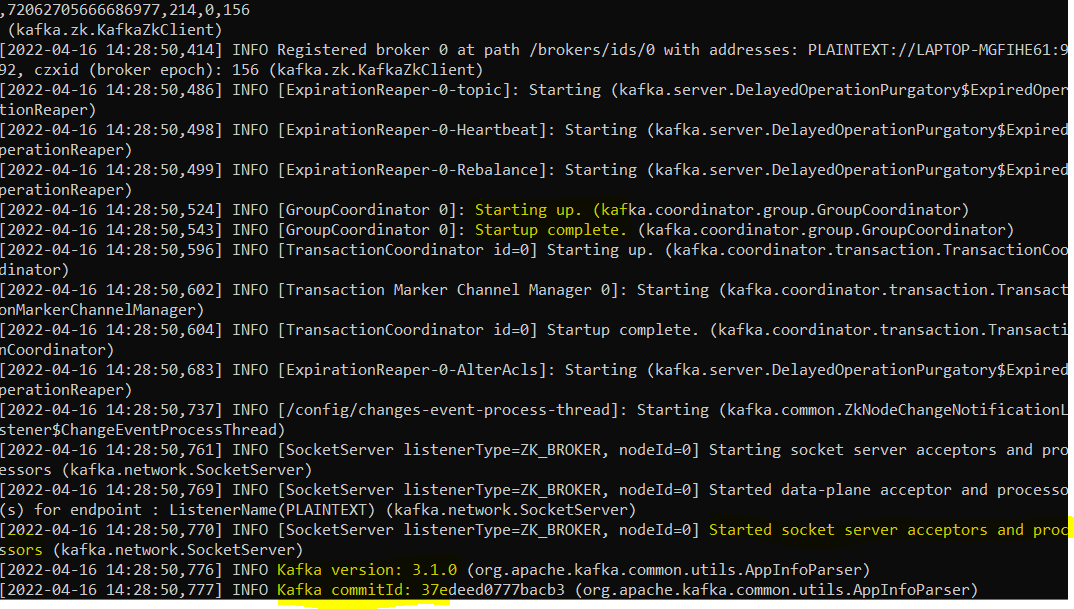
Your Apache Kafka is now Up and Running !! 😊
Now, Clone the Project and Open Producer Application and Consumer Application in different Intellij/Eclipse IDE. Download the maven dependency for both the project via below command:
- perform maven build from terminal: mvn spring-boot:run for Producer Application,
- perform maven build from terminal: mvn spring-boot:run for Consumer Application
Now send the POST Request with the following details:
- Request Url: localhost:8080/kafka/producer
- Request Body: {"name":"Apache Kafka", "message":"This is the message"}
You can also test the message written by producer on the topic by executing below command in your kafka folder. Open Command Line and execute:
- .\bin\windows\kafka-console-consumer.bat -bootstrap-server 127.0.0.1:9092 -topic 'topic name'(without quote) -group first_app Now, send the message on the topic, you will find the output as shown below:

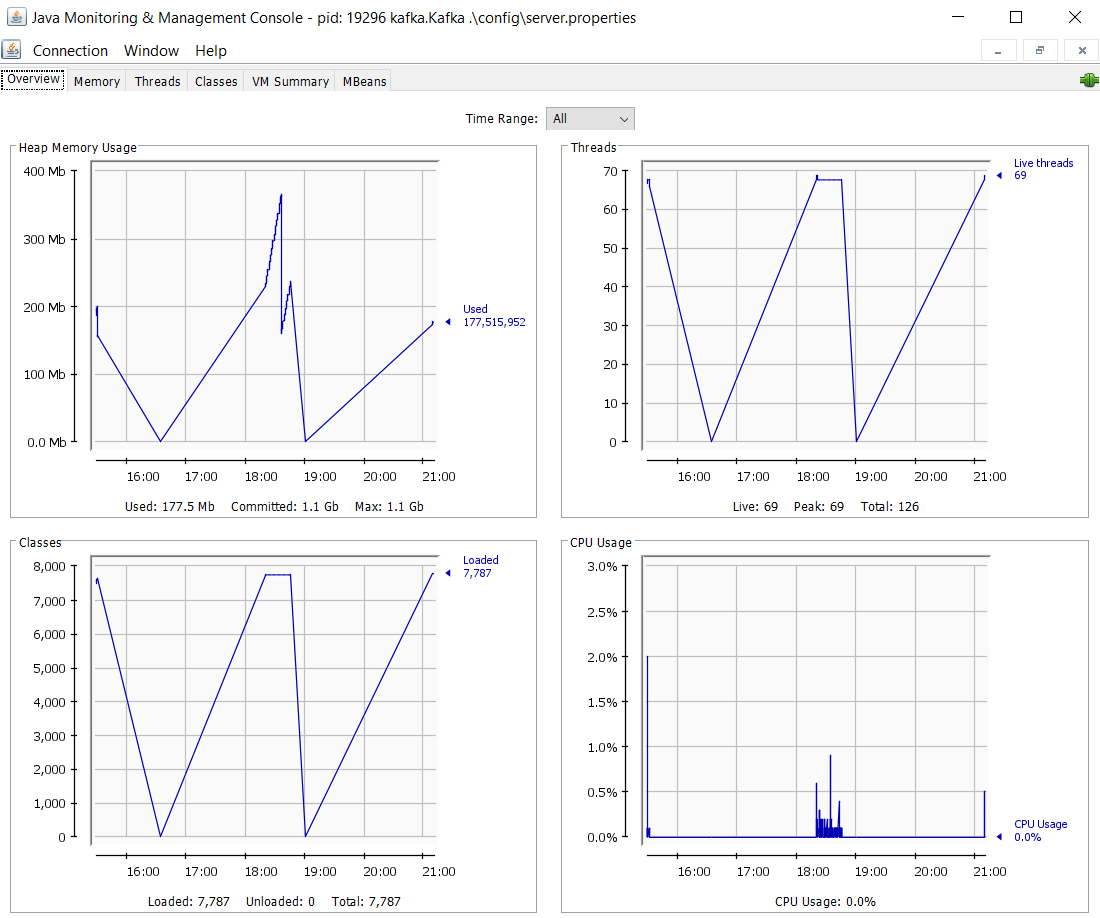
We can also monitor the Application using Jconsole when our application is running as shown below