This document describes how to contribute an app to the Yundera Compose AppStore.
IMPORTANT: Your PR must be well tested on your own CasaOS first. This is the mandatory first step for your submission.
Before submitting your PR, ensure your app meets these requirements:
- Default authentication (Basic Auth, OAuth, etc.) is enabled and documented - exceptions must be explained in rationale.md (e.g., public websites)
- Example of valid exception:
- A public website that does not require authentication
- The app handle authentication configuration on first launch via an onboarding process (eg Jellyfin, Immich, etc.)
- Example of valid exception:
- No hardcoded credentials in the compose file - use environment variables or secrets
- Proper file permissions based on volume usage. See Permission Strategy for details
- Specific version tag (no
:latest) - Resource limits are mandatory and set appropriately (on all services in case of multiple services) - exceptions must be explained in rationale.md
- Pre-install commands security: If using
pre-install-cmd, ensure specific version tags (no:latest) and proper user permissions (--user $PUID:$PGIDwhen writing to user directories) - Migration path from previous versions is tested - only incremental migration is supported (if a user wants to go from v1.1 to v1.4, they must execute v1.2 and v1.3 first)
- Works immediately after installation - no need to check logs or run commands - pre-install scripts create sensible defaults
- Data is mapped to appropriate
/DATAsubdirectories - if things are mapped outside of /DATA, this should be explained in rationale.md - No manual configuration required for basic functionality - should work out of the box
- Data persistence requirements are met - see Data Persistence section for details
- Clear description of the application
- Volume and environment variable descriptions
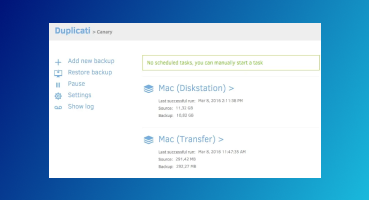
- Icon and screenshots meet specifications - files and URLs point to this Yundera AppStoreLab repository (eg https://cdn.jsdelivr.net/gh/Yundera/AppStoreLab@main/Apps/Duplicati/thumbnail.png)
App submission should be done via Pull Request. Fork this repository and prepare the app per guidelines below. Once the PR is ready, create and assign your PR to anyone from the CasaOS Team or another trusted contributor.
To ensure easy testing, please follow these steps:
-
Start with a regular compose app, which is a directory containing a
docker-compose.ymlfile. Test it on your own machine to ensure you can start it successfully. In your instance, you can edit the compose file with a text editor and restart the app to check if the changes work. Use SSH to dodocker compose up -dif needed. -
Copy the docker compose to an instance of CasaOS, e.g.,
/DATA/AppData/casaos/apps/MyApp/docker-compose.yml. Add all the required CasaOS-specific fields (x-casaos metadata, etc.) and test from the instance using SSH and thedocker compose up -dcommand. -
When the local setup is stable, push to your forked repo. Create a new directory under
Appswith your app name (along with logo, screenshot, and description files), e.g.,MyApp. -
Test this app listing on your own CasaOS instance:
- Use the GitHub URL of your forked repo as the AppStore URL. It should look like this:
https://github.com/user/AppStore/archive/refs/heads/main.zip - Once it works in your store, create a PR.
- See the checklist above to ensure your app meets the requirements.
- Remember to change where the asset links point to (should be the main repository)
- Once approved, your app will be directly available in the app listing.
Applications must be designed to preserve user data across uninstallation and reinstallation cycles. This ensures users never lose their personal data when updating or reinstalling applications.
Requirements:
- Persistent Volume Mapping: All user data, configurations, and databases must be stored in volumes mapped to
/DATA/AppData/[AppName]/ - Graceful Data Reuse: Applications must detect and reuse existing data when reinstalled
- No Data Erasure: Container startup processes must never erase or overwrite existing user data
- Configuration Preservation: Settings, user accounts, and preferences should persist across container lifecycle
Implementation Guidelines:
- Map all persistent data to
/DATA/AppData/[AppName]/subdirectories - Use initialization scripts that check for existing data before creating defaults
- Ensure database migrations are handled gracefully on version updates
- Test uninstall/reinstall scenarios to verify data persistence
Example Volume Mapping:
volumes:
  - /DATA/AppData/myapp/config:/app/config
  - /DATA/AppData/myapp/database:/var/lib/database
  - /DATA/AppData/myapp/uploads:/app/uploads
This approach ensures that when users uninstall and reinstall applications, they can continue from where they left off without losing any personal data or configurations.
Understanding the directory structure is essential for proper app development and data management. All user data and application configurations are stored under /DATA:
Permission Strategy:
To be mindful of permission user must always be specified in the compose file.
1 - with the user: user: xx:xx
and
2 - by setting the PUID and PGID environment variables in the compose file.
Yundera uses a dual permission model to balance security and usability:
Files owned by PUID:PGID (usually 1000:1000 for the 'pcs:pcs' user)
if no "user" field is specified in the compose file, the container will run as PUID:PGID (different behavior than the docker default so be carful)
if you need to run as root, you must specify user: 0:0 in the compose file and set the PUID and PGID to 0:0 in the environment variables.
User-Friendly Directories
PUID:PGIDownership required/DATA/Documents/,/DATA/Downloads/,/DATA/Gallery/,/DATA/Media/- Users can directly browse, modify, and manage these files
- Content should be human-readable with meaningful filenames
- Applications accessing these directories must use
user: $PUID:$PGID
AppData Directories
- Root ownership acceptable but preferably
PUID:PGIDto allow user to change configurations easily /DATA/AppData/[AppName]/- Application-specific data and configurations- Contains databases, config files, cache, logs, and internal app data
- Users should not directly modify these files (system-managed)
- Root containers are acceptable when volumes map exclusively to AppData
- Examples:
/DATA/AppData/immich/pgdata,/DATA/AppData/immich/model-cache
Mixed Usage Applications:
- If an app needs both AppData and user directory access, use
user: $PUID:$PGID - Alternative: Use separate containers (one for system tasks, one for user file access)
- Document the approach in rationale.md if using root containers with mixed access
/DATA/
├── AppData/                    # Application-specific data and configurations
│   ├── casaos/                # CasaOS system files
│   │   ├── 1/                 # CasaOS configuration
│   │   ├── apps/              # Individual app docker-compose
│   │   │   └── [AppName]/     # App directory (this is where the docker compose is stored - no app data)
│   │   └── db/                # CasaOS database
│   └── [AppName]/             # Per-app data directories
│       ├── config/            # App configuration files
│       ├── data/              # App-specific data
│       └── [other-dirs]/      # Additional app directories
├── Documents/                  # User documents
├── Downloads/                  # Download directory
├── Gallery/                    # Photo and image storage
└── Media/                      # Media files
    ├── Movies/                # Movie collection
    ├── Music/                 # Music collection
    └── TV Shows/              # TV series collection
Key Directory Usage:
-
/DATA/AppData/[AppName]/: Primary location for app-specific data (config files, databases, logs)- Use this pattern in your
docker-compose.ymlvolumes - Example:
/DATA/AppData/immich/config:/app/config - not intended for direct user access
- Use this pattern in your
-
/DATA/Gallery/: Shared photo/image storage- Ideal for photo management apps
-
/DATA/Media/: Shared media storage- Use for media servers like Plex, Jellyfin, Emby
- Subdirectories help organize content types
-
/DATA/Documents/&/DATA/Downloads/: General file storage- Document management and download directories
Volume Mapping Examples:
AppData-only Application (Root container OK):
services:
  database:
    image: postgres:13
    # No user specification needed - root is fine for AppData-only access
    volumes:
      - /DATA/AppData/myapp/pgdata:/var/lib/postgresql/data
      - /DATA/AppData/myapp/config:/app/config
User Directory Application (PUID:PGID required):
services:
  filemanager:
    image: filebrowser/filebrowser
    user: $PUID:$PGID                    # Required for user directory access
    volumes:
      - /DATA/AppData/filebrowser:/app/config
      - /DATA/Documents:/srv/documents
      - /DATA/Downloads:/srv/downloads
Mixed Usage Application:
services:
  mediaserver:
    image: jellyfin/jellyfin
    user: $PUID:$PGID                    # Required due to media access
    volumes:
      - /DATA/AppData/jellyfin:/config   # System config (user can thus modify)
      - /DATA/Media:/media:ro            # User media (read-only)
      - /DATA/Downloads:/downloads       # User downloads
This structure ensures:
- Clean separation between apps
- Shared access to common directories
- Easy backup and migration
- Consistent file permissions with PUID/PGID
CPU shares determine relative CPU priority between containers. Higher values get more CPU time when the system is under load.
Formula: cpu_shares: [value] (relative weight, not percentage)
100 - System Critical (Reserved)
- System services that must never be starved
90 - Administrative Critical
- Applications that must always be responsive with no heavy background processes
- Examples: CasaOS, Portainer, admin dashboards, monitoring tools
80 - User-Facing Interactive
- Real-time applications requiring immediate user responsiveness
- Examples: Web servers, frontend applications, API backends, reverse proxies
70 - Interactive with Heavy Tasks
- Real-time applications that may have intensive background processes
- Examples: Nextcloud (web + background jobs), WebRTC servers, databases serving interactive apps
50 - Standard Applications (Default)
- Regular applications without special performance requirements
- Examples: Most containerized applications, file servers, basic services
30 - Background Services
- Non-interactive services that don't require immediate responsiveness
- Examples: Backup services (Duplicati), log aggregation, scheduled tasks
20 - Heavy Background Processing
- Resource-intensive background tasks with no real-time requirements
- Examples: Machine learning services (Immich ML), video transcoding, batch processing
10 - System Background (Reserved)
- Reserved for system maintenance tasks
-
Multi-container apps: Allocate shares based on each service's role
services:
  webapp:
    cpu_shares: 80    # User-facing
  database:
    cpu_shares: 70    # Supporting interactive app
  worker:
    cpu_shares: 30    # Background processing
-
Resource limits: Always combine with memory limits
deploy:
  resources:
    limits:
      memory: 512M
      cpus: '0.5'
cpu_shares: 70
-
Testing: Consider your server's typical load when choosing values
CasaOS-AppStore
├─ category-list.json   # Configuration file for category list
├─ recommend-list.json  # Configuration file for recommended apps list
├─ featured-apps.json   # TBD
├─ Apps                 # App Store files
└─ psd-source # Icon thumbnail screenshot PSD TemplatesApp-Name
├─ docker-compose.yml # (Required) A valid Docker Compose file
├─ icon.png # (Required) App icon
├─ screenshot-1.png # (Required) At least one screenshot is needed to demonstrate the app runs on CasaOS successfully
├─ screenshot-2.png # (Optional) More screenshots to demonstrate different functionalities are highly recommended
├─ screenshot-3.png # (Optional) ...
└─ thumbnail.png # (Required) A thumbnail file is needed if you want it to be featured in AppStore front (see specification at bottom)Each directory under Apps corresponds to a Compose App. The directory should contain at least a docker-compose.yml file:
-
It should be a valid Docker Compose file. Here are some requirements (but not limited to):
namemust contain only lowercase letters, numbers, underscore "_" and hyphen "-" (in other words, must match^[a-z0-9][a-z0-9_-]*$)
-
Image tag should be specific, e.g.
:0.1.2, instead of:latest. -
The
nameproperty is used as the store App ID, which should be unique across all apps.For example, in the
docker-compose.ymlof Syncthing, its store App ID issyncthing:name: syncthing services: syncthing: image: linuxserver/syncthing:<specific version> ...
-
Language codes are case sensitive and should be in all lowercase, e.g.
en_us,zh_cn. -
There are several system-wide variables that can be used in
environmentandvolumes:environment: PGID: $PGID # Preset Group ID PUID: $PUID # Preset User ID TZ: $TZ # Current system timezone ... volumes: - type: bind source: /DATA/AppData/$AppID/config # $AppID = app name, e.g. syncthing
-
System Variables: CasaOS now provides additional system-wide variables for enhanced functionality:
environment:
  PGID: $PGID                           # Preset Group ID
  PUID: $PUID                           # Preset User ID
  TZ: $TZ                               # Current system timezone
  PASSWORD: $default_pwd                # Secure default password generated by CasaOS
  DOMAIN: $domain                       # Domain (or subdomain) mapped to this container
  PUBLIC_IP: $public_ip                 # Public IP used for port binding and announcements
-
CasaOS specific metadata, also called store info, are stored under the extension property
x-casaos.For the same example, at the bottom of the
docker-compose.ymlof Syncthing:x-casaos: architectures: # a list of architectures that the app supports - amd64 - arm - arm64 main: syncthing # the name of the main service under `services` author: CasaOS Team category: Backup description: # multiple locales are supported en_us: Syncthing is a continuous file synchronization program. It synchronizes files between two or more computers in real time, safely protected from prying eyes. Your data is your data alone and you deserve to choose where it is stored, whether it is shared with some third party, and how it's transmitted over the internet. developer: Syncthing icon: https://cdn.jsdelivr.net/gh/Yundera/AppStoreLab@main/Apps/Syncthing/icon.png tagline: # multiple locales are supported en_us: Free, secure, and distributed file synchronisation tool. thumbnail: https://cdn.jsdelivr.net/gh/Yundera/AppStoreLab@main/Apps/Jellyfin/thumbnail.png title: # multiple locales are supported en_us: Syncthing tips: before_install: en_us: | (some notes for user to read prior to installation, such as preset `username` and `password` - markdown is supported!) index: / # the index page for web UI, e.g. index.html port_map: "8384" # the port for web UI
x-casaos:
  tips:
    before_install:
      en_us: |
        Default Account
        | Username   | Password       |
        | --------   | ------------   |
| `admin` | `$default_pwd` |CasaOS supports additional configuration options for enhanced app management:
You can specify commands to run before container startup using pre-install-cmd. This command executes before all other containers are started:
x-casaos:
    pre-install-cmd: docker run --rm -v /DATA/AppData/$AppID/:/data/ -e PASSWORD=$default_pwd nasselle/pre-install-toolbox:1.0.0 https://example.com/init.sh
When using pre-install-cmd, ensure the command is idempotent and does not require user interaction.
Also ensure that versions are specified for any images used in the command to avoid unexpected changes.
SECURITY REQUIREMENTS for pre-install-cmd:
- Specific version tags: Never use
:latest- always specify exact versions (e.g.,alpine:3.19,ubuntu:22.04) - User specification: Use
--user $PUID:$PGIDwhen creating files in user directories to ensure proper permissions - Idempotent operations: Commands should be safe to run multiple times
- No hardcoded credentials: Use system variables like
$default_pwd
Example:
x-casaos:
  pre-install-cmd: |
    docker run --rm -v /DATA/AppData/filebrowser/db/:/db filebrowser/filebrowser:v2.32.0 config init --database /db/database.db &&
    docker run --rm -v /DATA/AppData/filebrowser/:/data ubuntu:22.04 chown -R $PUID:$PGID /data &&
    docker run --rm -v /DATA/AppData/filebrowser/db/:/db filebrowser/filebrowser:v2.32.0 users add admin $default_pwd --perm.admin --database /db/database.db
Common use cases:
- Create default configuration files
- Set up initial data structures
- Generate certificates or keys
- Prepare the environment with sensible defaults
The Yundera AppStore uses the NSL Router (mesh-router) system to provide clean HTTPS URLs for your applications. The mesh router automatically generates subdomains based on your compose configuration.
How NSL Router Works:
- The mesh router runs on nsl.sh domains and provides subdomain routing to Yundera users
- Each user gets a subdomain like
username.nsl.sh - Applications are accessible via clean URLs without port numbers
URL Generation Pattern:
https://[port]-appname-username.nsl.sh/
Compose File Requirements for NSL Router:
- Use
exposeinstead ofportsfor web UI services - Set
webui_portto port 80 when possible (recommended for clean URLs) - Other ports are supported but will include the port in the URL
- The router automatically handles HTTPS termination and routing
Example - Before NSL Router:
http://server-ip:2283/ # Direct port access
Example - With NSL Router:
services:
  immich:
    image: altran1502/immich-server:v1.135.3
    expose:
      - 80                    # Expose port 80 internally
    environment:
      IMMICH_PORT: 80        # Configure app to use port 80

x-casaos:
  main: immich
  webui_port: 80            # Must match exposed port
Result: https://immich-username.nsl.sh/ (clean URL, no port numbers)
Alternative - Non-80 Port Example:
services:
  grafana:
    image: grafana/grafana:latest
    expose:
      - 3000                  # Expose port 3000 internally
    environment:
      GF_SERVER_HTTP_PORT: 3000

x-casaos:
  main: grafana
  webui_port: 3000          # Must match exposed port
Result: https://3000-grafana-username.nsl.sh/ (includes port in URL)
Port Selection Guidelines:
- Port 80: Clean URLs without port numbers (recommended)
- Other ports: Accessible but URL includes port prefix
- Standard ports: Use application defaults when port 80 conflicts with app requirements
The mesh router handles:
- HTTPS certificate management
- Subdomain routing to the correct container
- VPN-secured communication between router and containers
- Port-based subdomain generation for non-80 ports
Web UI Requirements (all three must be configured together):
- The main service must
exposethe web UI port (usingexpose, not necessarilyports) - The
webui_portfield must match the exposed port number - The
mainfield must reference a valid service name underservices
Important Notes:
- Only one web UI domain is supported per app (even with multiple containers)
- HTTPS unwrapping is handled automatically by nsl.sh mesh router - no certificate management needed at container level
- Other ports can still be bound directly to the public IP for non-web services
- the main app name and hostname should be a simple name without spaces or special characters, as it will be used in the URL.
Example Configuration:
services:
  database:
    image: postgres:13
    # Database service - no web UI

  webui-service:
    image: myapp:latest
    expose:
      - 8080                        # Must expose the web UI port
    ports:
      - "9000:9000"                 # Direct port binding for API or other services
    depends_on:
      - database

x-casaos:
    main: webui-service             # References the service with web UI
webui_port: 8080 # Must match the exposed port aboveCasaOS automatically provides several system variables for your compose files:
** Variables:**
$default_pwd: A secure default password generated by CasaOS for applications requiring authentication$domain: The domain or subdomain mapped to this container for web UI access$public_ip: The public IP address used for port binding announcements and external access$AppID: The application name/ID$PUID/$PGID: User/Group IDs for proper file permissions$TZ: System timezone
Example Usage:
environment:
  - PASSWORD=$default_pwd
  - DOMAIN=$domain
  - PUBLIC_IP=$public_ip
  - PUID=$PUID
  - PGID=$PGID
- TZ=$TZCasaOS provides additional functionality for environment variable management:
-
User-defined Variables: Your application can read environment variables set by users, such as
OPENAI_API_KEY. These are stored in/etc/casaos/envand can be set once and used across multiple applications. -
Variable Updates: Environment variables can be changed via API. After changes, all applications will restart to inject the new environment variables.
Note: Changing the configuration doesn't immediately change environment variables in running containers. Use the CLI to set environment variables for immediate effect.
We occasionally select certain apps as featured apps to display at the AppStore front. Featured apps have higher standards than regular apps:
- Icon: Transparent background PNG image, 192x192 pixels
- Thumbnail: 784x442 pixels with rounded corner mask, preferably PNG with transparent background
- Screenshots: 1280x720 pixels, PNG or JPG format, keep file size as small as possible
Please use the prepared PSD template files to quickly create these images.
Language Requirement:
All apps submitted for validation must include descriptions and tagline in at least the following languages: English, French, Korean, Chinese, and Spanish.
For the title, only English is required.
If you have any feedback or suggestions about this contributing process, please let us know via Discord or Issues. Thanks!