HOWTO: Save Monitoring Data on the Command Line
To extract the application performance samples, use monextract all, which will create four comma-separated value files in ~/cbtool/data/<experiment_identifier>:
-
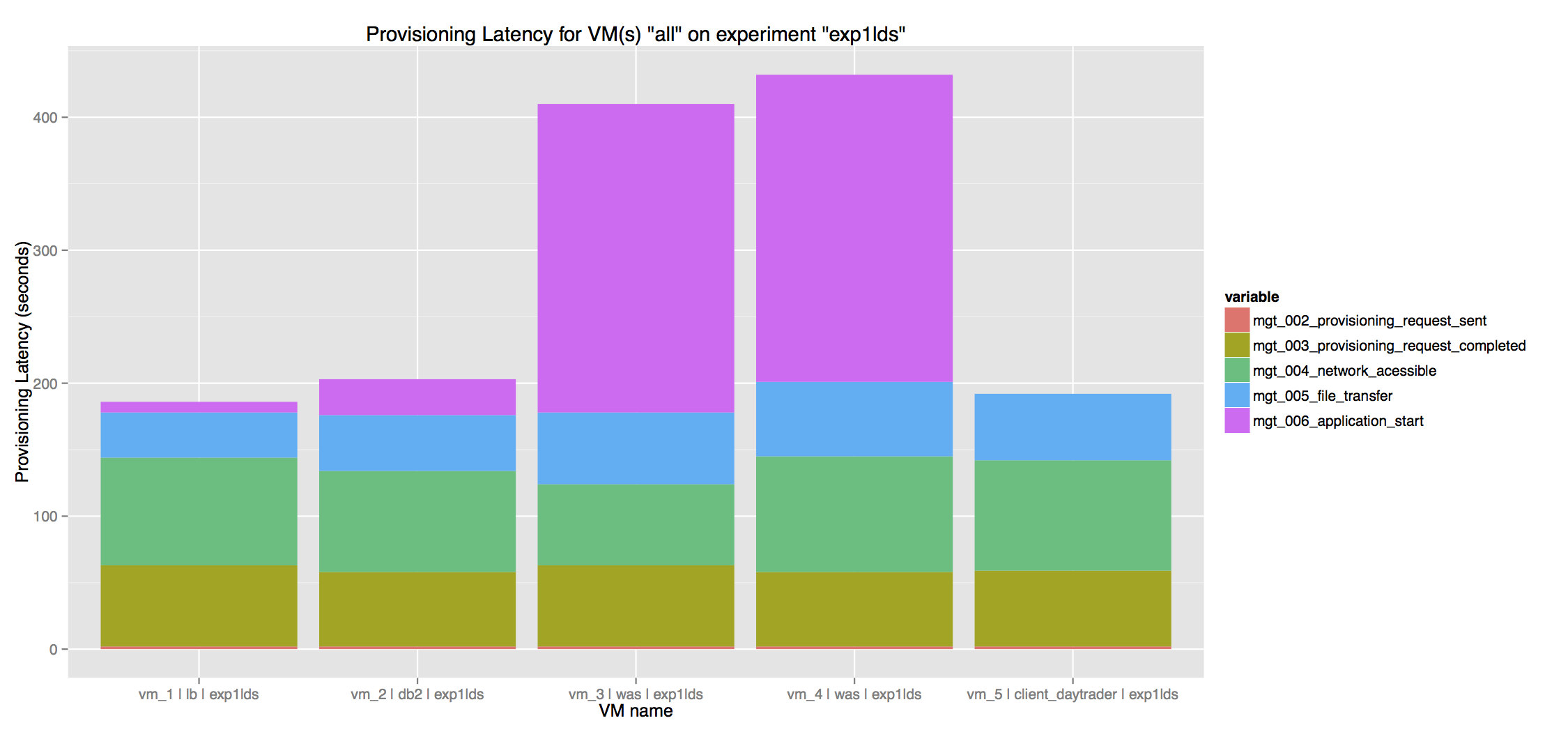
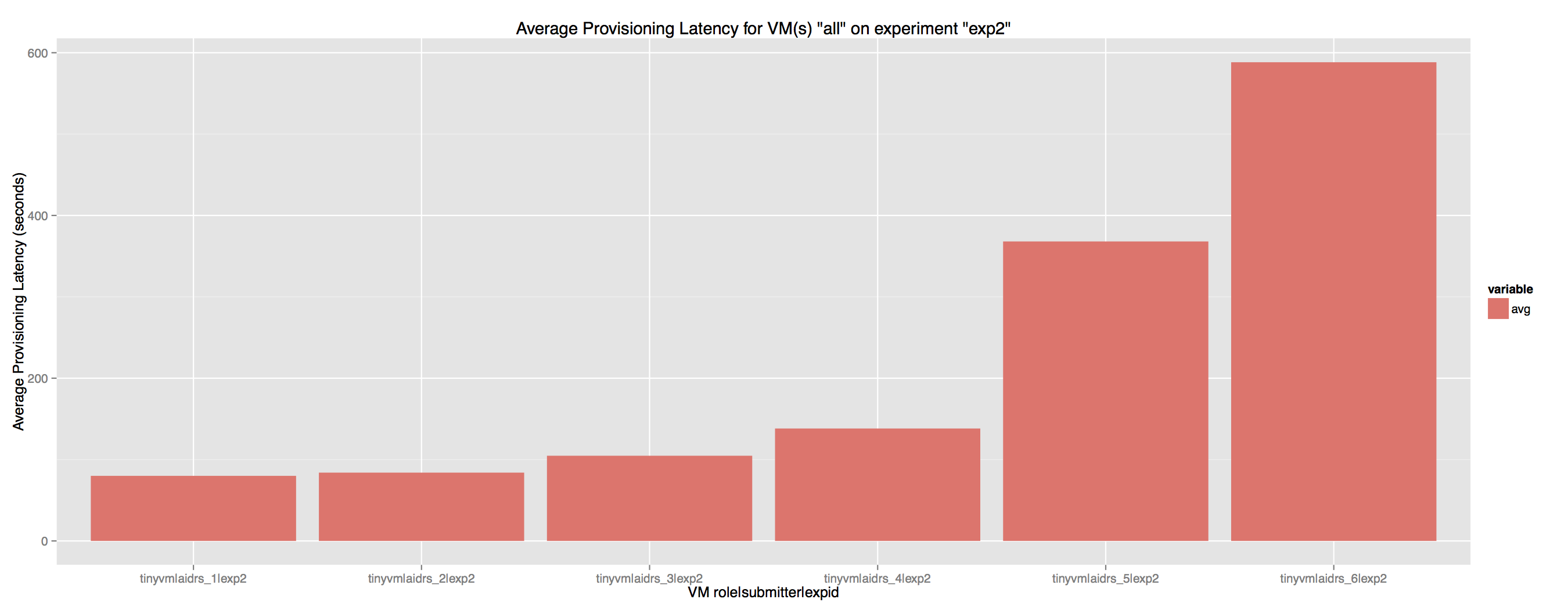
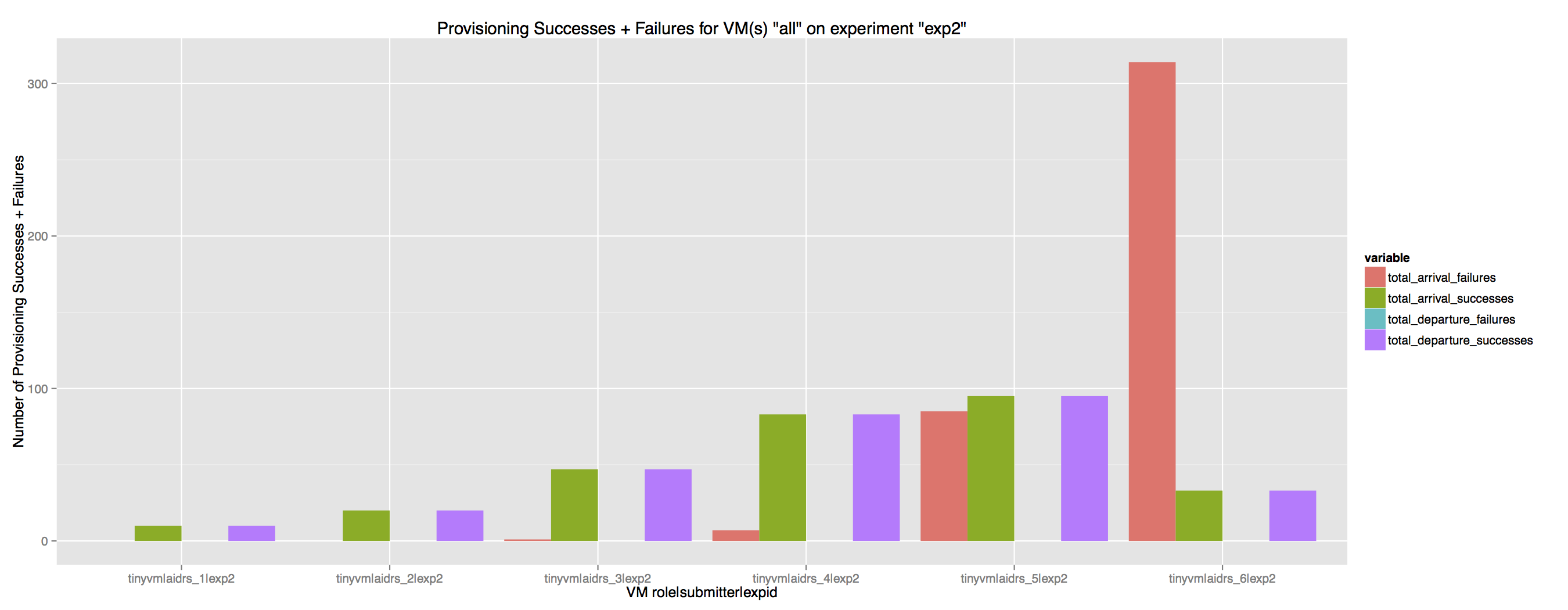
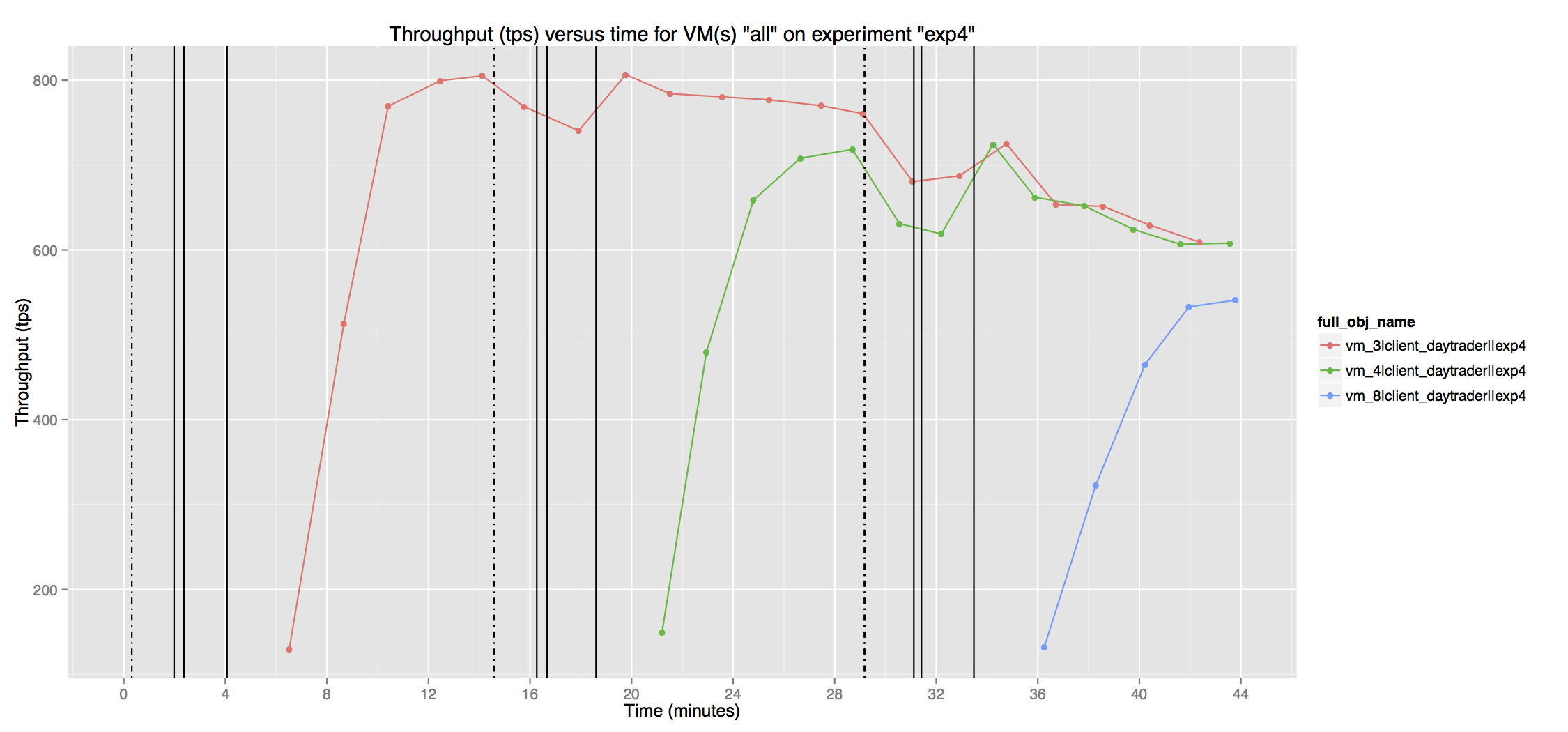
VM_management_<experiment id>.csv: contains information regarding the provisioning time, capture time, among others, all extracted directly from the cloud management system.
Here is an example of the data plotted from this file (all graphs are auto-generated with ~/cbtool/util/plot/cbplotgen.R):
This first plot was generated as part of the Experiment 4
This second and third plots were generated as part of the Experiment 2
-
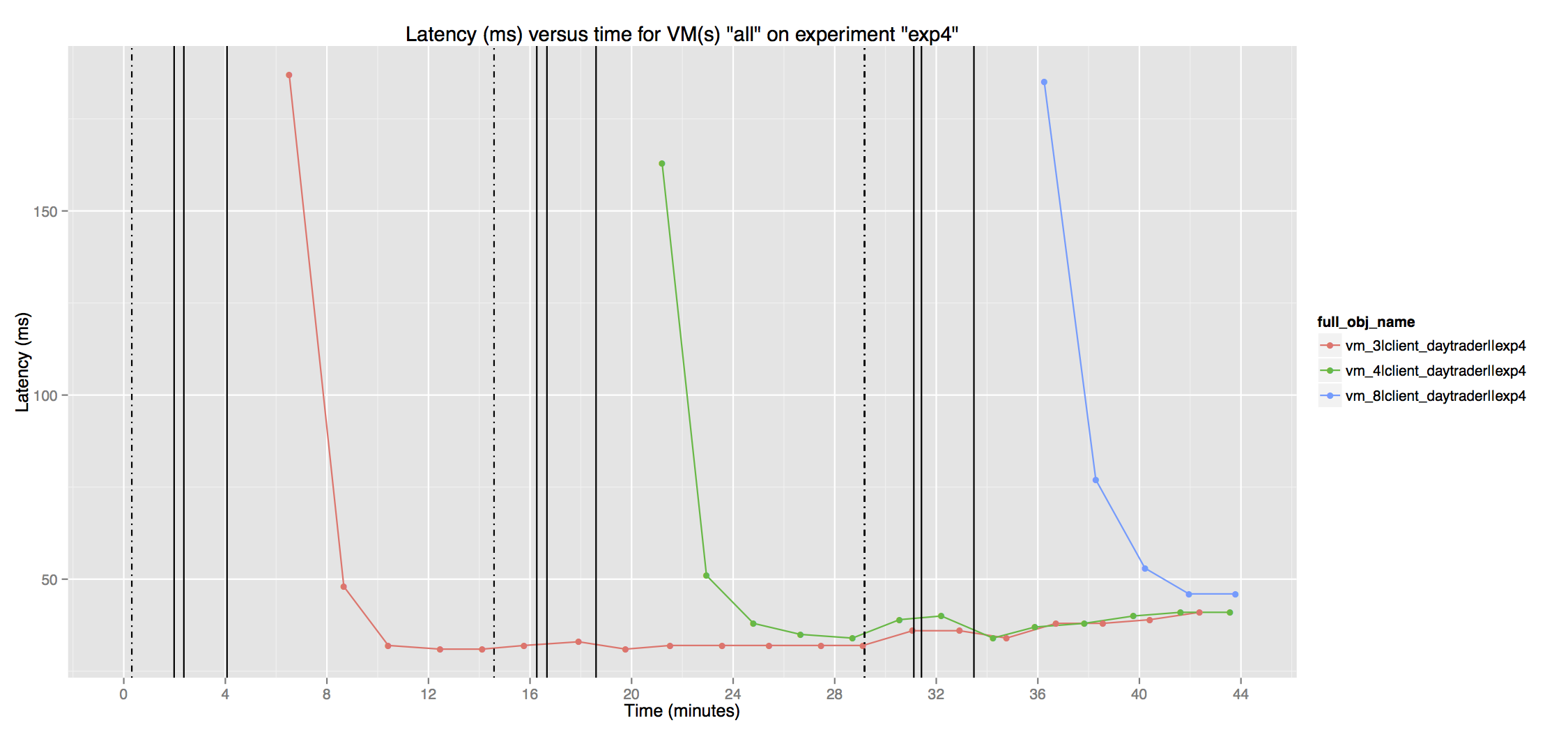
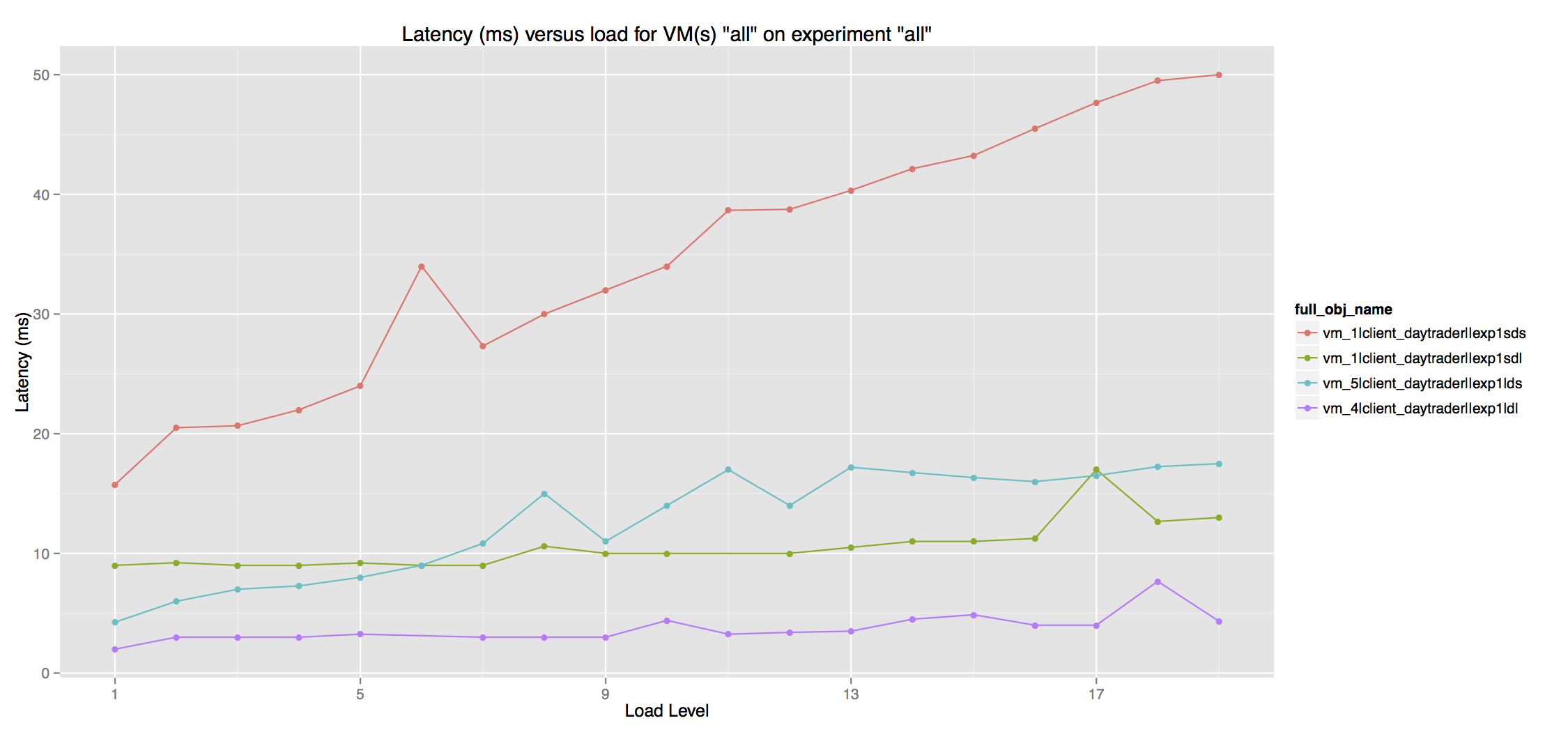
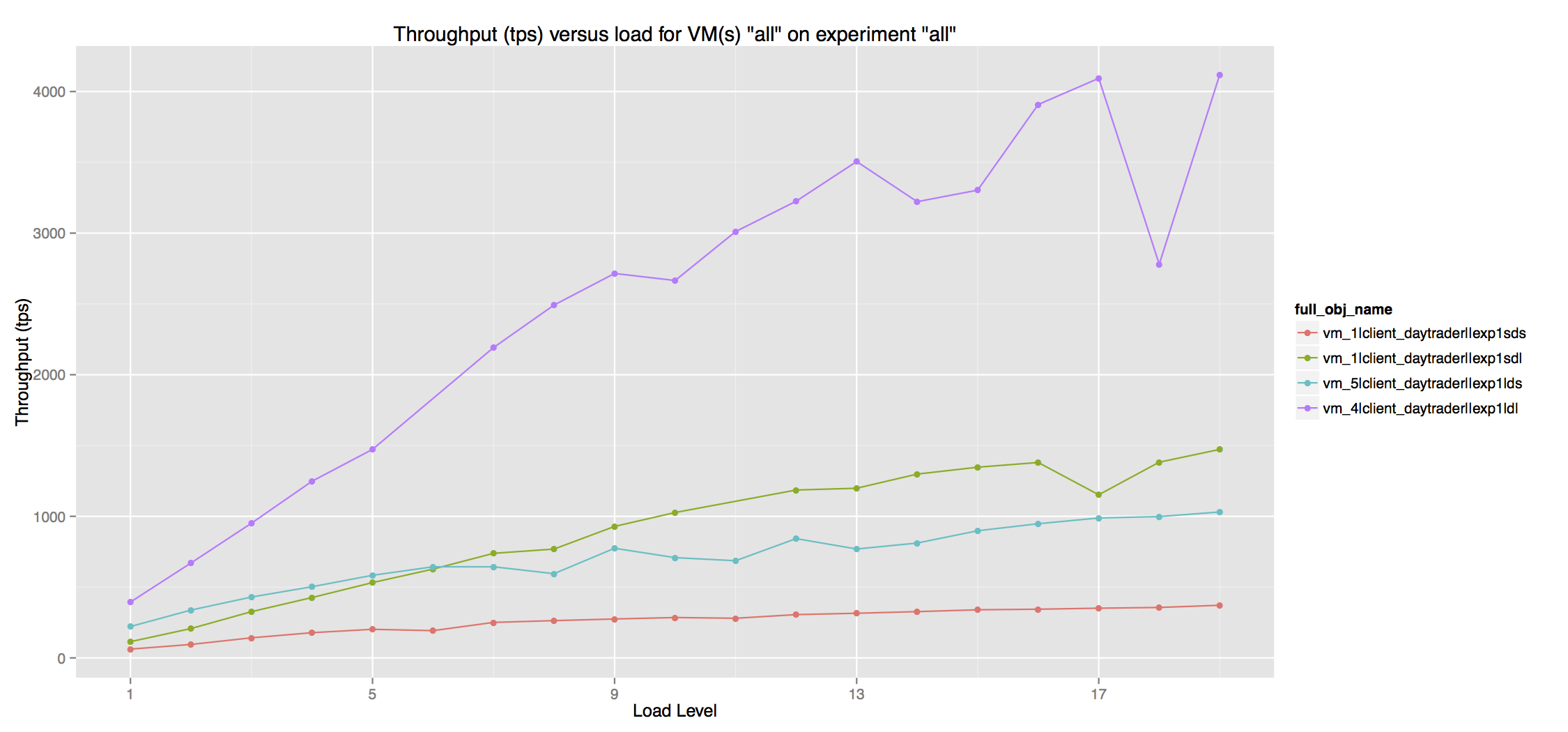
VM_runtime_app_<experiment id>.csv: contains information regarding the application performance, such as latency, throughput and bandwidth, all generated directly from the VM.
These plots were generated as part of the [Experiment 4] (https://github.com/ibmcb/cbtool/wiki/HOWTO:-Run-simple-experiments)
These plots were generated as part of the [Experiment 3] (https://github.com/ibmcb/cbtool/wiki/HOWTO:-Run-simple-experiments)
-
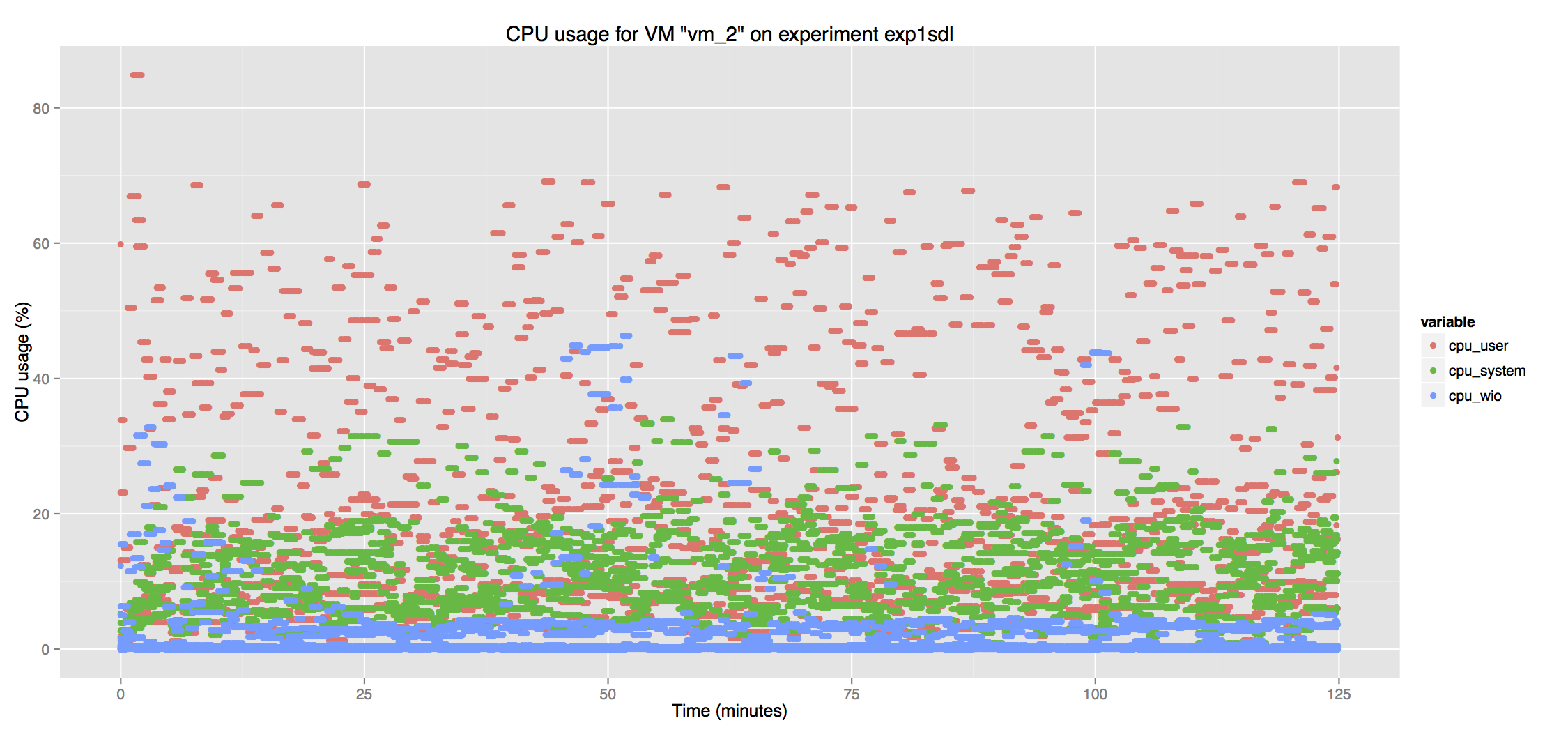
VM_runtime_os_<experiment id>.csv: contains OS metrics (CPU, memory, disk I/O, network I/O) all generated by the VM.
-
HOST_runtime_os_<experiment id>.csv: contains OS metrics (CPU, memory, disk I/O, network I/O) all generated by the HOSTS. It can only be used on Clouds where there is direct access to the hosts (this means that this data cannot be collected on EC2, for instance), and where the Ganglia monitoring tool was manually configured on the hosts.
Again, the small script (located in ~/cbtool/util/plot/cbplogen.R), written in the R language, can be used to quickly and automatically produce plots using the data supplied by the csv files.
These commands are provided just for convenience. The same performance data can be accessed directly from the "Metric Store" (MongoDB), through a native client/driver. The data structure of the Metric Store is the following:
show dbs
local (empty)
metrics 5.951171875GB
test (empty)
use metrics
switched to db metrics
show collections
latest_management_HOST_msilva
latest_management_VM_msilva
management_HOST_msilva
management_VM_msilva
runtime_app_VM_msilva
runtime_os_HOST_msilva
runtime_os_VM_msilva
system.indexes