-
很適合拿來在 Excel 裡設定錨點,方便讓程式抓取資料,使用者安插新欄/列也不會跑掉。
拿 named/defined cell 來試,將
Sheet1!A1定義為price時,在左側增加一欄,named cell 會自己調成Sheet1!B1,在上面增加一列時,named cell 也會自動調成Sheet!A2。 -
實務上必須要在使用者填表前先埋好 defined names,空白檔案提供出去就來不及了;程式會變得很複雜,有的有這個 define name,有的沒那個 define name。
參考資料:
-
Excel names and named ranges: how to define and use in formulas (2018-05-12)
What does name mean in Excel?
-
Similarly, in Microsoft Excel, you can give a human-readable name to a single cell or a range of cells, and refer to those cells by name rather than by reference.
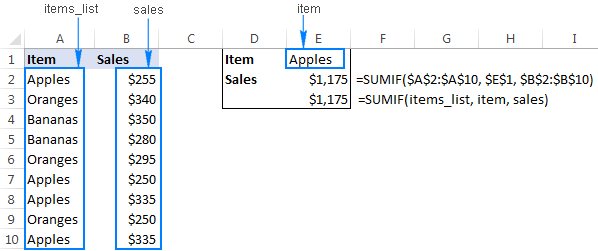
For instance, to find the total of sales (B2:B10) for a specific item (E1), you can use the following formula:
=SUMIF($A$2:$A$10, $E$1, $B$2:$B$10)Or, you can give meaningful names to the ranges and individual cells and supply those names to the formula:
=SUMIF(items_list, item, sales)Looking at the screenshot below, which of the two formulas are easier for you to understand?
Excel name types
-
In Microsoft Excel, you can create and use two types of names:
-
Defined name - a name that refers to a single cell, range of cells, constant value, or formula. For example, when you define a name for a range of cells, it's called a NAMED range, or DEFINED range. These names are subject of today's tutorial.
-
Table name - a name of an Excel table that is created automatically when you insert a table in a worksheet (Ctrl + T). For more information about Excel tables, please see How to make and use a table in Excel.
原來 Excel 裡還可以插進 table!
-
-
- 把 Excel 檔轉存成 CSV 後再做處理,也是一種可能的方式。感覺起來 xlrd/xlwt 功能上較為完整,但 openpyxl 看起來相對容易操作,也可以同時讀寫檔案。
*.xlsor*.xlsx
可能的方案有:
- OpenPyXL - 如果只要處理 Excel 2010 (XLSX) 以後的文件,這是最被推薦的套件;唯一的缺點是大檔案處理起來比較慢。
- XlsxWriter - 寫出 XLSX
- kz26/PyExcelerate - 寫出 XLSX,強調速度。
- xlrd - 讀取 XLS 或 XLSX
- xlwt - 寫出 XLSX
參考資料:
-
This site contains pointers to the best information available about working with Excel files in the Python programming language. There are python packages available to work with Excel files that will run on any Python platform and that DO NOT REQUIRE either Windows or Excel to be used. They are fast, reliable and open source:
-
openpyxl
The RECOMMENDED package for reading and writing Excel 2010 files (ie:
.xlsx) -
xlsxwriter
An alternative package for writing data, formatting information and, in particular, charts in the Excel 2010 format (ie:
.xlsx) -
xlrd
This package is for READING data and formatting information from older Excel files (ie:
.xls)xlrd documentation — xlrd 1.1.0 documentation 也支援
.xlsx:xlrd is a library for reading data and formatting information from Excel files, whether they are
.xlsor.xlsxfiles. -
xlwt
This package is for WRITING data and formatting information to older Excel files (ie:
.xls) -
xlutils
This package collects utilities that require both xlrd and xlwt, including the ability to copy and modify or filter existing excel files.
NB: In general, these use cases are now covered by openpyxl!
把 xlrd 跟 xlwt 集合起來? 也就是同時可以讀寫 Excel,不過 openpyxl 同時滿足了讀與寫的需求。
-
-
Reading and Writing Excel workbooks - Tools for Working with Excel and Python | PyXLL (2018-08-13) #ril
OpenPyXL
-
For working with Excel 2010 onwards, OpenPyXL is a GREAT ALL ROUND CHOICE. Using OpenPyXL you can read and write xlsx, xlsm, xltx and xltm files. The following code shows how an Excel workbook can be written as an xlsx file with a few lines of Python.
from openpyxl import Workbook wb = Workbook() # grab the active worksheet ws = wb.active # Data can be assigned directly to cells ws['A1'] = 42 # Rows can also be appended ws.append([1, 2, 3]) # Save the file wb.save('sample.xlsx') -
OpenPyXL covers more advanced features of Excel such as charts, styles, number formatting and conditional formatting. It even includes a tokeniser for parsing Excel formulas!
-
One really nice feature for writing reports is its built-in support for NumPy and Pandas data. To write a Pandas DataFrame all that’s required is the included ‘dataframe_to_rows’ function:
from openpyxl.utils.dataframe import dataframe_to_rows wb = Workbook() ws = wb.active for r in dataframe_to_rows(df, index=True, header=True): ws.append(r) wb.save('pandas_openpyxl.xlsx') -
If you need to read Excel files to EXTRACT DATA then OpenPyXL can do that too. The Excel file types are incredibly complicated and openpyxl does an amazing job of reading them into a form that’s easy to access in Python. There are some things that openpyxl can’t load though, such as charts and images, so if you open a file and save it with the same name then some elements may be LOST.
上面才說支援 chart,這裡又說 chart 無法載入?
from openpyxl import load_workbook wb = load_workbook(filename = 'book.xlsx') sheet_ranges = wb['range names'] print(sheet_ranges['D18'].value) -
A possible downside of OpenPyXL is that it can be QUITE SLOW FOR HANDLING LARGE FILES. If you have to WRITE reports with thousands of rows and your application is time-sensitive then XlsxWriter or PyExcelerate may be better choices.
其中 XlsxWriter 與 PyExcelerate 都只能寫出 Excel,而 OpenPyXL 也只有寫出時才會慢。
-
-
Chapter 12 – Working with Excel Spreadsheets - Automate the Boring Stuff with Python 這裡用 openpyxl。
-
Python Excel Tutorial: The Definitive Guide (article) - DataCamp (2017-01-31) #ril
更多: