- Typing - Wikipedia #ril
-
Learn Touch Typing - Typing practice - 第一次進到網站才會有的提示
-
This is keybr.com, a web application that will help you teach TOUCH TYPING. Touch typing is typing without using the sense of sight to find the keys. A person possessing touch typing skills will know their location on the keyboard through MUSCLE MEMORY. It can improve any individual's typing speed and accuracy dramatically.
-
This tutorial is based on these few principles:
-
No boring, repetitive exercises. Unlike most other typing tutors, keybr does not force you to repeat the same lessons over and over again. This is very annoying and contributes very little to your learning.
-
Keybr uses a sophisticated computer ALGORITHM to GENERATE typing lessons matching your skills. These lessons consist of random words generated from a subset of the current alphabet. The size of the subset and individual letter frequency is controlled by the algorithm to give you the best learning experience.
下面提到,這些亂數產生的字即便不存在,也是可以唸得出來的,相對自然。
-
-
Initially it starts generating words from a small subset of the most frequent letters of the alphabet.
When you are typing these words, keybr measures time to type a key for every letter in that subset. This time is used to measure your learning progress. The more familiar you become with a key, the shorter time does it takes you to type it.
Once you familiarize yourself with the current subset of letters, the algorithm expands it, adding more and more letters to it.
-
As soon as the algorithm includes new letters to the current subset, frequency of these letters is ARTIFICIALLY BOOSTED, so that the newly added letters will appear in EVERY generated word in a lesson.
The algorithm can also artificially REARRANGE LETTER FREQUENCIES, putting emphasis on the letters with the worst time to type metric.
So at any time, you will be typing the letters you are LEAST FAMILIAR WITH.
想到 Anki 的演算法,不熟的才要加強練習,這樣做才有效率。
-
This is the text board. It displays the text to type out. The text is generated automatically.
This is the virtual keyboard. It helps you memorize key positions. Use it to find the keys, DON'T LOOK AT YOUR KEYBOARD!
可以利用 virtual keyboard 協助找到位置,但就是不要看實體鍵盤!!
This is the typing speed indicator. Higher typing speed is better.
This is the error counter, it is increased every time you make a typo. Lower is better.
This is the typing score in ABSTRACT POINTS. Higher is better. The score is calculated from your typing speed, error count and the current ALPHABET SIZE.
-
This indicator (Lesson's key set) shows the current subset of letters used to generate lessons, and your CONFIDENCE LEVEL for every letter in the subset:
- ? A not calibrated key with UNKNOWN confidence level
- ? A calibrated key with the LEAST confidence level
- ? A calibrated key with the MOST confidence level
- ? A key with boosted frequency
- ? A key that was MANUALLY INCLUDED in lessons by the user
- ? A key that was not yet included in lessons
-
This indicator (Current key:) shows details about the key that is currently included in every lesson. This is the key with the WORST typing speed so far.
-
-
Type Lessons - Typing practice - 練習區下方的文件
- Take typing speed test, practice your touch typing skills, learn to type faster and with fewer errors with this free online typing tutor.
What Is Touch Typing?
-
Touch typing is the ability to use muscle memory to find keys fast, without using the sense of sight, and with all the available fingers, just like PIANO PLAYERS do. It significantly improves typing speed and eliminates errors. Touch typing simply makes you more productive and it is a skill worth learning.
However, many people engage in the BAD HABIT OF ‘HUNT-AND-PECK’ TYPING, even those seasoned professionals with years and decades of computer experience. It is easy to understand, though, as touch typing requires dedicated practice to learn it well.
Typing - Wikipedia 提到 Hunt and peck,也就是 two-fingered typing (一指神功)
-
That is why we created Keybr.com, a free online typing tutorial, to give you the most advanced learning experience and let you develop your typing skills faster.
How Does This Typing Tutor Work?
-
There are several features in Keybr.com that set it apart from most of the typing practice software out there. In short, it employs STATISTICS and SMART ALGORITHMS to automatically generate typing lessons matching your skills. Lets discuss this in details.
-
First, it does not force you to repeat the same characters over and over again; that is simply slow, boring and contributes very little to your learning. For example, the words like ‘jjf jjk jdd …’ are very UNNATURAL, HARD TO READ and will slow down noticeably even experienced typists.
Instead, Keybr.com generates RANDOM, BUT READABLE AND PRONOUNCEABLE WORDS using the phonetic rules of your native language. These words look almost natural, and often they really are. Typing sensible text is much easier than repeating random letters, and it helps you to remember FREQUENT KEY COMBINATIONS.
The latest point is very important. For example, it’s almost impossible for the letter ‘W’ to follow the ‘Z’ in English, and you will never type this combination in Keybr.com. Instead, you will type more common words, such as «the,» «that,» «with,» and so on. And soon you will learn how to type the «th» COMBO really fast.
練習有意義的組合,這一點倒是很特別!!
-
Second, Keybr.com measures your keystroke dynamics and collects comprehensive typing statistics. For example, it measures your typing speed for each individual key, and uses this data to generate random words PUTTING EMPHASIS ON THE WEAKEST KEY.
The more troubles you have with a particular key, the more you will be typing it. It means, the generating algorithm will put that letter in EVERY WORD in the next generated lesson. Your typing skills are re-evaluated after every completed lesson, and the next lesson will be adjusted accordingly.
-
Third, Keybr.com lets you introduce AS FEW KEYS AS POSSIBLE to the lesson, adding more keys automatically when it decides that you are proficient at the current level. When you only start learning it generates lessons with words from a very small alphabet of the MOST FREQUENT LETTERS. When your typing speed for every key in that alphabet reaches certain threshold, the algorithm adds the next most frequent letter to the alphabet. And so on, until the next letter. This way you will learn the most frequent letters first, and the least frequent ones later.
整體的設計非常 "實用導向";也因此上面 "Lesson's key set" 會把較常用的字母排在前面,練習過程中會慢慢把較不常用的字母加進來。
Settings > Learning Mode 可以開啟 Enable capital letters 與 Enable punctuation characters,但數字跟其他控制鍵 (Ctrl、Alt 等) 好像不支援 ??
Is It Really Effective?
-
We selected a few example profiles to show you how people advance in learning touch typing when using Keybr.com. These are real, anonymized user profiles. Hopefully they will inspire you to keep learning!
- Example 1, from 30 to 70 WPM after 4 hours 20 minutes of practicing in the course of 15 days
- Example 2, from 35 to 70 WPM after 2 hours and 20 minutes of practicing in the course of 12 days
- Example 3, a decent jump from less than 20 to 40 WPM after 5 hours and 30 minutes of practicing in the course of 11 days
- Example 4, after 2 hours and 10 minutes of practicing in the course of 11 days, typing speed stayed at ~70 WPM (which is already pretty high), BUT ACCURACY IMPROVED
- Example 5, from 20 to 45 WPM after about 10 hours of practicing in the course of 22 day (yes, sometimes it takes longer)
-
Peter's Online Typing Course - Learn Keyboarding Online! #ril
-
Welcome to this new & improved, and still humble typing web course. Here you'll find an expanded set of free online typing lessons and typing exercises for beginning typists, and frustrated hunt-and-peckers who want to move from FOUR-FINGER typing to full-blown TOUCH TYPING.
-
If you're new here, please begin with the Introduction and Overview.
If you are a returning user, you might just want to check out the new typing exercises, MUSICAL TYPING, speed typing and keyboarding practice areas!
-
-
Introduction and Overview - Peter's Online Typing Course
-
By the time you finish this course, you will be able to confidently type all the letters, numbers and all the common symbols, with proper TEN-FINGER touch typing technique.
-
Although there is some use of interactive multimedia here, this course is MINIMALIST in nature, purposely without many of the bells and whistles common to some of the other typing sites and apps out there.
Frankly, such things often end up simply adding a lot of clutter, and consequently produce a COUNTER-EDUCATIONAL EFFECT ??. The focus here is on SOUND PEDAGOGY ??, and facilitating progressive and efficient (but hopefully not boring!) learning.
I believe there is everything here necessary for you to become an accomplished typist in the shortest amount of time possible. Plus, this course has the great advantage of being free, without the need of registration, or any such silly marketing-things! 不過還是有廣告
How to Use This Course
-
Study the Principles for Effective Learning. These are so integral to your success in this course that they will be in front of your eyes before every typing exercise. Please take them to heart, and practise them ALWAYS.
每個 Typing Exercise 前都會有 Principles for Effective Learning 的內容;這裡的 Typing Exercises 用來熱身,在左側選單獨立於 Typing Lessons。
-
Familiarize yourself with good TYPING ERGONOMICS.
注意打字的姿勢,長時間下來才不會造成傷害。
-
Then, learn about the LOGIC behind the fingering on the keyboard, and in one fell swoop, you will know WHICH FINGERS GO WHERE.
瞭解鍵盤上每個鍵屬於哪隻手指頭的守備範圍。
-
After these preliminaries, you are ready to begin the course proper. There are 30 keyboarding lessons, each of which can be completed somewhere in the range of 5 to 15 minutes, but may TAKE UP TO SEVERAL DAYS TO MASTER.
Since the skills you learn are CUMULATIVE in nature, you must MASTER each lesson before moving onto the next. Mastery for purposes of this course means being able to do three reloaded screens of exercises in a row in under 60 seconds each, with no errors, confidently.
BEGIN WITH LESSON 1, even if you have some experience already.
每天反覆地練習,目前的單元熟練之後才能往下一個單元移動;每個 lesson 後面都有個 exercise,完成時會提示:
Keep up the good work. You had 6 errors (96.6% accuracy), and it took you 61.3 seconds, typing at approximately 34.8 words per minute. KEEP REPEATING THIS EXERCISE until you can type it in under 60 seconds with no errors. Take your time; you WILL get there!
會嚴格要求時間要控制在 60 秒內,而且完全沒有錯誤;根據下面 Slower is faster 的準則,先達到沒有錯誤 (不要猜) 再要求速度。
-
Always begin with one or more of the TYPING EXERCISES to WARM-UP. These are designed to help you develop the physical skills of typing IN ISOLATION, and to get the blood flowing!
-
-
Principles for Effective Learning - Peter's Online Typing Course
-
Typing is a finite set of skills that requires TRAINING. Through this sort of learning format, you must rely on yourself to be your own coach and trainer. This means you must consistently provide yourself with DISCIPLINE, intelligent direction and encouragement. The extent to which you successfully play this coach/trainer role for yourself will largely determine how good a typist you will become!
-
Here are the most important things that you, as your own self-coach, must always keep in the forefront of your mind. Please take them to heart; these points are CRITICAL.
-
No mistakes.
Always be sure and in control. Follow the principle of 100% CORRECT PRACTICE: to make a mistake is to learn incorrect things, and to confuse that which you already know. ??
-
Slower is faster.
SPEED COMES FROM CERTAINTY. The more you type things correctly, no matter how slow it has to be, the more certain you will be, and the faster you will become a proficient typist. Increase speed only when you feel sure enough to do so.
-
Don't look at the keyboard!
If you don't know where a key is, look at the keyboard to find it, THEN LOOK AWAY and type the key. DO NOT GUESS; always be sure.
-
Type to a steady rhythm.
Generally, the TIME BETWEEN KEYSTROKES SHOULD BE THE SAME, giving you a sense of flow and the ability to SCAN AHEAD at a constant speed.
-
Relax.
No unnecessary or dysfunctional tension. Enjoy the rhythm of your own typing!
-
Hit the keys squarely in the center.
If you find you aren't consistently doing so, SLOW DOWN!!! It should feel good to type!
要紮紮實實地按到每個鍵,按不到正中間就是太快了;尤其無名指跟小指可以按大力一點,訓練一下肌肉,增力確定感。
-
-
-
Which Fingers Go Where - Peter's Online Typing Course
-
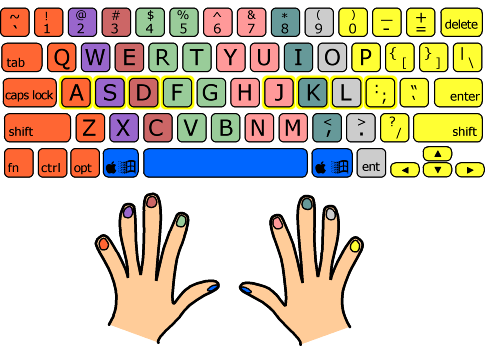
Each finger rests on a particular key in the HOME ROW of the keyboard when not typing, in order to keep "GROUNDED" and ORIENTED ?? at all times.
The home keys (ASDF JKL;) are outlined in yellow on the above diagram. The thumbs remain IN THE AIR, or very gently in contact with the keys below.
-
Each finger is responsible for a VERTICAL COLUMN OF KEYS, which you can think of as a "home column". The column is not straight up and down, but rather SLOPES UP TO THE LEFT.
-
Both index fingers are responsible for AN ADDITIONAL COLUMN, the one next to their home columns towards the middle of the keyboard.
-
The thumbs are used for the space bar, and DEPENDING ON THE SHAPE OF YOUR KEYBOARD can also be used for the "command" (Apple computers) or "Windows" (PCs) key.
-
The left-hand pinky is also responsible for ALL THE KEYS TO THE LEFT of its home column, including the left shift key, caps lock, tab, tilde, escape and others.
The right-hand pinky is a real WORKHORSE, covering everything to the right of its home column. Take a look - there's a lot of stuff there!
小指頭真的好忙!! 實務上不會將 Ctrl、Alt 也劃分給大姆指嗎 ??
-
-
-
Dmitriy: My left hand is TWISTED when I try to use these shortcuts.
-
rm -rf: There is no default way or the right way and whatever you're COMFORTABLE with at present should be fine. However, using CRAZY COMBINATIONS can give you an injury worse than an EMACS PINKY, so it might be worthwhile to check what others use. Here's what I do:
- Left thumb for the left ⌘
- Left middle finger for the left ⌥
- Left ring finger for ⌃
- Pinky for the left Shift
- Pinky for fn
For simple modifier + one key combinations, I use the modifier key in the appropriate half of the keyboard. While it's still thumbs for the ⌘ keys, I find it easier to pivot about the ring finger for ⌥.
讓大姆指負責 Command 很合理,但把 Alt 與 Ctrl 分別交給中指與無名指,要輸入 ASDF 這一區的組合鍵時,例如 Ctrl-S 原來負責 S 的無名指跑去 Ctrl,所以 S 只好交給中指? 如果同意平時把大姆指放在 Command,那麼由大姆指也負責左側的 Alt 與 Ctrl 似乎更為合理 ??
-
-
Ergonomic Keyboard Mods: Modifiers 建議把大姆指擺在 space 兩側的 modifier keys 上 #ril
-
How do you hit modifier keys when touch typing? - Super User #ril
-
What is the finger position for typing commands? (ctrl-a, alt-v) : emacs #ril
- Typespeed: Typing Speed Testing Game for Ubuntu Linux (2012-03-12) 安裝
typespeed套件,還可以 LAN 連線對戰 - gtypist: Powerful Typing Tutor for Ubuntu Linux (2012-03-16) 安裝
gtypist套件,有教學。 - TypeRacer - Test your typing speed and learn to type faster. Free typing game and competition. Way more fun than a typing tutor! 用打字 WPM 賽車,簡單又有趣
- Peter's Online Typing Course - 不只字母,包括數字、控制鍵都會講怎麼按
- keybr.com - 根據不同字母的熟練程度動態出題