Home
This plugin will connect ManyChat to Disciple Tools in three ways:
- An External Request Action in ManyChat can create a contact record in Disciple Tools from the ManyChat subscriber and return to ManyChat the post_id of the Disciple Tools contact and store it in a custom field on the ManyChat subscriber record.
- An External Request Action in ManyChat can send a message to Disciple Tools to log a comment to a contact record. (i.e. "subscriber accomplished action X" or "subscriber was sent X campaign")
- The plugin adds a button to a contact record which links back to a ManyChat's live chat interface.
Obviously, there are a number of other integrations that would be interesting and helpful, but for this version 1 effort these are the two functions supported. Again, feel free to fork the project and improve on it.
-
Create a "ManyChat" Site-to-site Link.
- Give the link any title you want.
- Add site #1 as "manychat"
- Add site #2 as the current site. (Hint: Use the auto fill link)
- Set the type to "ManyChat".
- Make sure you have configuration information on the "Configuration" Tab.
-
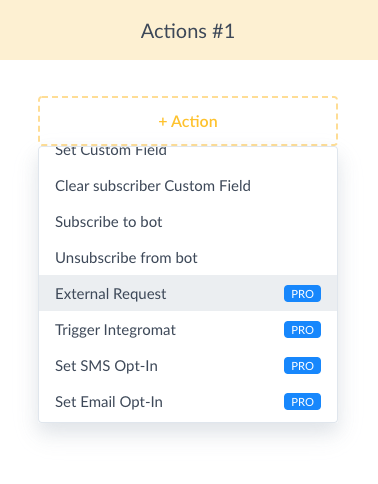
In ManyChat create an "Action" in one of your workflows. This action needs to be an "External Request".
- Add External Request Action step to a "Flow"
- Open External Request Action dialogue box.
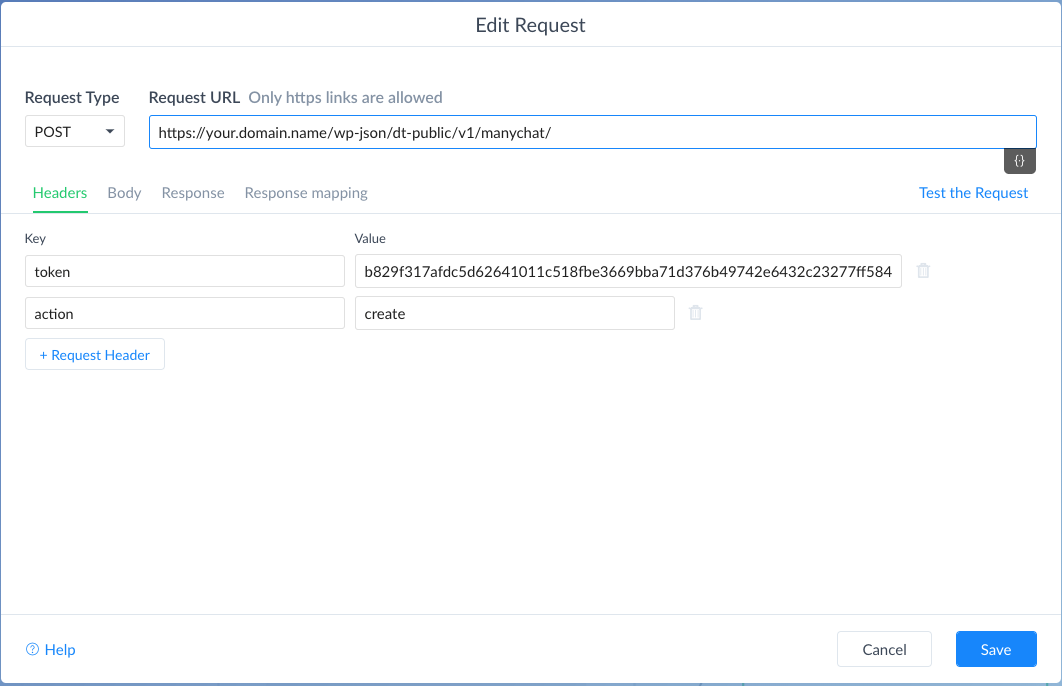
- Transfer the connection information from the "Configuration" Tab under the heading "For Creating A New Record" to the fields in the External Request dialogue box.
- Set Request Type to POST
- Copy URL to Request URL box.
- Add to "Header" section two key/value fields: token: {provided value from configuration tab}, and action: "create"
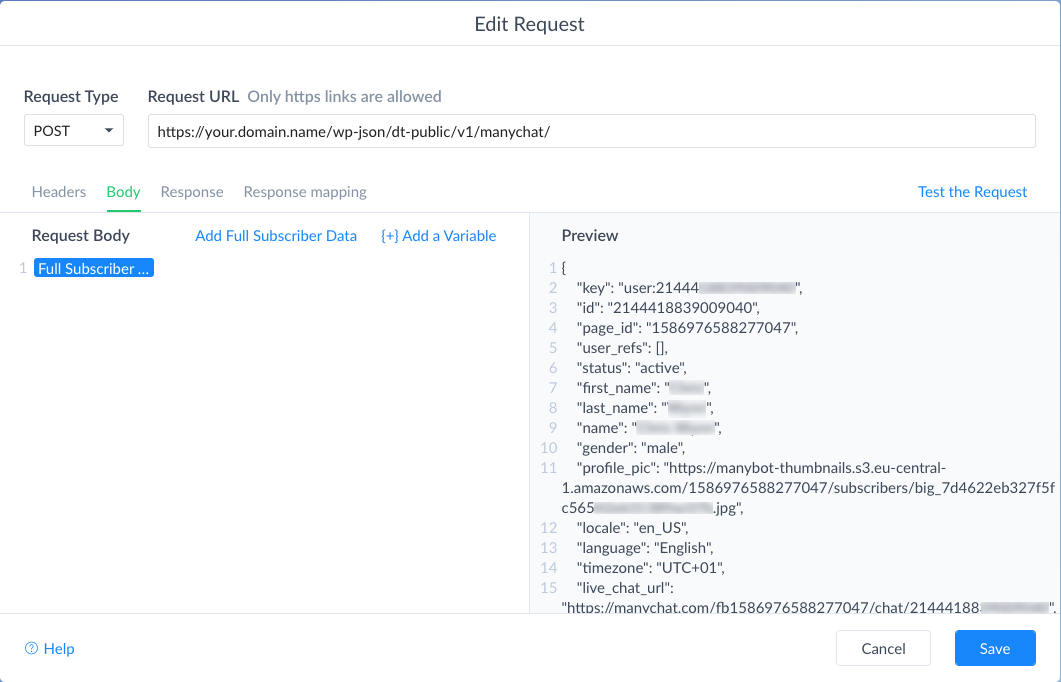
- Add to "Body" section the pre-defined "Add Full Subscriber Data"
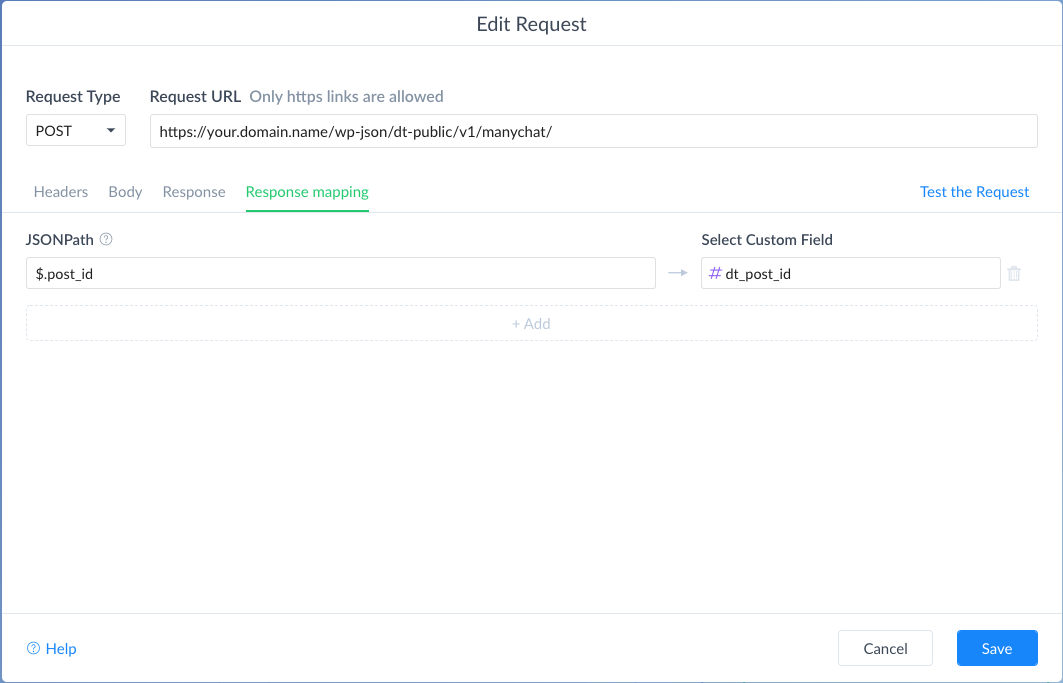
- Add to "Response mapping" section, JSONPath: '$.post_id', Select Custom Field: 'dt_post_id'. Note: add the custom field 'dt_post_id' if you haven't already.
- Test connection. You should see a new contact created in Disciple Tools. You will also get a response of 200/success.
- Make sure you have gone through the setup steps above.
-
In ManyChat create an "Action" in one of your workflows. This action needs to be an "External Request".
- Add External Request Action step to a "Flow"
- Open External Request Action dialogue box.
- Transfer the connection information from the "Configuration" Tab under the heading "For Logging Comments" to the fields in the External Request dialogue box.
- Set Request Type to POST
- Copy URL to Request URL box.
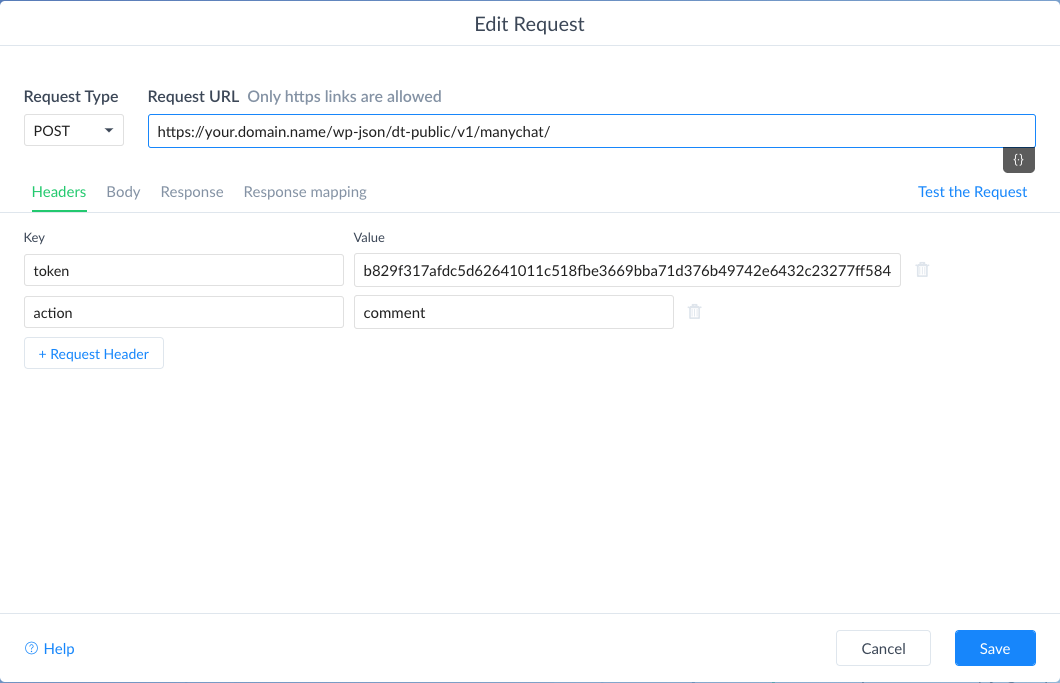
- Add to "Header" section two key/value fields: token: {provided value from configuration tab}, and action: "comment"
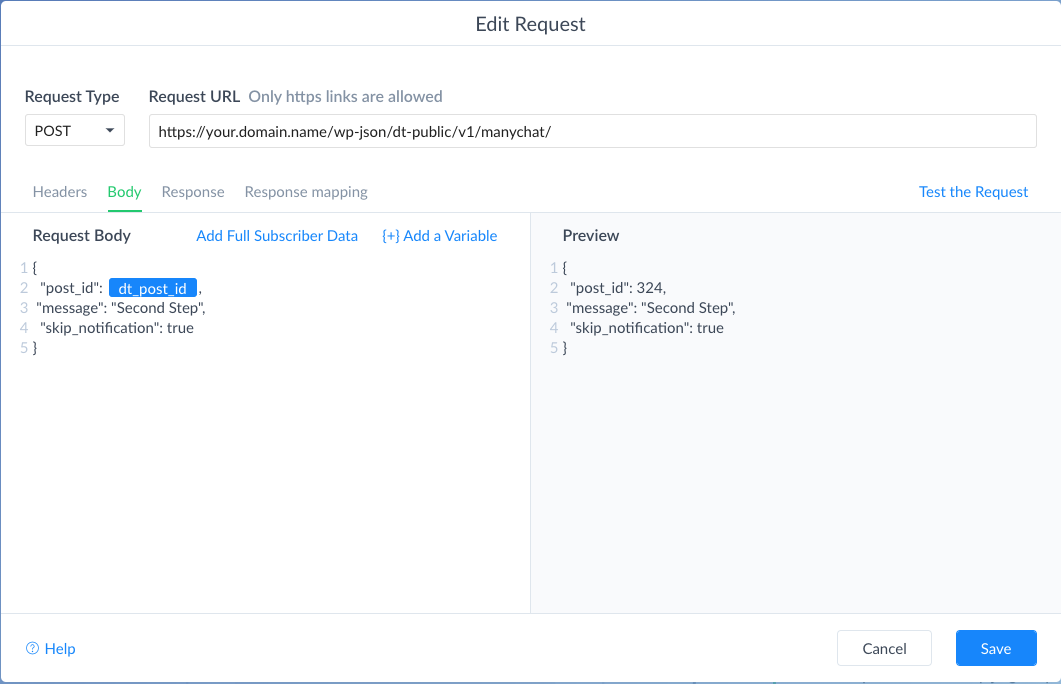
- Add to "Body" section the pre-defined string provided in the configuration body section. This is a JSON string and must be copied exactly.
- "post_id" = (int) This is the Contact record id from Disciple Tools that was saved during the create record process. You can also add this to a record directly through their contact page in Manychat.
- Note:
dt_post_idis the live variable added from the custom field drop down. This custom field must be created before it will show up in the drop down. - "message" = (string) This can be any string of any length. It will be logged into the comments area of the contact record.
- "skip_notification" = (bool) This is either set to true or false and it controls whether the contact owner in Disciple Tools gets a notification that the comment was added. True means "do not notify", False means notify.
- Test connection. You should see a new contact created in Disciple Tools. You will also get a response of 200/success.