A ShareX-inspired screenshot and upload tool for Linux.
Capture a region, fullscreen, or window with a single keypress, auto-upload to your choice of host, and get the link on your clipboard. Works on both Wayland and X11.
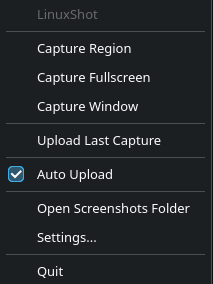
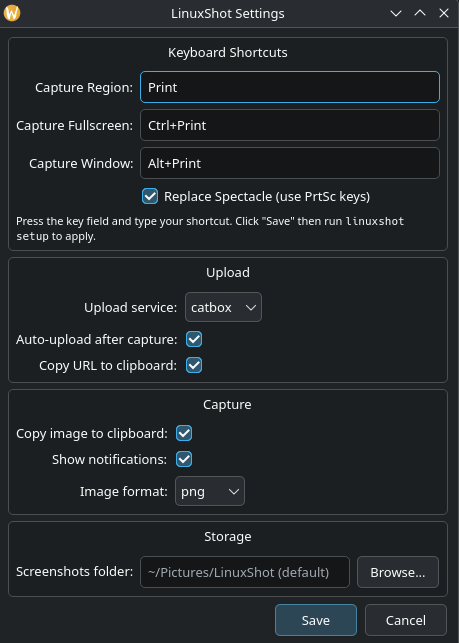
- Region, fullscreen, and active window capture (PrtSc / Ctrl+PrtSc / Alt+PrtSc)
- Upload to catbox.moe, 0x0.st, or Imgur (anonymous, link copied to clipboard)
- Global keyboard shortcuts on KDE Plasma via KGlobalAccel
- Desktop notifications on capture and upload
- System tray icon (PySide6/Qt) with context menu
- GUI settings window for shortcuts, upload, capture, and storage
- Capture history with CLI + GUI viewer
- Full CLI for scripting and keybinds
- Self-update:
linuxshot update - Works on Arch/CachyOS, Debian/Ubuntu, Fedora, openSUSE, Void
git clone https://github.com/TaintedAngel/linuxshot.git
cd linuxshot
chmod +x setup.sh
./setup.sh
The setup script will:
- Detect your distro and display server
- Install all system dependencies automatically
- Install LinuxShot via pip
- Set up the desktop file for your app launcher
If you prefer to install manually:
# Arch / CachyOS
sudo pacman -S python python-pip python-gobject python-pillow python-requests \
    gtk3 libnotify grim slurp wl-clipboard libayatana-appindicator

# Debian / Ubuntu
sudo apt install python3 python3-pip python3-gi python3-pil python3-requests \
    gir1.2-gtk-3.0 libnotify-bin grim slurp wl-clipboard

# Fedora
sudo dnf install python3 python3-pip python3-gobject python3-pillow python3-requests \
    gtk3 libnotify grim slurp wl-clipboard

# Then install LinuxShot
pip install .Replace the Wayland tools with X11 equivalents:
# Arch / CachyOS
sudo pacman -S maim xdotool xclip

# Debian / Ubuntu
sudo apt install maim xdotool xclip

# Fedora
sudo dnf install maim xdotool xcliplinuxshot region Capture a selected region
linuxshot fullscreen Capture the entire screen
linuxshot window Capture the active window
linuxshot upload <file> Upload a file
linuxshot upload-last Upload the most recent capture
linuxshot history Show recent capture history
linuxshot config View/edit configuration
linuxshot tray Start the system tray icon
linuxshot gui Open the settings window
linuxshot setup Register shortcuts, desktop file & autostart (KDE)
linuxshot update Update to the latest version from GitHub
linuxshot check Verify all dependencies
Start LinuxShot in the background with a tray icon:
linuxshot trayRight-click the tray icon for quick actions: capture, upload, toggle auto-upload, open screenshots folder, etc.
To auto-start the tray on login, add linuxshot tray to your compositor/DE autostart config.
linuxshot guiOpens a window with three tabs:
- Capture - buttons for all capture modes
- History - past screenshots with upload status
- Settings - upload service, image format, Imgur client ID, etc.
On KDE Plasma 6, LinuxShot can register global shortcuts automatically:
linuxshot setupThis registers PrtSc / Ctrl+PrtSc / Alt+PrtSc (replacing Spectacle), installs the desktop file, and sets up autostart. You can also configure shortcuts from the tray's Settings dialog.
Bind these commands to your preferred keys:
bind = , Print, exec, linuxshot region
bind = CTRL, Print, exec, linuxshot fullscreen
bind = ALT, Print, exec, linuxshot window
bindsym Print exec linuxshot region
bindsym Ctrl+Print exec linuxshot fullscreen
bindsym Alt+Print exec linuxshot window
bindsym Print exec --no-startup-id linuxshot region
bindsym Ctrl+Print exec --no-startup-id linuxshot fullscreen
bindsym Alt+Print exec --no-startup-id linuxshot window
gsettings set org.gnome.settings-daemon.plugins.media-keys custom-keybindings "['/org/gnome/settings-daemon/plugins/media-keys/custom-keybindings/linuxshot-region/']"
gsettings set org.gnome.settings-daemon.plugins.media-keys.custom-keybinding:/org/gnome/settings-daemon/plugins/media-keys/custom-keybindings/linuxshot-region/ name 'LinuxShot Region'
gsettings set org.gnome.settings-daemon.plugins.media-keys.custom-keybinding:/org/gnome/settings-daemon/plugins/media-keys/custom-keybindings/linuxshot-region/ command 'linuxshot region'
gsettings set org.gnome.settings-daemon.plugins.media-keys.custom-keybinding:/org/gnome/settings-daemon/plugins/media-keys/custom-keybindings/linuxshot-region/ binding 'Print'Config is stored at ~/.config/linuxshot/config.json.
linuxshot config# Enable auto-upload to Imgur after every capture
linuxshot config --set auto_upload true
# Change image format to JPEG
linuxshot config --set image_format jpg
# Set a capture delay (seconds)
linuxshot config --set capture_delay 3
# Use your own Imgur Client ID
linuxshot config --set imgur_client_id YOUR_CLIENT_ID
# Change screenshot save directory
linuxshot config --set screenshot_dir /path/to/screenshots
# Reset everything to defaults
linuxshot config --resetupload_service-catbox(default),0x0, orimgurauto_upload- upload after every capture (default: false)screenshot_dir- save location (default:~/Pictures/LinuxShot)image_format-png,jpg, orwebp(default: png)copy_image_to_clipboard- copy image to clipboard (default: true)copy_url_to_clipboard- copy URL after upload (default: true)show_notification- desktop notifications (default: true)shortcut_region/shortcut_fullscreen/shortcut_window- key bindingsoverride_spectacle- replace Spectacle's PrtSc on KDE (default: true)
grim- screenshot captureslurp- region selectionwl-clipboard- clipboard (wl-copy)
maim- screenshot capturexdotool- active window detectionxclip- clipboard
- Python 3.10+
- PySide6 (Qt6 tray and settings)
- PyGObject (GLib for DBus signal dispatch)
- dbus-python (shortcut signal listener)
- Pillow
- requests
- libnotify (notify-send)
Run linuxshot check to verify everything is installed.
./uninstall.shOr manually:
pip uninstall linuxshot
rm ~/.local/share/applications/linuxshot.desktoplinuxshot updateOr manually:
pip install --upgrade git+https://github.com/TaintedAngel/linuxshot.gitGPL-3.0, same as ShareX.
Pull requests welcome! If you'd like to add features:
- Fork the repo
- Create a feature branch
- Make your changes
- Submit a PR
Ideas for contributions:
- Image annotation overlay
- Additional upload services (S3, custom HTTP, etc.)
- OCR via Tesseract
- Screen recording via wf-recorder/ffmpeg
- Theming support