SOLARCHVISION-BIM is a desktop software application designed and
developed by Mojtaba Samimi
(M.Arch) in the
Processing language. It is available for
GNU/Linux, macOS, and Microsoft Windows.
- Copyright and license
- Installation
- Graphical User Interface
- Additional resources
The code and documentation are released under the GPL v2.
git clone git@github.com:archmoj/solarchvision_bim.gitor
git clone git@github.com:archmoj/solarchvision_bim.git --depth 1git clone https://github.com/archmoj/solarchvision_bim.gitor
git clone https://github.com/archmoj/solarchvision_bim.git --depth 1Processing v4 must be installed, as SOLARCHVISION-BIM is a Processing sketch.
You should adjust the BaseFolder variable inside solarchvision_bim.pde.
String BaseFolder = "/home/solarch/org/solarchvision_bim";The solarchvision_bim sketch can be opened in the Processing IDE and
executed using the Play button.
To compile and run the solarchvision_bim sketch, adjust
<PATH-TO-PROCESSING> in the following command as needed.
Please note that the command must be executed from the parent directory
containing the solarchvision_bim folder.
<PATH-TO-PROCESSING>/processing-java --sketch=solarchvision_bim --runTo download EPW/TMY (Typical Meteorological Year) data for various
locations, a script is provided inside the scripts folder.
You need to adjust the outFolder variable in the download_epw.js
file to point to your installation directory.
In addition, node.js is required to run the
script.
node scripts/download_epw.jsFor locations in Canada, there is another database called CWEEDS,
which includes multi-year climate data under the Engineering Climate
Datasets (https://climate.weather.gc.ca/prods_servs/engineering_e.html).
The files for the region of interest can be extracted and placed inside
the solarchvision_bim/input/climate/CWEEDS/ folder.
Once loaded the UI would look like this:
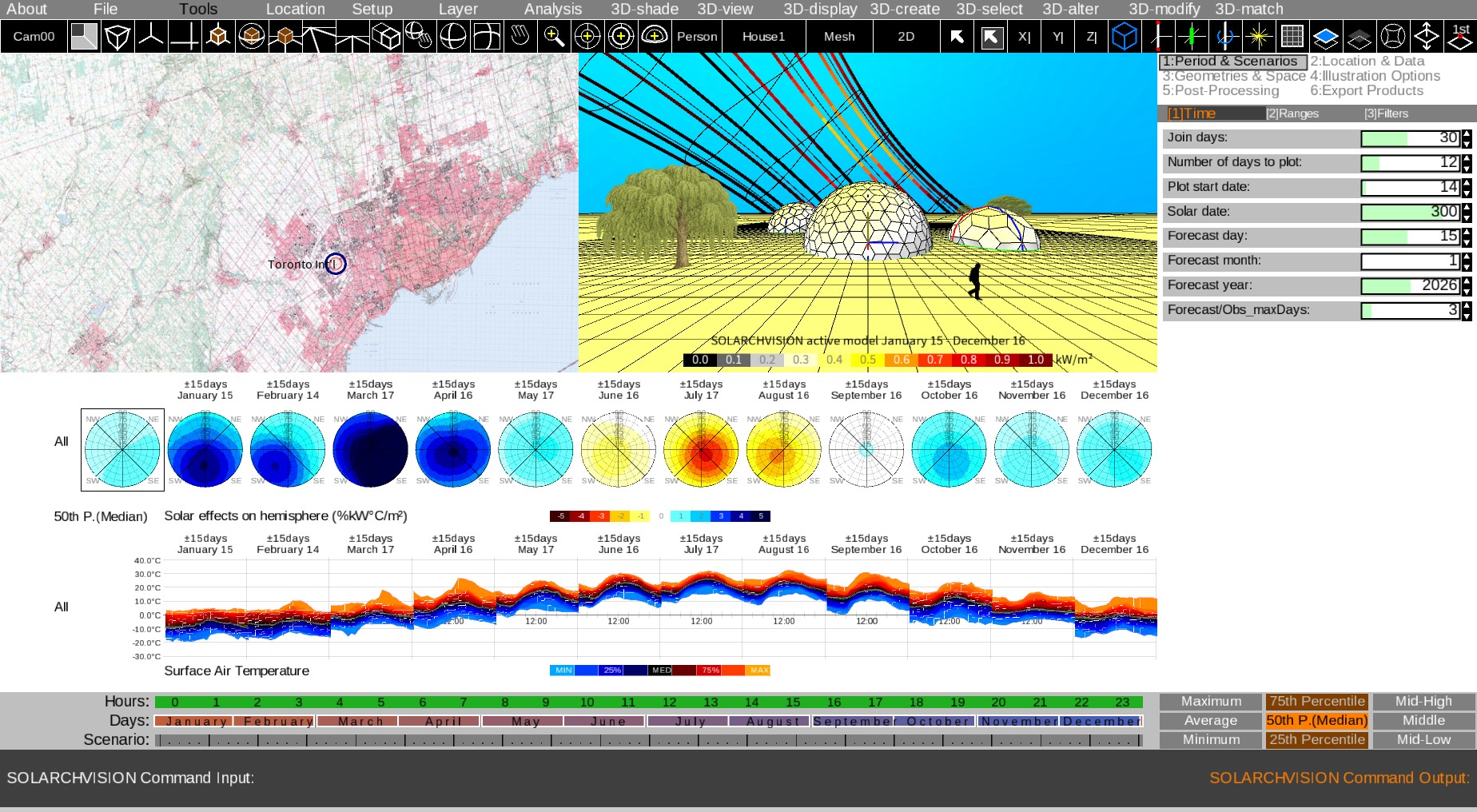
Please note that in above example the Setup | 3D-model 7 option is selected. Also the rendering is set to Shade Global Solar option via 3D-shade menu.
You can choose a desired object such as Houses, Parametric Surfaces,
Box, Cushion, Cylinder, Sphere, Octahedron, Icosahedron,
Pyramid, Hyper, Plane, Polygon, Extrude, Surface, Polyline,
Point, 1D-Tree, 2D-Tree, Person, and Camera from the
3D-create menu.
After selecting the desired object, you can use either right-click or left-click on a surface in the 3D viewport to add it to the scene:
- Right-click adds the object to the land surface.
- Left-click adds the object to the surface of existing 3D models.
The default parameters used for creating new objects can be found under
Geometries & Space → Create.
Alternatively, you can use the command line to generate new objects. For example, the following command adds a section with width and height of 100 units at a distance of 0.1 units above the origin:
section u=100 v=100 z=0.1
See the Command line section for more information.
You can use the 3D-select menu to select objects of different types,
including Land, 1D, 2D, Group, Face, Vertex, Soft,
Solid, Section, Camera, and Polyline.
You can also use the following selection methods:
PickandWindowselection modes to select or deselect objects- Add objects to or remove objects from the current selection
Select allandDeselect alloptions
It is also possible to convert one selection type to another. For example:
Groups >> Facesselects all faces belonging to the selected group(s)Faces >> Groupsselects all groups associated with the selected face(s)
You can use the 3D-alter menu to modify properties of existing
objects.
After selecting a modification option, use the mouse wheel to adjust the object properties interactively.
The 3D-modify menu provides several modifiers for editing 3D surfaces.
For example, the Insert Corner Openings modifier inserts an opening
base parallel to the edges of the selected surface(s).
You can match and align objects using the 3D-match menu.
The Setup menu provides quick access to predefined:
- Time viewport
layouts - 3D viewport
models
You can enlarge the time viewport to expand and view complete layout graphs.
General studies such as:
Wind pattern (active)Wind pattern (passive)Orientation potential (active)Orientation potential (passive)Hourly sun position (active)Hourly sun position (passive)Annual cycle sun path (active)Annual cycle sun path (passive)
can be accessed from the Analysis menu. These studies are displayed in
the time viewport.
For studies related to the 3D model, such as:
Urban solar potential (active)Urban solar potential (passive)
you must pre-bake the selected Section or Camera using:
PreBake Viewport, orPre-bake Selected Sections
before running the analysis.
Two types of weather layers are defined:
- General layers
- Available directly from weather data files
- Missing values may be filled using post-processing techniques
- Developed layers
- Not available in the original weather files
- Generated through software post-processing
You can use the Location menu to select a project location and
download or load weather and geographic data.
By default, the software uses EPW/TMY (Typical Meteorological Year) data.
Additional supported datasets include:
- Climate files containing multiple years of data (e.g., CWEEDS)
- Ensemble forecast datasets (e.g., NAEFS) for visualization and simulation
- Observation datasets (e.g., SWOB records)
Additional features include:
Land MeshandLand Texturerequire an API keyTroposphereallows loading WMS forecast data to visualize hourly cloud formations using datasets such as HRDPS (High Resolution Deterministic Prediction System) or GDPS (Global Deterministic Prediction System)
The Case Bar is located above the Command Bar. It consists of three range sliders on the left and nine statistical options on the right.
The range sliders allow users to select the desired:
HoursDays- Forecast
Scenarios(orYearswhen using long-term input data)
To define a range:
- Use left-click to set the start of the range.
- Use right-click to set the end of the range.
The statistical options determine which scenario close to the selected data aggregation is used to run simulations in the viewports. Available options include:
MinimumAverageMaximum25th Percentile50th Percentile (Median)75th PercentileMiddleMid-HighMid-Low
The first six options compute standard statistical measures based on the selected data range.
The Middle, Mid-High, and Mid-Low options are built-in methods that apply weighted selection criteria to sorted data records.
When the command bar is disabled (default mode), you can use keyboard shortcuts to perform various tasks.
TAB: Enable or disable the command barShift+TAB: Switch between active and passive views inside the 3D viewport
`and~: Zoom in and out in the world viewport+and-: Zoom in and out in the 3D viewport,and.: Move the camera closer and farther2and8: RRotate the camera up and down4and6: Rotate the camera left and right1and3: Move the camera left and right7and9: Move the camera up and down5: Rotate the camera to look at the origin0: Move the camera closer/and*: Move the camera toward and away from the selectionUP,DOWN,LEFTandRIGHT: Rotate the camera around the selection
DELETE: Delete selected item(s)Shift+UP,Shift+DOWN: Move/rotate/scale (or change properties of) the selectioncandC: Switch the viewport to available cameras in the sceneENTER: Rebuild global & vertex solar energy/impact dataSPACE: Record the frame
dandD: Change the impact display day in the 3D viewporttandT: Change the forecast hour used to display the troposphere
Ctrl+UPandCtrl+DOWN: Change the current weather layer displayed in the hourly graph (Layout 0 — default layout)Ctrl+LEFTandCtrl+RIGHT: Change the current impact layer displayed in the daily graph (Layout 0 — default layout)Ctrl+PAGE_UPandCtrl+PAGE_DOWN: Switch between layouts (enlarge the time viewport to view the full layout)Ctrl+;: Show or hide the impact summary
Ctrl+'andCtrl+": Adjust the vertical scale factor of the hourly time graph<and>: Increase or decrease the number of joined days (30 days by default for monthly graphs)(and): Increase or decrease the number of displayed days[and]: Increase or decrease the horizontal interval used for the probabilities graph{and}: Increase or decrease the vertical interval used for the probabilities graph
sandS: Change the sky scenario ("All data", "Sunny", "Partly Cloudy", or "Cloudy")vandV: Show or hide raw values on the hourly time graphbandB: Show or hide probabilities on the hourly time graphnandN: Show or hide statistics on the hourly time graphmandM: Show or hide sorted values on the hourly time graph
Use TAB to enable or disable the command line, or click inside/outside
the command line area (the dark region at the bottom).
Below is a list of available commands. Both lowercase and uppercase variants are accepted.
CLS: Clears the command line screenOPEN: Opens a saved projectSAVE.AS: Saves the project with a new nameSAVE: Saves the projectHOLD: Holds the sceneFETCH: Fetches the sceneIMPORT: Imports an OBJ fileEXECUTE: Executes a script file containing multiple SOLARCHVISION commandsEXPORT.OBJ.TIMESERIES: Exports the scene in OBJ format at different hours (multiple files)EXPORT.OBJ.DATESERIES: Exports the scene in OBJ format at different days (multiple files)EXPORT.OBJ: Exports the scene in OBJ formatEXPORT.RAD: Exports the scene in Radiance RAD formatEXPORT.SCR: Exports the scene in AutoCAD SCR formatQUIT: Exits the software
LONLAT: Sets the longitude and latitude of the location
LonLat ? ?
SELECT: Selects various categories
Select all/last/nothing/invert/groups/model2ds/model1ds/vertices/faces/solids/sections/cameras/landpoint
DELETE: Deletes the selection or various categories
Delete all/selection/groups/model2ds/model1ds/vertices/faces/solids/sections/cameras
COPY: Copies the selection
Copy n=? dx=? dy=? dz=? rx=? ry=? rz=?
MOVE: Moves the selection
Move dx=? dy=? dz=?
ROTATE,ROTATEX,ROTATEY,ROTATEZ: Rotates the selection
Rotate[X|Y|Z] r=? x=? y=? z=?
SCALE: Scales the selection
Scale s=? sx=? sy=? sz=? x=? y=? z=?
PERSON: Creates a person
Person m=? x=? y=? z=?
TREE2: Creates a 2D tree using vertical and horizontal sections
Tree2 m=? x=? y=? z=? h=?
TREE1: Creates a parametric fractal tree in 3D
Tree1 m=? degree=? seed=? x=? y=? z=? h=? r=? tilt=? twist=? ratio=? base=? Tk=? Lf=?
BOX2P: Creates a box using two corner points
Box2P m=? tes=? lyr=? x1=? y1=? z1=? x2=? y2=? z2=?
BOX: Creates a box using center point, width, length, and height
Box m=? tes=? lyr=? x=? y=? z=? dx=? dy=? dz=? r=?
HOUSE1: Creates a house-like structure with roof folded in all directions
House1 m=? tes=? lyr=? x=? y=? z=? dx=? dy=? dz=? dh=? r=?
HOUSE2: Creates a house-like structure with roof folded in one direction
House2 m=? tes=? lyr=? x=? y=? z=? dx=? dy=? dz=? dh=? r=?
HOUSE3: Creates a house-like structure with roof folded in the second direction
House3 m=? tes=? lyr=? x=? y=? z=? dx=? dy=? dz=? dh=? r=?
CYLINDER: Creates a cylinder
Cylinder m=? tes=? lyr=? x=? y=? z=? dx=? dy=? dz=? deg=? r=?
SPHERE: Creates a sphere
Sphere m=? tes=? lyr=? x=? y=? z=? d=? deg=? r=?
SUPERSPHERE: Creates a supersphere (deforms from cube to star-like object)
SuperSphere m=? tes=? lyr=? x=? y=? z=? dx=? dy=? dz=? px=? py=? pz=? deg=? r=?
CUSHION: Creates a cushion-like object
Cushion m=? tes=? lyr=? x=? y=? z=? dx=? dy=? dz=? deg=? r=?
OCTAHEDRON: Creates an octahedron
Octahedron m=? tes=? lyr=? x=? y=? z=? dx=? dy=? dz=? r=?
ICOSAHEDRON: Creates an icosahedron
Icosahedron m=? tes=? lyr=? x=? y=? z=? d=? r=?
POLYGONMESH: Creates an equilateral polygon mesh
PolygonMesh m=? tes=? lyr=? x=? y=? z=? d=? deg=? r=?
POLYGONHYPER: Creates a hyperbolic surface based on an equilateral polygon
PolygonHyper m=? tes=? lyr=? x=? y=? z=? d=? h=? deg=? r=?
POLYGONEXTRUDE: Creates an extrusion from an equilateral polygon
PolygonExtrude m=? tes=? lyr=? x=? y=? z=? d=? h=? deg=? r=?
MESH2toMESH6: Creates meshes using 2 to 6 points
Mesh2 m=? tes=? lyr=? x1=? y1=? z1=? x2=? y2=? z2=?
ALLVIEWPORTS: Displays all viewportsENLARGE3D: Enlarges the 3D viewport
Includes commands such as:
PAN,PANX,PANYLOOKORG,LOOKDIR,LOOKSELTRUCKX,TRUCKY,TRUCKZORBIT,ORBITZ,ORBITXYCAMERAROLL,CAMERAROLLZ,CAMERAROLLXYTARGETROLL,TARGETROLLZ,TARGETROLLXYZOOM,NORMALZOOMPERSPECTIVE,ORTHOGRAPHIC
TOP,FRONT,LEFT,RIGHT,BACK,BOTTOMS.W.,S.E.,N.E.,N.W.
SHADE.WIRE: Wireframe viewSHADE.BASE: Base shadingSHADE.WHITE: White shadingSHADE.MATERIALS: Material shadingSHADE.GLOBAL: Global solar values shadingSHADE.REAL: Per-vertex solar values shadingSHADE.SOLID: Solid parameter shadingSHADE.ELEVATION: Elevation shadingRENDER.VIEWPORT: Renders the viewportPREBAKE.VIEWPORT: Pre-bakes the viewport