


A real‑time AI upscaler for any application window on GNU/Linux. It uses CuNNy neural networks to perform 2x (or 4x) upscaling, then scales the result to full screen while preserving aspect ratio. Mouse clicks and motion are automatically forwarded to the original window.
Now with full XWayland support – works seamlessly under Wayland compositors!
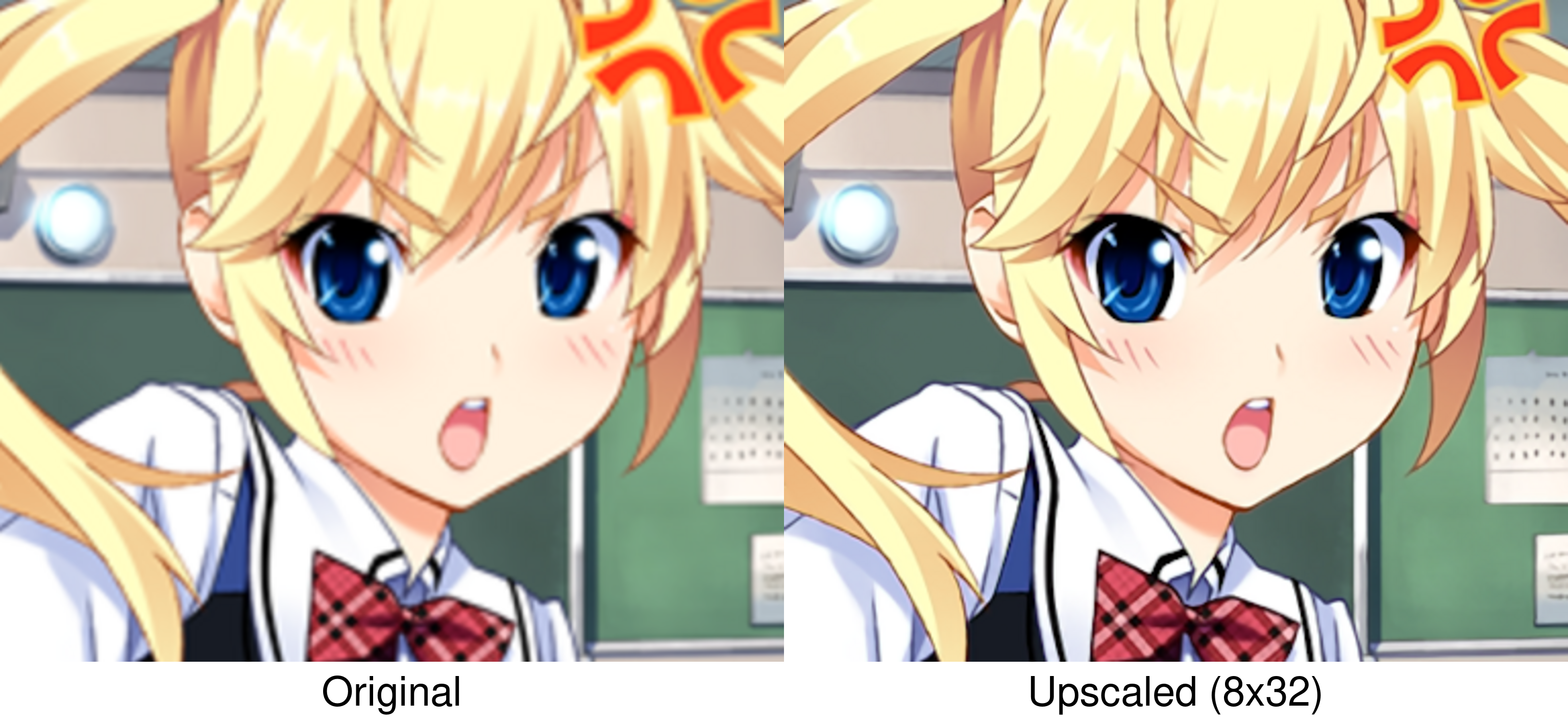
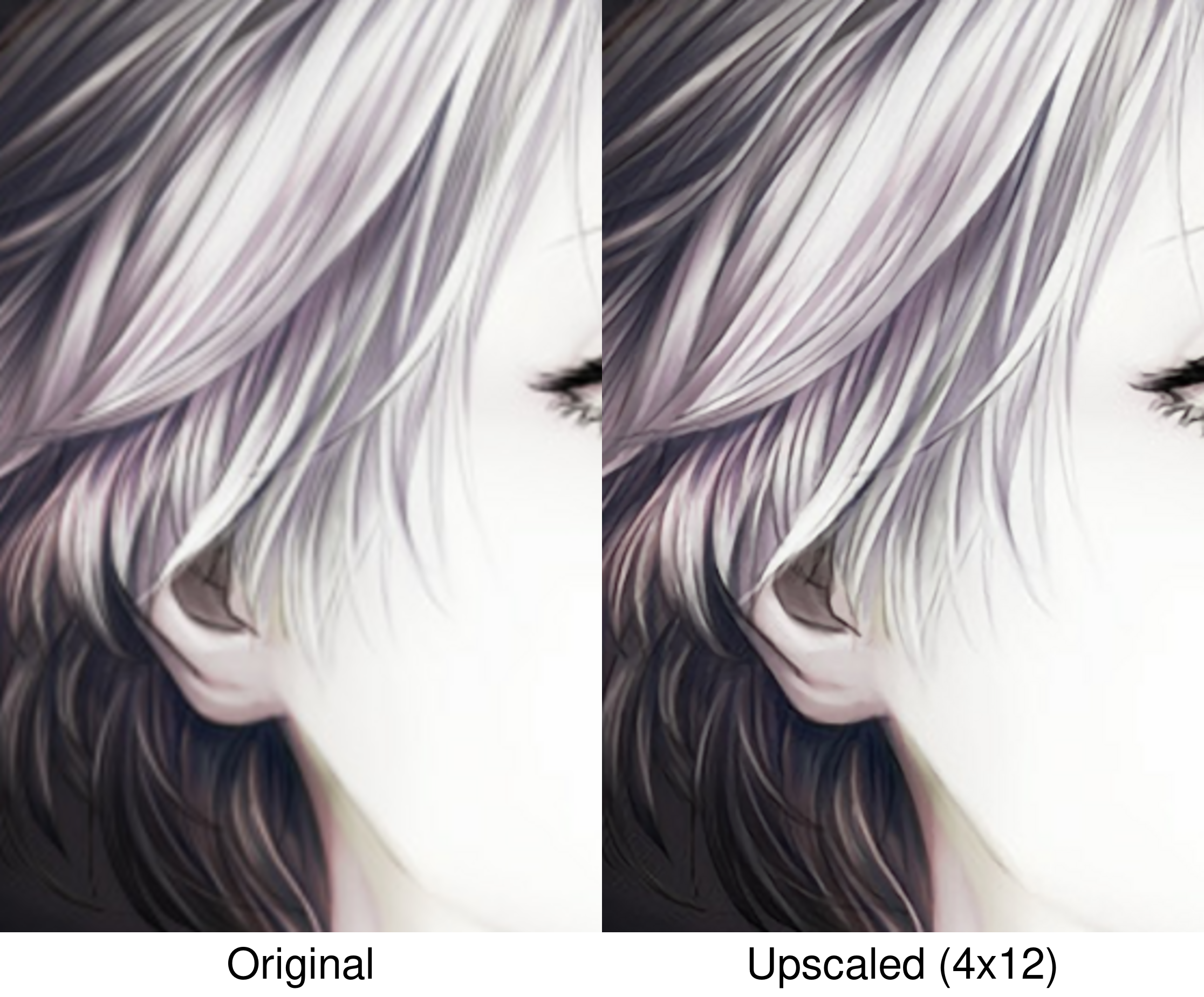
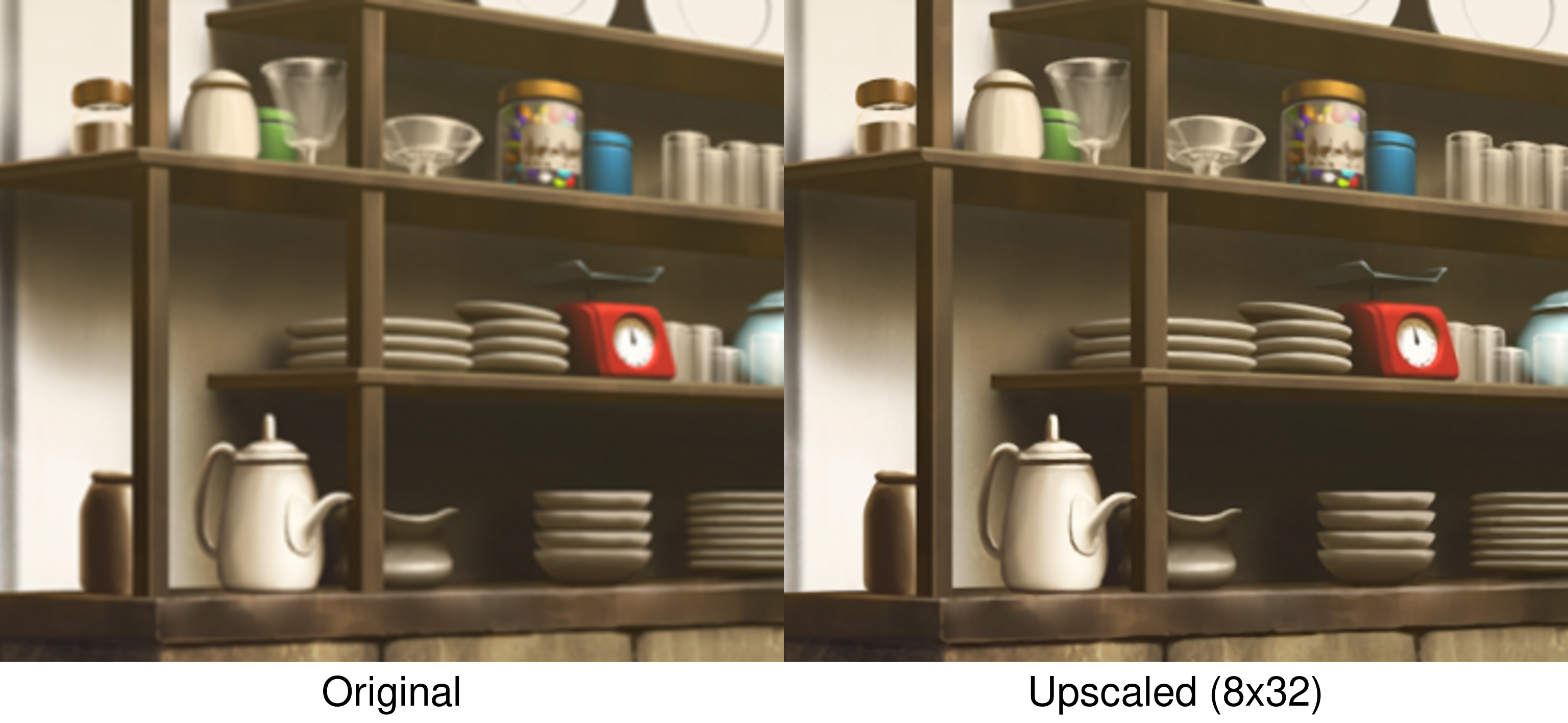
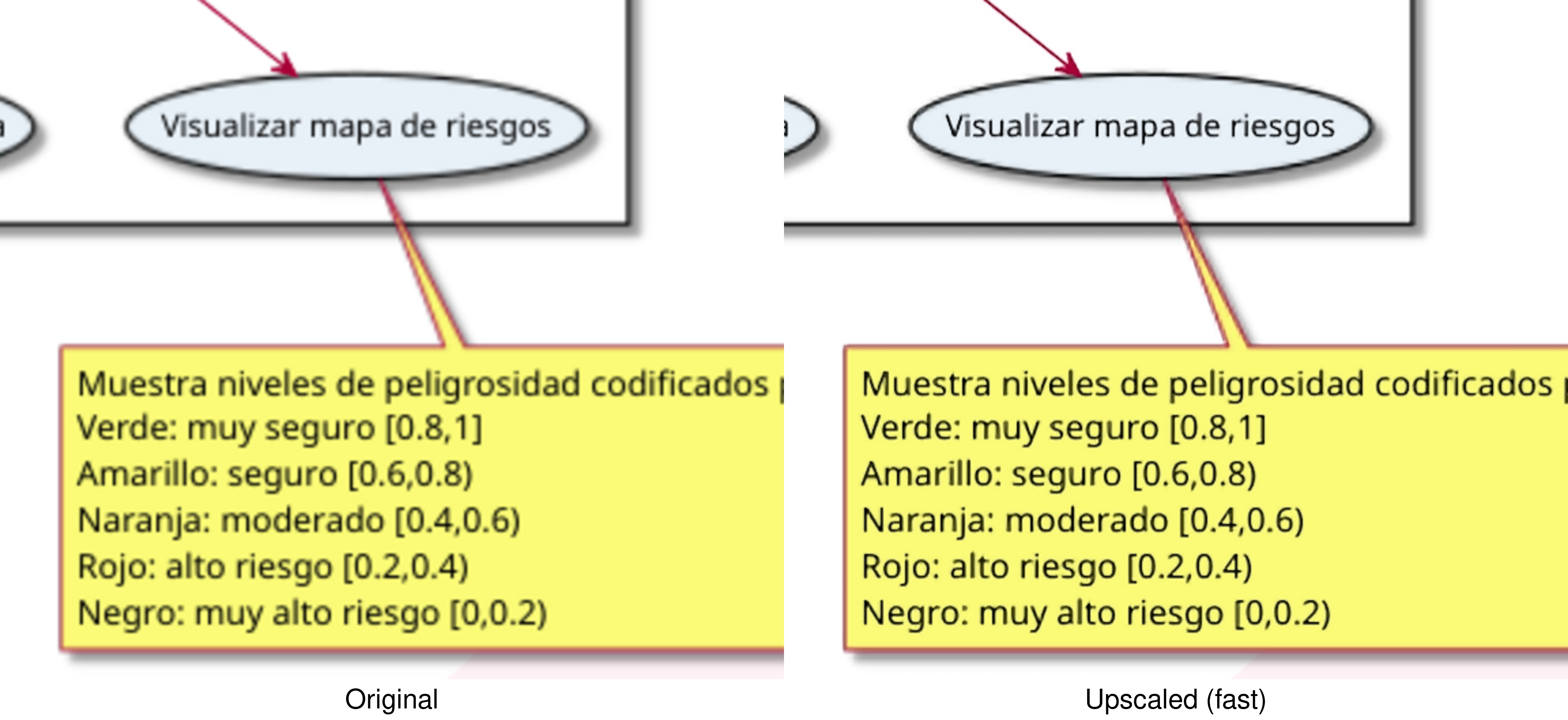
- AI‑Powered Upscaling – Uses the CuNNy (Convolutional upscaling Neural Network) models, trained specifically for high‑quality 2x upscaling of visual novels and illustrations.
- Complete Model Selection – Choose from 9 variants, offering a range of quality/performance trade‑offs:
8x32– Highest quality, slowest.4x324x244x164x123x12fast– Default. Recommended for slow machines.fasterveryfast– Fastest option, lowest quality.
- Attach to Any Window – Either grab the currently active window, select from visible windows or launch a new program and capture its window automatically.
- Flexible Output Geometry – Control the overlay size, scaling mode, offset and borders.
- Input Forwarding – Click, move, and drag on the upscaled image as if interacting directly with the original window.
- Hardware Accelerated – Vulkan compute (Compushady) works on NVIDIA, AMD, and Intel GPUs.
- XWayland Compatible – Runs under Wayland compositors by automatically forcing X11 platform for Qt.
- Global Hotkeys & On‑Screen Display – Switch models, take lossless screenshots and more using keyboard shortcuts.
- GNU/Linux (X11 or Wayland with XWayland)
- Vulkan-capable GPU (NVIDIA, AMD, Intel)
- Python 3.10 or newer
Note
Python 3.14 compatibility
Previously, we advised against Python 3.14 due to a suspected Vulkan backend issue (#1). Recent testing shows it should now work without problems.
Python 3.14 is supported; however, our testing has been limited. If you encounter any issues, please report them.
For a safe fallback, you can still use Python 3.13:
pipx install --python=python3.13 --fetch-missing-python linux-rt-upscalerpipx install linux-rt-upscalerRequired development packages (click to expand)
sudo apt update
sudo apt install gcc make libvulkan-dev libx11-dev libxcb-dev libxext-dev libxdamage-dev libxfixes-devsudo dnf install gcc make vulkan-loader-devel libX11-devel libxcb-devel libXext-devel libXdamage-devel libXfixes-develsudo pacman -S base-devel vulkan-devel libx11 libxcb libxext libxdamage libxfixessudo zypper install gcc make vulkan-devel libX11-devel libxcb-devel libXext-devel libXdamage-devel libXfixes-develgit clone https://github.com/baronsmv/linux-rt-upscaler.git
cd linux-rt-upscaler
pip install -e .After installation, the upscale command will be available globally:
# Upscale the currently active window
upscale

# Interactively select from visible windows
upscale -s

# Run a command and upscale its window
upscale -- <command>

# Choose a specific model (examples)
upscale -m 8x32      # Highest quality, slowest
upscale -m 4x24      # A balanced option
upscale -m veryfast  # Maximum performance

# Perform 4x upscaling (two 2x passes)
upscale -2

# Set a custom overlay geometry (50% size, fitted)
upscale -o 50%

# Crop 100 pixels from top and left, then upscale
upscale --crop-top 100 --crop-left 100

# Shift the overlay 100 pixels right and 50 down
upscale --offset-x 100 --offset-y 50
For a full list of options and examples:
upscale --help| Shortcut | Action |
|---|---|
Alt+Shift+S |
Toggle overlay visibility / pause processing |
Alt+Shift+M |
Switch to the next upscaling model |
Alt+Shift+G |
Cycle output geometry (fit → stretch → cover) |
Alt+Shift+P |
Take a lossless screenshot (--screenshot-dir DIR defines the location) |
All hotkeys can be customised in the configuration file.
- Exit:
Ctrl+Cin the terminal.
You can define named configuration profiles in your YAML config file. Profiles let you quickly switch settings for different games or applications without typing long command lines each time.
Create a config file (e.g., ~/.config/linux-rt-upscaler/config.yaml) and add a top‑level profiles key. Each profile is a dictionary with an optional match section and an options section.
If no profile is selected manually, the program checks all profiles that have a match section against the title of the target window. If a profile matches (any match criterion is sufficient), its options are applied automatically.
# General defaults (lowest priority)
model: fast
select: false

profiles:
  game:
    match:
      title: "Danganronpa"     # Exact match (case-insensitive)
      title_contains: "ronp"   # Or substring match
      title_regex: "Dangan.*"  # Or regular expression
    options:
      model: 4x24
      double_upscale: true
A more detailed example is included here.
- Window Selection – Uses X11 to find the target window by PID or WM_CLASS.
- Capture – Grabs the window's pixels using a fast custom C library.
- AI Upscaling – CuNNy compute shaders (written in HLSL, compiled via Compushady) produce a 2x (or 4x) larger image.
- Aspect‑Preserving Scaling – A lightweight Lanczos2 compute shader scales the upscaled image to fill the monitor, adding black bars to maintain the original aspect ratio.
- Display – The result is rendered in a transparent overlay window that bypasses the window manager (so it always stays on top).
- Input Forwarding – Mouse events are transformed using the scaling ratios and sent to the original window via
XSendEvent.
- Standalone GUI application – Create a windowed app interface for easier management.
- Addition of more models – Parse and include other models and shaders.
- Native Wayland support – Support pure Wayland windows without XWayland.
Synthetic mouse events (clicks, motion, wheel) sent by the overlay are ignored by:
- Wine and Proton versions older than 10.0 (Proton 10 works correctly).
- Certain native applications like Firefox.
For more details, see issue #7.
While real-time upscaling tools like Magpie and Lossless Scaling remain Windows-exclusive, projects such as lsfg-vk are successfully bringing their frame generation capabilities to Linux.
This project tackles the other half of the equation: AI-powered upscaling to deliver a native solution Linux has been missing, an experience similar to Gamescope that applies intelligent upscaling (similar to Anime4K) to any application.
This project stands on the shoulders of several open‑source works:
- L65536 – For the original RealTimeSuperResolutionScreenUpscalerforLinux, which demonstrated the feasibility of real‑time CuNNy upscaling on Linux. This project extends that foundation with full‑screen scaling, accurate input forwarding, and support for all CuNNy NVL models and GPU vendors.
- funnyplanter – For CuNNy, the neural network upscaling models, especially the Magpie NVL variants trained for visual novel content.
- Compushady – Python library for GPU compute (Vulkan backend).
- screeninfo – Python library to fetch location and size of physical screens.
- PySide6 – Qt bindings used for the overlay window.
- python‑xlib – X11 client library for window management and input forwarding.
- xcffib – XCB binding for Python.
- pyewmh – Query and control of window manager.
- psutil – Library for retrieving information on running processes.
- Pillow – The Python Imaging Library