Method 1. Easy method without compiling yourself.
This is the GUI version guide, hook a monitor or tv to the Raspberry PI alongside a mouse and keyboard.
-
Open this url on the browser: https://github.com/codGmer/IdealCoin-Github/releases
-
Download the idealcash-qt file, left click on the idealcash-qt.
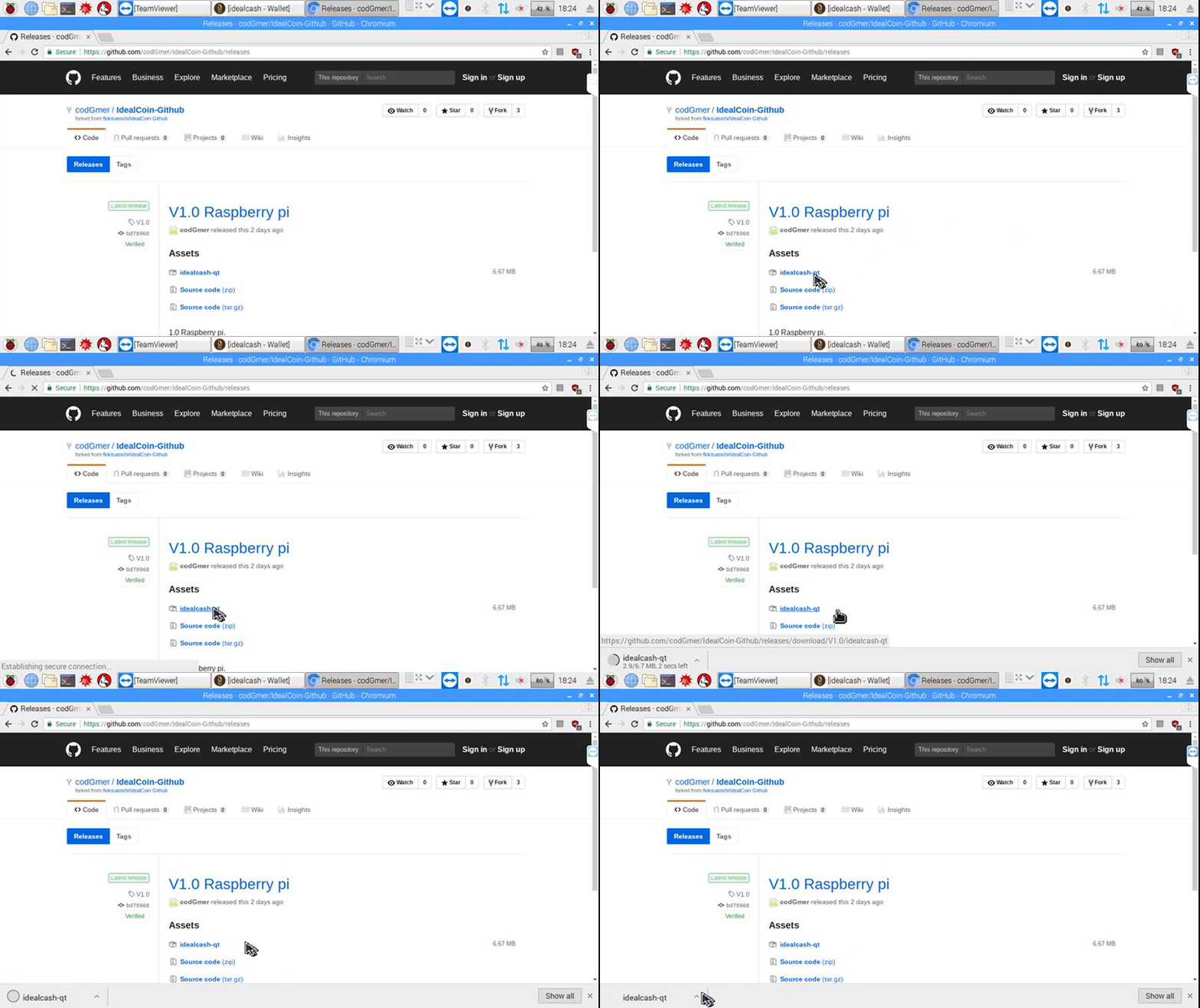
- Left click the arrow on the downloaded file and left click Show in folder as shown here:
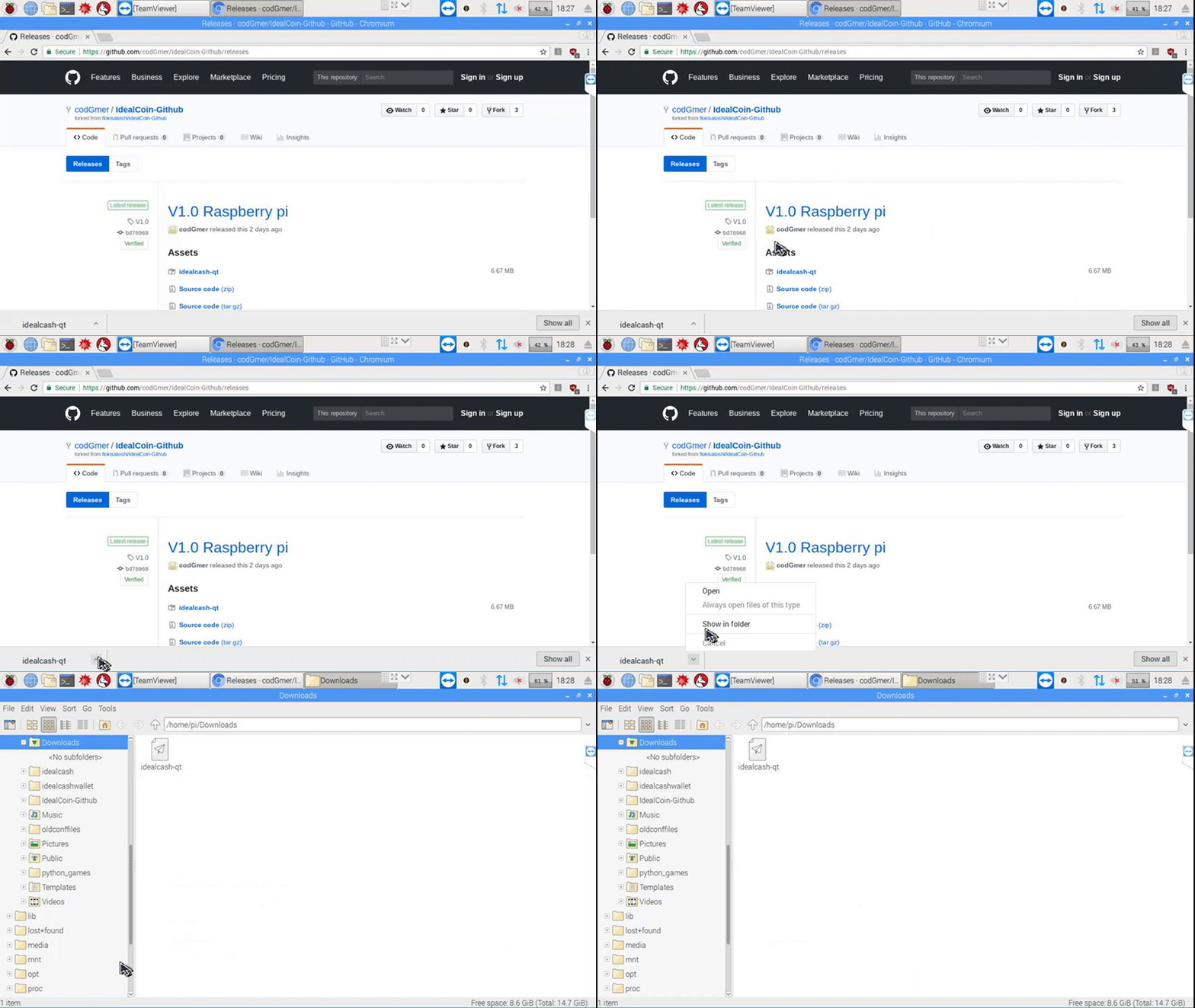
- Right click the downloaded idealcash-qt file and left click on properties.

- Left Click on the tab Permissions and left click the execute box.

- Click on Execute, set it to anyone, left click OK.

- Left click the file idealcash-qt and press Execute.

Now the wallet should open, close the wallet now as we need to import the config and the wallet.dat.
- Left click view and left click on Show Hidden.

- Scroll up and left click on the folder .idealcash.

- Go to the browser, enter IdealCash URL: www.idealcash.io/downloads
Left click on the green button on the website called: Wallet Config File Download, when finished downloading, left click on the arrow at the bottom and then click show in folder.

-
Now Downloads folder has opened, right mouse on IdealCashconf.zip and then left click on Extract Here.
-
Right click the new IdealCash.conf and left click Copy.
-
Open .idealcash folder again, right click in the white area, left click Paste.
-
Right click the new IdealCash.conf and left click Rename.
-
Rename the file to idealcash.conf and press OK.
-
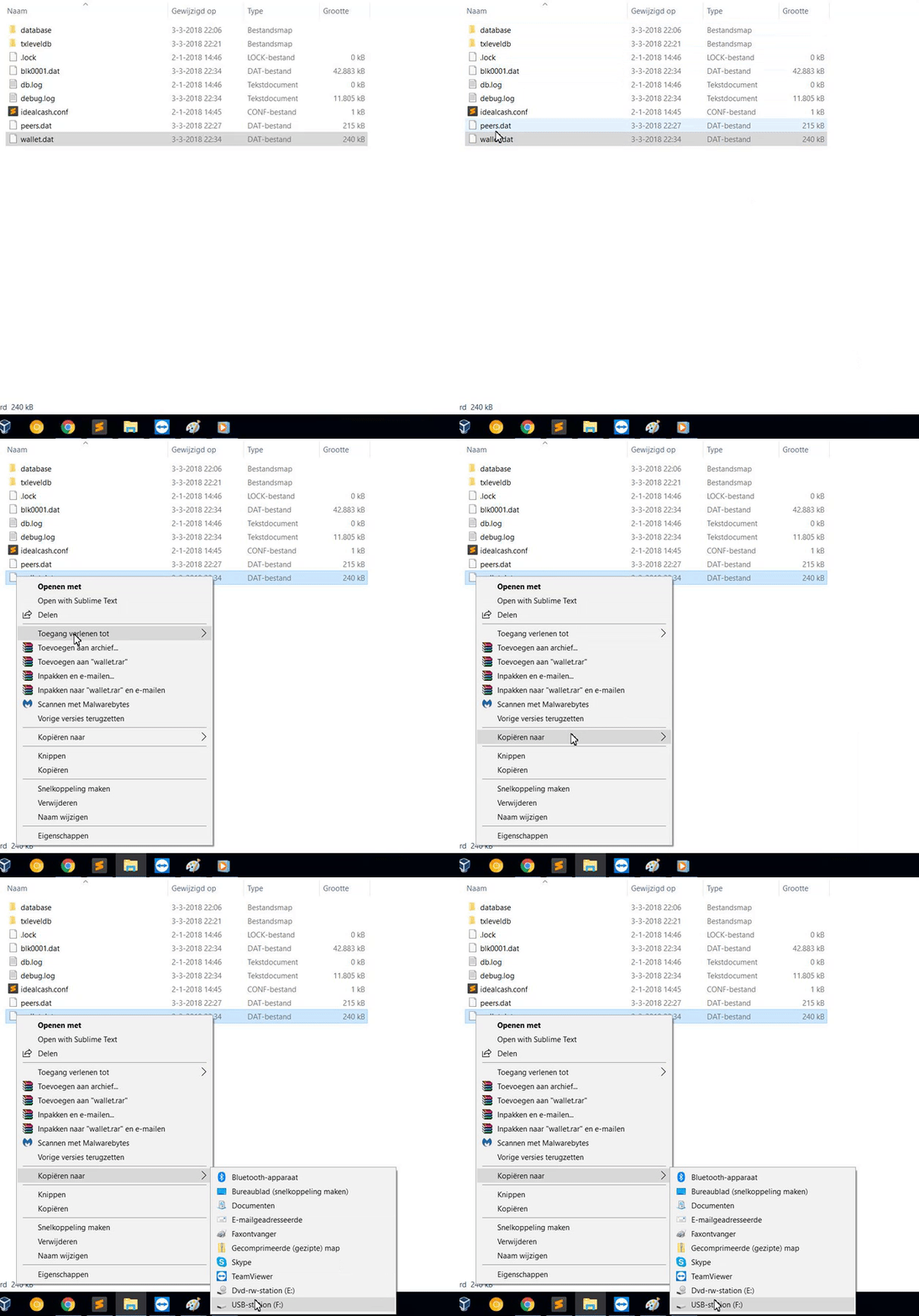
Go to the Windows pc and insert a usb stick, after that go to explorer, enter
%appdata%in the path box and press enter.



16.5 Left click the IdealCash folder in AppData.

-
Right click wallet.dat, then Copy to and left press the usb stick.
-
Go back to the Raspberry, insert the usb stick, find the usb stick on the left under media/pi, left click the usb stick.

18.5 Now right click the wallet.dat, left click Copy, go back to the folder called .idealcash, Right mouse click in the white area and left click Paste.

-
Go back to the Downloads folder, right click idealcash-qt and click copy.
-
Left click on the Desktop folder, right click in the folder and click paste.


Now close all windows and go back to the desktop of the PI, double left click the file idealcash-qt and if all went well your wallet should now be restored and syncing.
