FICture2 is an ultra-lightweight, high-performance image viewer and comparison tool built specifically for game modders and texture artists.
It aims for a sub-1MB executable with near-instant startup — no splash screen, no heavy frameworks, no delay. Double-click a texture and you're already comparing it.
FICture2 is an acronym for Floyd's Image Compare miniaTURE 2.
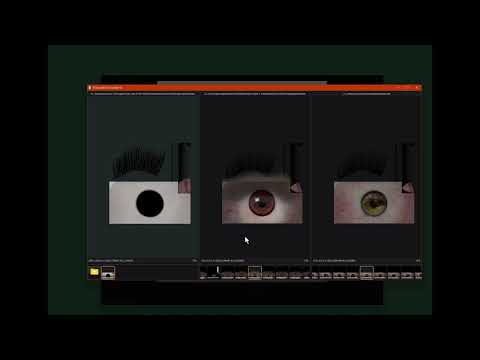
Watch the demo: https://youtu.be/2eowYOEa5dw
FICture2 is available on NexusMods: https://www.nexusmods.com/fallout4/mods/100267
- New: DDS mip inspection — Ctrl + [ / Ctrl + ] step mip levels; right-click Mip Level picks a level. Current mip and source dimensions show in the info bar
- New: Channel isolation — R / G / B / A show one channel as grayscale; N restores RGBA (D3D path)
- New: Alpha Channel override — right-click chooses Auto / Transparency / Opaque (data). Encoding (straight/premultiplied) is kept separate from usage so data-bearing alpha no longer darkens colors by mistake
- New: Image Information — press I (or use the context menu) for path, format, mip, alpha, channel, and view state
- New: Compare up to 8 viewers in an equal-width grid (5–6 panes: 2×3; 7–8 panes: 2×4)
- New: Open Recent (MRU) from the right-click menu, with Clear Recent Files
- New: Save Pane Screenshot from the composed offscreen frame — not blocked by overlapping windows
- New: BSA archive browsing alongside ZIP / 7Z / RAR / BA2; archive readers are cached for snappier large-pack browsing
- New: Thumbnail-strip horizontal scrollbar when the strip overflows
- Improved: Path / info bar tooltips; right-click the path to copy it
- Changed: Hotkeys — navigation toggle is now Alt + N, sampling quality is Alt + Q, alpha checkerboard is Alt + A (N is used to restore RGBA after channel isolation)
Most image viewers claim to support DDS — but in reality:
- BCn formats are often decoded incorrectly
- Alpha channels are mishandled or ignored
- Mip levels are flattened or forced
- Performance collapses on large texture folders
FICture2 was built because no existing lightweight tool handled DDS BCn textures correctly and fast enough for real modding workflows.
- Native DDS support via DirectXTex
- Correct decoding of:
- BC1 / BC3 / BC4 / BC5 / BC6H / BC7
- Accurate alpha channel handling
- No forced recompression
- No incorrect color-space shortcuts
What you see in FICture2 is what the engine actually gets.
- Fast loading of large DDS textures
- Optimized thumbnail generation for massive mod folders
- Smooth zoom & pan with mouse-centric controls
- Designed for inspection, not editing
- Compare 2–8 images simultaneously
- Perfect for A/B testing multiple texture replacements
- Split-view comparison with synchronized navigation
When comparing two folders:
- Selecting an image in one panel automatically selects the same filename in the other
- Ideal for:
- Vanilla vs modded textures
- Competing retextures
- Conflict resolution
- Automatic side-by-side comparison of conflicted files
- Files with the same filename are paired automatically
- Zero manual setup
FICture2 is a natural companion tool for Vortex.
- Thumbnail list includes:
- Images
- Subfolders (including
..) - Folder previews with embedded image thumbnails
- Handles real mod directory structures
- Executable size target: < 1 MB (size-first release builds)
- Near-instant cold start
- No runtime frameworks
- No background services
- Modders working heavily with DDS / BCn textures
- Anyone resolving mod conflicts visually
- Anyone tired of opening Photoshop just to check a texture
- Actively developed
- Performance-first design
- Feedback welcome
A sub-1MB, ultra-fast image viewer that finally handles DDS BCn textures correctly — built for modders.
This repository is the “app shell” that wires the UI and decode pipeline together:
FD2D/(submodule): lightweight Win32 UI framework using Direct2D/DirectWrite (and optional D3D11 swapchain renderer)ImageCore/(submodule): async image decode pipeline (WIC + DirectXTex)IniStore.h: shared header-only INI reader/writer (mirrored to NIFDiff viascripts/sync-ini-store.ps1)external/DirectXTex/(submodule): DirectXTex library (external dependency)external/libarchive/(submodule): ZIP/7Z/RAR archive support (built as a minimal static library)
- Windows 10/11 (x64)
- Visual Studio 2022 with Desktop development with C++
- Windows 10/11 SDK
- Clone repo with submodules:
git clone --recurse-submodules https://github.com/floyd68/FICture2.git
- Open
FICture2.slnxin Visual Studio - Select Release x64
- Build
FICture2project
- Clone repo with submodules:
git clone --recurse-submodules https://github.com/floyd68/FICture2.git
- Configure:
cmake -S . -B build -G "Visual Studio 18 2026" -A x64
- Build:
cmake --build build --config Release
- Run:
build\Release\FICture2.exe
Notes:
- CMake builds libarchive from source by default (
FICTURE2_USE_LIBARCHIVE_CMAKE=ON). - Local zlib/xz submodules are used by default (
FICTURE2_USE_LOCAL_ARCHIVE_DEPS=ON).
Top-level options:
FICTURE2_BUILD_THUMBNAIL_PROVIDER(default:ON): build theThumbnailProviderDLL.FICTURE2_USE_LIBARCHIVE_CMAKE(default:ON): buildexternal/libarchivevia CMake and linkarchive_static.FICTURE2_USE_LOCAL_ARCHIVE_DEPS(default:ON): buildexternal/zlibandexternal/xzlocally and wire them into libarchive.
DirectXTex (forced in root CMake):
BUILD_TOOLS=OFF: do not buildtexconv/texdiagtools.BUILD_SAMPLE=OFF: do not build DirectXTex sample projects.BUILD_SHARED_LIBS=OFF: build DirectXTex as a static library.
libarchive (forced in root CMake):
- Compression deps:
ENABLE_ZLIB=ON: ZIP/deflate support.ENABLE_LZMA=ON: 7z/XZ support (via liblzma).ENABLE_BZip2=OFF,ENABLE_ZSTD=OFF,ENABLE_LZ4=OFF,ENABLE_LZO=OFF: disabled to minimize size.
- Crypto backends:
ENABLE_CNG=ON: use Windows CNG (bcrypt) for hashes.ENABLE_OPENSSL=OFF,ENABLE_MBEDTLS=OFF,ENABLE_NETTLE=OFF: disabled.
- Tools and extras:
ENABLE_TAR=OFF,ENABLE_CPIO=OFF,ENABLE_CAT=OFF,ENABLE_UNZIP=OFF: no CLI utilities.ENABLE_XATTR=OFF,ENABLE_ACL=OFF,ENABLE_ICONV=OFF: disabled to reduce surface area.ENABLE_PCREPOSIX=OFF,ENABLE_PCRE2POSIX=OFF: disable regex backends.ENABLE_TEST=OFF,ENABLE_INSTALL=OFF: no tests/install targets.
POSIX_REGEX_LIB=LIBC: prefer libc regex if available.
zlib (forced when FICTURE2_USE_LOCAL_ARCHIVE_DEPS=ON):
ZLIB_BUILD_STATIC=ON: static zlib.ZLIB_BUILD_SHARED=OFF: no shared zlib.ZLIB_BUILD_TESTING=OFF: no zlib tests.ZLIB_INSTALL=OFF: no zlib install step.
xz/liblzma (forced when FICTURE2_USE_LOCAL_ARCHIVE_DEPS=ON):
BUILD_SHARED_LIBS=OFF: static liblzma.XZ_NLS=OFF: no gettext-based translations.XZ_DOC=OFF,XZ_DOXYGEN=OFF: no docs.XZ_TOOL_XZ=OFF,XZ_TOOL_XZDEC=OFF,XZ_TOOL_LZMADEC=OFF,XZ_TOOL_LZMAINFO=OFF,XZ_TOOL_SCRIPTS=OFF,XZ_TOOL_SYMLINKS=OFF,XZ_TOOL_SYMLINKS_LZMA=OFF: no CLI tools or symlinks.
Override options on configure, for example:
cmake -S . -B build -G "Visual Studio 18 2026" -A x64 -DFICTURE2_BUILD_THUMBNAIL_PROVIDER=OFFcmake -S . -B build -G "Visual Studio 18 2026" -A x64 -DFICTURE2_USE_LOCAL_ARCHIVE_DEPS=OFF
FICture2 expects a locally built, minimal libarchive static library in:
external/libarchive/build-minimal/libarchive/Debug/archive.libexternal/libarchive/build-minimal/libarchive/Release/archive.lib
We keep the submodule clean and do not commit libarchive build outputs or local patches, so you must build it yourself:
- Ensure the submodule exists:
git submodule update --init --recursive - Run the script:
build-libarchive-minimal.ps1
For details and the exact CMake flags used, see docs/libarchive_integration.md.
- Launch the built exe from
x64\Release\FICture2.exe - Or run from a terminal:
FICture2.exe "C:\path\to\image.dds"
- Run with a file parameter:
FICture2.exe "C:\path\to\image.dds"- Session restore is skipped; the given file is opened.
- On exit, the current viewer layout becomes the saved session (a prior multi-pane session is replaced).
- Run with no parameters:
- If a previous session exists with at least one path that still resolves: restores viewers + folders/images + splitters.
- Missing session paths are skipped and the surviving viewers are compacted left-to-right.
- If every remembered path is gone (or no session): opens the first supported image found in the current user's Pictures folder.
- Closing during the first moments of startup (before restore/IPC handoff finishes) saves window placement only — it does not overwrite the previous session with a blank layout.
- Window placement: restored size/position is clamped so the whole window stays inside the nearest monitor work area.
- Thumbnail strip + main image optimized for DDS-heavy folders
- Horizontal scrollbar appears when the strip overflows (drag to scroll)
- Folder navigation inside the thumbnail strip (includes
..“up” item) - Archive browsing: ZIP / 7Z / RAR / BA2 / BSA (images and folders)
- Archive readers are cached so browsing large BA2/BSA packs stays responsive
- Supported image formats: DDS, PNG, JPG/JPEG, BMP, GIF, TIF/TIFF, TGA
- Compare / multi-view: open up to 8 viewers in an equal-width compare grid
- 1–4 panes: single row
- 5–6 panes: two rows × 3 columns
- 7–8 panes: two rows × 4 columns
- adding/removing a pane rebuilds equal widths; dragged splitter ratios are restored with the session
- Sync mode (when 2+ viewers exist):
- selecting an image propagates to other viewers (by filename match within their current folder)
- zoom/pan propagates to other viewers currently showing the same filename
- Mouse pan + smooth zoom:
- zoom is critically-damped spring animated
- pointer-based zoom (the point under the mouse stays fixed)
- Sampling quality toggle for scaled image display (D2D + D3D11 paths)
- DDS mip inspection: decode and display a selected mip level from the source chain
- Ctrl + [ / Ctrl + ] step to the previous / next mip; right-click Mip Level picks a level
- Current mip index and source dimensions are shown in the info bar when a chain exists
- Channel isolation: R / G / B / A show one channel as grayscale; N restores RGBA (D3D path)
- Alpha presentation:
- Separates alpha encoding (straight / premultiplied) from alpha usage (transparency / data)
- Data-bearing alpha (e.g. height in a normal map) no longer darkens the color channels by default
- Right-click Alpha Channel overrides Auto / Transparency / Opaque (data)
- Alt + A toggles the alpha checkerboard background (display aid only)
- Image Information: I (or context menu) shows path, format, mip, alpha, channel, and view state
- Image rotation: rotate the current image 90° at a time
</>keys rotate left / right; right-click menu adds Rotate 180° and Reset Rotation- Resets automatically when a different image is selected
- Current angle is shown next to the zoom percentage in the info bar
- Session persistence (per-user INI):
- window placement (auto-saved during move/resize; clamped fully on-screen on restore)
- open viewers + folders + selected image (saved on exit after startup handoff)
- splitter positions (horizontal compare splits + thumbnail strip height)
- missing paths are dropped on restore; an all-dead session falls through to Pictures
- early close before handoff preserves the previous session file list
- IPC compare strategy (single instance assist):
- if another instance is already running and you launch a file:
- if filenames match: first instance enters compare mode; second instance exits
- if filenames differ: second instance runs independently
- additional Explorer opens while a compare is already in progress are queued and applied as soon as capacity frees up (instead of getting stuck)
- boot-queued IPC opens are drained once before the session becomes eligible to save
- if another instance is already running and you launch a file:
- Open Recent: right-click menu lists recently viewed images (persisted in the INI); includes Clear Recent Files
- Save Pane Screenshot: right-click menu saves a PNG of the current main-image pane from the composed offscreen frame (independent of desktop occlusion; suggested filename next to the open file)
- Path / info bar:
- hover the path for the full path tooltip; right-click the path to copy it
- truncated info text shows a tooltip on hover
- Drag & drop (main image region):
- Left 3/4 drop zone: replace the current
ImageBrowserfolder/image with the dropped path (red overlay while dragging) - Right 1/4 drop zone: insert a new
ImageBrowserto the right and open the dropped path there (green overlay while dragging) - Overlays paint above the compare chrome so the tint stays visible across panes
- Multi-select drag & drop: drop multiple images/folders/archives to open up to 8 viewers
- Unsupported files show an X cursor and cannot be dropped
- Left 3/4 drop zone: replace the current
- File associations: register or unregister supported image types from the context menu (per-user / HKCU only; menu label toggles based on current state)
- Explorer DDS thumbnails: register/unregister the thumbnail provider from the context menu (admin prompt)
- First-run file association prompt (per-user / HKCU only)
- Esc: exit application
- Left / Right: move selection (includes folders and images)
- Home / End: jump to start / end of list
- PgUp / PgDn: page step selection
- Enter: activate selected item
- folder: navigate into folder
..: navigate up- image: show in main view
- Backspace: navigate up (same as
..) - Alt + Up: navigate up (Explorer-style)
- Alt + N: toggle navigation items visibility globally (folders +
..) across allImageBrowserinstances - Alt + Q: toggle sampling quality (low/high)
- Alt + A: toggle alpha checkerboard
- Ctrl + O: open file dialog, replace current viewer image/folder context
- Ctrl + Shift + O: open file dialog, create a new viewer (up to 8 total); layout rebuilds to equal widths
- R / G / B / A: isolate a channel as grayscale; N: restore RGBA
- I: Image Information dialog
- <: rotate the current image 90° left
- >: rotate the current image 90° right
- Ctrl + [: previous DDS mip level
- Ctrl + ]: next DDS mip level
- Mouse wheel: zoom in/out (smooth spring animation)
- Shift + wheel: ±10% per notch
- Wheel: ±50% per notch
- Zoom is pointer-based: the pixel under the mouse stays fixed during zoom.
- Left mouse drag: pan
- Max zoom: 5000%
- Drag an image file/folder onto a main image view:
- Left 3/4: replace current view (folder/image) — red overlay while dragging
- Right 1/4: insert a new
ImageBrowseron the right and open there — green overlay while dragging
- Multiple files/folders/archives can be dropped at once (up to 8 viewers total)
- Unsupported files show an X cursor and are rejected
- Images:
.dds,.png,.jpg,.jpeg,.bmp,.gif,.tif,.tiff,.tga - Archives:
.zip,.7z,.rar,.ba2,.bsa(browse images + folders)
- Register / unregister file associations: right-click the main image area and choose Register File Associations or Unregister File Associations... (per-user / HKCU; label follows current state)
- Register DDS thumbnails: choose Register Thumbnail Provider (Admin) (prompts for elevation)
- If the thumbnail provider is already registered, the menu shows Unregister Thumbnail Provider (Admin)
--renderer=d3d: prefer D3D11 swapchain renderer (default)--renderer=d2d: force D2D-only renderer (more compatible)
All settings are stored per-user at:
%LOCALAPPDATA%\FICture2\FICture2.ini
[Window]Left/Top/Right/Bottom/ShowCmd- Window placement is auto-saved during move/resize (debounced) and also saved on exit.
[Viewer]ShowNavItems(0/1): navigation items visibility (global across allImageBrowserinstances; toggled by N)
[Image]ZoomStiffness(10..500): higher = faster zoom spring response
[Thumbnails]MinSize(default 32)MaxSize(default 256)ItemSpacing,Padding,TileLabelSpacing
[Session](auto-managed)ViewerCount(1..8)ThumbStripHeightHorizontalSplitRatios(host-tree splitter ratios, including the two-row vertical split when present)RecentFiles: pipe-separated MRU list (max 12) used by Open Recent
[Viewer0]..[Viewer7](auto-managed)CurrentFolderDisplayedFile
FICture2.cpp: app entrypoint, renderer selection, IPC integration, startup restore logicImageBrowser.cpp/.h: core UI component (thumbnail strip + main image + multi-view + sync)FD2D/: UI framework (submodule)ImageCore/: decode scheduler/dispatcher/cache (submodule)external/DirectXTex/: DirectXTex (submodule; not authored here)
- Windows 10/11
- Visual Studio 2022 (C++ workload)
- Windows SDK installed (VS installer)
gitif you want to work with submodules
This repo uses git submodules. Clone with:
git clone --recurse-submodules https://github.com/floyd68/FICture2.gitIf you already cloned without submodules:
git submodule update --init --recursive- Open
FICture2.vcxproj(or open the folder in VS). - Select configuration:
- Debug|x64 for development
- Release|x64 for distribution/perf/size tuning
- Build + run
FICture2.
From a Developer PowerShell:
msbuild .\FICture2.vcxproj -m -p:Configuration=Release -p:Platform=x64This repo can be configured to prioritize output size (even if it costs some runtime speed). Typical knobs include:
/O1 /Os(optimize for size)/Ob1(limit inlining)/GS-(disable buffer security checks; smaller & faster builds, but reduces mitigation)/Gy /Gw+/OPT:REF /OPT:ICF(dead stripping / folding)/LTCG(link-time code generation)
If you want a speed-first profile again, revert the above to
/O2,/Ob2,/GS, andFavorSizeOrSpeed=Speed.
FD2D:https://github.com/floyd68/FD2DImageCore:https://github.com/floyd68/ImageCoreDirectXTex(external): tracked as a submodule underexternal/DirectXTex
This project is licensed under the MIT License - see the LICENSE file for details.
Copyright (c) 2024 EunSuk, Lee (이은석, floyd)
- Submodules are empty / missing files: run
git submodule update --init --recursive. - Build fails due to locked exe: close the running
FICture2.exeinstance. - DDS decode performance: see
ImageCore/README.mdfor pipeline details and tuning points.
Does FICture2 connect to the internet?
FICture2 itself does NOT initiate any network connections. The application code contains no network APIs, HTTP requests, or telemetry.
However, Windows may make network requests when FICture2 runs due to system-level security features:
- Certificate Validation: Windows validates digital signatures of system components (WIC, COM, DirectX)
- SmartScreen Filter: Windows checks application reputation
- Windows Defender: Real-time cloud-based protection
- Windows Update: Component update checks
FICture2 v1.1+ uses static runtime linking (/MT) to eliminate dependency on VC Runtime DLLs (vcruntime140.dll, msvcp140.dll). This reduces one major source of Windows certificate validation network requests.
Optimized app.manifest:
- Minimal dependencies
- Windows 10/11 compatibility declarations
- Maximum compatibility (Windows 10 1809+)
Remaining network activity comes from Windows system services only (WIC, DirectX, Common Controls validation). This is standard behavior for all Windows applications using system imaging components.
For advanced users who need to further reduce network activity (e.g., air-gapped systems), see:
- 📄 docs/network_activity_faq.md - Why it happens
- 📄 docs/disable_network_validation.md - How to disable (advanced)