
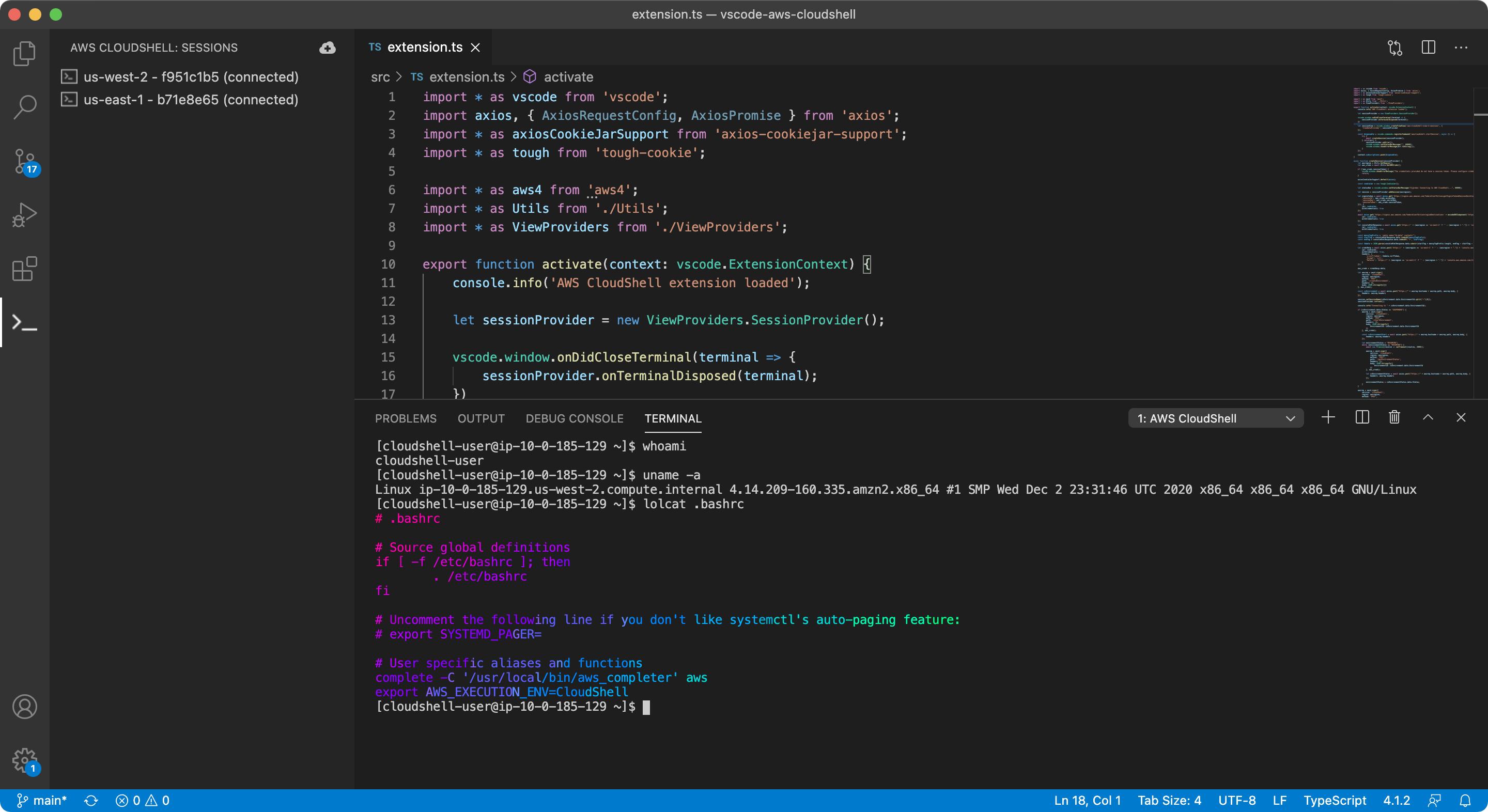
An unofficial AWS CloudShell plugin for VS Code. Open multiple AWS CloudShell terminals within VS Code on demand.
Note: This extension is still in alpha stages. Please raise an issue if you experience any problems.
In order to use this extension, you will need:
- The AWS CLI installed
- The Session Manager plugin installed
- A configured AWS named profile that meets the Credentials requirements below
Once the extension is installed:
- Open the AWS CloudShell view from the activity bar (sidebar icon).
- From the view's title menu (
···) or the Command Palette, run AWS CloudShell: Select AWS Profile and choose your profile. This also adopts the profile's configured region. - Click Start Session (the play icon) to open a CloudShell terminal.
This extension authenticates using the standard AWS SDK credential chain via a named profile (the awscloudshell.profile setting) — the same profiles your AWS CLI uses. It does not accept or store static access keys in its settings; for best practice and security, configure a named profile rather than hard-coding long-lived keys.
- Recommended: an AWS IAM Identity Center (SSO) profile. Sign in with
aws sso login --profile <name>before starting a session. - Alternatively, set
awscloudshell.assumeRoleto a role ARN to assume, or use any profile that resolves to temporary credentials.
CloudShell requires temporary credentials (with a session token). Long-term IAM user access keys (which have no session token) are not supported — use an SSO profile, an assumed role, or another source of temporary credentials. The profile must be able to assume the
AWSCloudShellFullAccesspermissions.
An environment created through the API has no credentials of its own. The extension can inject your (temporary) credentials into the shell as environment variables, but this is off by default (it writes credentials into the shell environment). To turn on automatic injection on connect, enable the awscloudshell.injectCredentials setting. Regardless of that setting, you can inject on demand at any time with AWS CloudShell: Re-apply Credentials to Shell (or the key icon on the session in the tree) — also the way to refresh credentials once they expire.
AWS CloudShell allows one default environment per Region (plus up to two VPC environments per IAM principal), but multiple concurrent shells against an environment (10 per Region by default, adjustable). So Start Session opens a new shell each time — like the console's tabs — all sharing the same environment. Each shell appears as its own row (tagged with a short shell id); closing a shell's terminal leaves the environment listed as available.
VPC-attached environments: if you attach the environment to a VPC (via Configure VPC…), credentials are not injected and AWS API calls (e.g.
aws sts get-caller-identity) will only work if the subnet has outbound internet access (NAT/Internet gateway) or interface VPC endpoints for the services you use. For default networking with auto-injected credentials, run Configure VPC… → No VPC. VPC settings are remembered per region and profile, and ignored automatically if you switch to a different region or profile.
Available from the AWS CloudShell view title bar, item context menu, or the Command Palette:
| Command | Description |
|---|---|
AWS CloudShell: Start Session |
Open a new shell on the CloudShell environment (creating the environment if none exists). Click again to open additional concurrent shells. |
AWS CloudShell: Open Session… |
Pick a listed session and connect to that specific environment (or focus its terminal if already connected) |
AWS CloudShell: Refresh Sessions |
List existing CloudShell environments in the tree |
AWS CloudShell: Select AWS Profile |
Pick a named profile (and adopt its region) for the extension to use |
AWS CloudShell: Configure VPC… |
Interactively pick a VPC, subnet, and security group to attach the environment to |
AWS CloudShell: Re-apply Credentials to Shell |
Re-inject fresh credentials into a connected session (e.g. after they expire) |
AWS CloudShell: Terminate Session… |
Pick a session, then either disconnect it (keep the environment) or permanently delete the environment |
AWS CloudShell: Upload file… |
Upload a file from the Explorer into the environment (experimental) |
Here is the list of all settings you can set within this extension:
| Setting | Description |
|---|---|
awscloudshell.profile |
The AWS named profile to use (as in ~/.aws/config / ~/.aws/credentials). Tip: set this via Select AWS Profile |
awscloudshell.region |
The AWS region to connect to (set automatically by Select AWS Profile when the profile has a region) |
awscloudshell.assumeRole |
The role ARN to assume |
awscloudshell.enableUpload |
Whether to enable an upload menu item from the Explorer view (experimental) |
awscloudshell.vpcid |
VPC Id — set via Configure VPC… (experimental) |
awscloudshell.subnetid |
Subnet Id — set via Configure VPC… (experimental) |
awscloudshell.securitygroupid |
Security Group Id — set via Configure VPC… (experimental) |