raspios buster customization en
version: v1.1 date: 2022-06-28 author: LdrobotSensorTeam
- raspberrypi raspbian OS version: 2020-08-20-raspios-buster-armhf
- ROS environment version:ROS melodic
- LDROBOT LiDAR LD06/LD19 ROS Package
- raspberrypi 3B+ SBC 、raspberrypi 4B SBC
- SD card with a capacity greater than or equal to 16GB
- download link 1:https://pan.baidu.com/s/1fvTfXBbWC9E5XNNUY5aJhw extraction code:
ky8a - download link 2: https://drive.google.com/file/d/1ylMTFGRZ9cRcy3Njvf10cxDo4Wy3tfCB/view?usp=sharing
- The image file name is 2022-03-24-raspios-buster-armhf-ldrobot-customization.img.xz
- Write through the Win32DiskImager tool, insert it into the Raspberry Pi card slot after successful writing, and power on the system
-
username:
pi -
hostname:
raspberrypi -
passward:
pi
-
step1: Make sure the lidar device is connected to the raspberrypi SBC, and open a terminal via the shortcut
Ctrl+Alt+T -
step2: Retrieve the port device file corresponding to the radar device through
ls -l /dev, give executable permission, and then modify the lanuch file parameters. Take the port file corresponding to the lidar device as/dev/ttyUSB0as an example
$ sudo chmod 777 /dev/ttyUSB0- Note: It is recommended to update the LIdar ROS driver package in the mirror for the first time
cd ~ && cd ~/ldlidar_ros_ws/src/rm -rf ldlidar_stl_ros/git clone https://github.com/ldrobotSensorTeam/ldlidar_stl_ros.git-
-
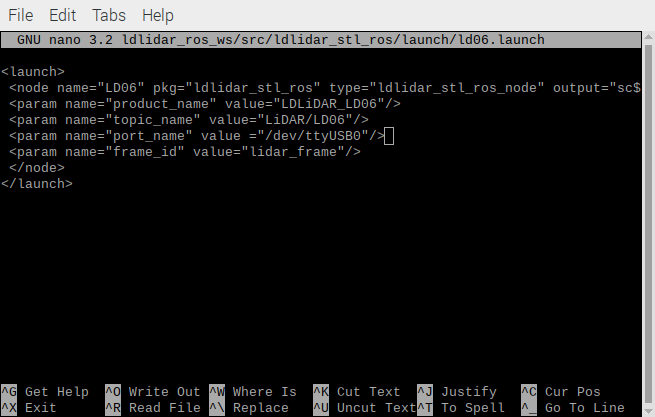
step2.1: If the product is LDROBOT LiDAR LD06, modify the
port_nameparameter in theld06.launchfile to/dev/ttyUSB0
$ nano ~/ldlidar_ros_ws/src/ldlidar_stl_ros/launch/ld06.launch -
step2.1: If the product is LDROBOT LiDAR LD06, modify the
-
-
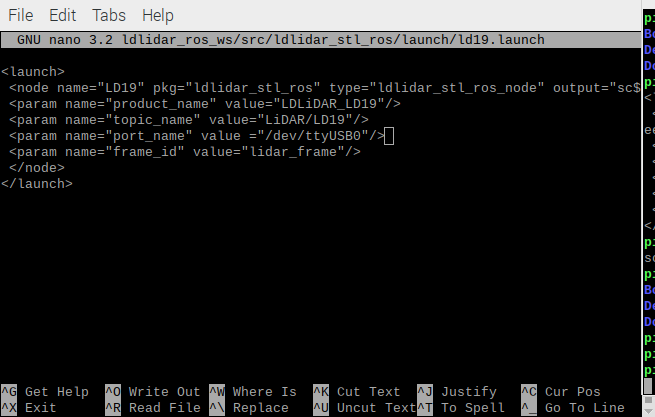
step2.2: If the product is LDROBOT LiDAR LD19, modify the
port_nameparameter value/dev/ttyUSB0in theld19.launchfile
$ nano ~/ldlidar_ros_ws/src/ldlidar_stl_ros/launch/ld19.launch -
step2.2: If the product is LDROBOT LiDAR LD19, modify the
-
step3: Start the lidar node with roslaunch
-
- step3.1: If the product is LDROBOT LiDAR LD06, run the following command in the terminal:
-
-
- start ld06 lidar node
-
roslaunch ldlidar_stl_ros ld06.launch-
-
- start ld06 lidar node and show lidar data on the Rviz
-
roslaunch ldlidar_stl_ros viewer_ld06_kinetic_melodic.launch-
- step3.2: If the product is LDROBOT LiDAR LD19, run the following command in the terminal:
-
-
- start ld19 lidar node
-
roslaunch ldlidar_stl_ros ld19.launch-
-
- start ld19 lidar node and show lidar data on the Rviz
-
roslaunch ldlidar_stl_ros viewer_ld19_kinetic_melodic.launch