DemureLine is a fork of Pureline, implementing the following additional features:
- more flexible time formats;
- right-justified segments
Demureline looks like this:

Please see the additional notes on Demureline specific changes under Customization.
Pureline is currently in development and subject to frequent changes. Updates are likely to change the format of the configuration file and therefore break configuration files from previous versions. Please be aware when updating, it is highly likely you will need to change your config file!
A simple but powerful Powerline style prompt for the Bash shell written in Bash script.
Pureline was inspired by Bash-Powerline-Shell and is designed to make configuration easy, using either full 256 color or just the basic terminal colors - allowing colors to be set by the terminal (eg Xresources or profiles).



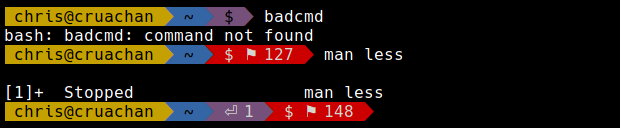
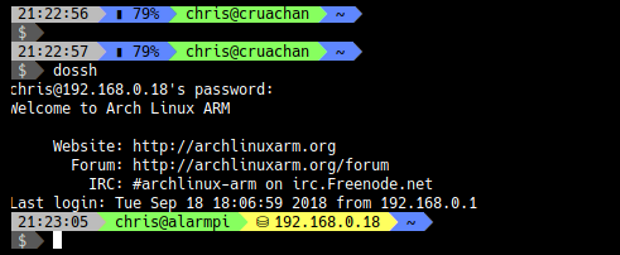
Segments for the PS1 prompt include (with some environment varibale options);
-
Time: shows the current time
- PL_TIME_SHOW_SECONDS=true time format HH:MM:SS
- PL_TIME_SHOW_SECONDS=false time format HH:MM
-
Battery: a battery power indicator
-
User: shows the user name with an option to show the hostname (or IP address)
- PL_USER_SHOW_HOST=true 'username' or 'username@hostname'
- PL_USER_USE_IP=false 'username@xxx.xxx.x.x'
-
SSH: visible only when on an SSH connection. Option to show the IP or hostname
- PL_SSH_SHOW_HOST=true if true show the host, if false icon only
- PL_SSH_USE_IP=true if true show the IP instead of hostname
-
Path: shows the current directory with options for;
- PL_PATH_TRIM=0 Full path
- PL_PATH_TRIM=1 Current,path
- PL_PATH_TRIM=n Trim the path, 'n' being the number of trailing directories to retain
-
Read Only: an indicator for read only directories
-
Jobs: show the number of running background jobs
-
Virtual Environment: shows the name of an active python virtual environment
-
AWS Profile: shows the current
AWS_PROFILEfor cli interaction with AWS. -
Git: shows only when the directory is a git repository. Options are;
- PL_GIT_DIRTY_FG=Black
- PL_GIT_DIRTY_BG=Yellow
- PL_GIT_AHEAD=true
- PL_GIT_MODIFIED=true
- PL_GIT_STAGED=true
- PL_GIT_CONFLICTS=true
- PL_GIT_UNTRACKED=true
- PL_GIT_STASH=true
-
Return Code: shows the return code when last command fails
-
Prompt: a simple prompt, useful after after a Newline
- PL_PROMPT_ROOT_FG=White Color when user is root
- PL_PROMPT_ROOT_BG=Red Background color when user is root
-
Newline: split the prompt across one or more lines
-
Git_stash: shows number of a git stash
-
Git_ahead_behind: status against upstream
All the segments are optional and can be enabled or disabled in a config file.
- Hard separator between segments
- Soft separator betwen segments of the same color:
- Read-only status of current directory:
- Return code from previous bash command:
⚑ - Number of background jobs:
⏎followed by number - Python Virtual Environment:
λ - AWS Profile:
☁ - Battery indicator when charging:
⚡ - Battery indicator when discharging:
▮ - Git Branch:
& Git Stash:🐿 - Number of modified files in git repo:
✚ - Number of staged files in git repo:
✔ - Number of conflicted files in git repo:
✘
-
Some of the unicode symbols require a special font to be used in your terminal. Please use one of the powerline fonts available at: https://github.com/Lokaltog/powerline-fonts
- Fira Code
- DejaVu Sans Mono for Powerline is a popular choice
- The screenshots above use Hack for Powerline
-
Almost all current terminals have the unicode support needed by PureLine. If you have used PowerLine fonts before, then you already know if Pureline will be supported in your terminal. But if you do have issues with any of the symbols, try testing a different terminal, eg,
uxtermin place ofxterm.
- By default, the version of Bash on Mac OS X does not work with Pureline. Specifically, Pureline requires Bash v4 at a minimum and Mac OS X has version 3.x.x installed.
- A more recent version of Bash can be installed via Homebrew:
- Install the latest version of Bash:
brew install bash - Add the Homebrew version of Bash to the list of available shells:
echo $(brew --prefix)/bin/bash | sudo tee -a /private/etc/shells - Verify Homebrew's version of Bash is in the list of permissible shells:
cat /private/etc/shells - Switch to Homebrew's version of Bash:
chpass -s $(brew --prefix)/bin/bash
- Install the latest version of Bash:
$ git clone https://github.com/m1tk4/demureline.git
$ cp pureline/configs/demureline_right_256col ~/.pureline.conf
-
Source the
purelinescript by adding the following line to your.bashrcor.profile, whichever is used:source ~/pureline/pureline ~/.pureline.conf
The powerline fonts need more effort to work on tty screens, so a useful tip is to only source PureLine if you are on a gui;
if [ "$TERM" != "linux" ]; then
    source ~/pureline/pureline ~/.pureline.conf
fi
Note on some terminals, when scrolling at the bottom of the screen, long line wrapped prompts, can cause background color to bleed between lines. If you experience this please set PL_ERASE_TO_EOL=true.
Some example configuration files are provided. The config file contains lines which are sourced by PureLine. The segments to be used are listed in the PL_segmentS environment variablee;
    PL_SEGMENTS=(
        # Segment                Background  Foreground
        'user_segment            Yellow      Black'
        'path_segment            Blue        Black'
        'read_only_segment       Red         White'
    )
To remove a segment, comment or delete the relevant line. You can rearrange the segments in any order you prefer. The first two parameters are background and foreground colors which can be customized. Some segments may have additional options.
You can align some of the segents at the right edge of the terminal. To do so,
add right_align_segment and right_align_end_segment at the beginning and the end of the part that you want to be right-aligned, for example:
PL_SEGMENTS=(
    # segment                Background  Foreground
    # -------                ----------  ----------
    'right_align_segment'
    'return_code_segment     MyRed       White'
    'git_segment             MyGreen     Black'
    'background_jobs_segment MyPurple    White'
    'duration_segment        MyDarkGrey  White'
    'time_segment            MyLightGrey Black'
    'battery_segment         MyBlue      Black'
    'right_align_end_segment'
    'user_segment            MyLime      Black'
    'ssh_segment             MyYellow    Black'
    'path_segment            MyBlue      Black'
'screen_session_segment MyLightGrey Black'NOTE: the right-aligned portion has to start either at the beginning of your
configuration or immediately following the newline_segment.
The colors default colors available are:
- Black
- Green
- Yellow
- Blue
- Purple
- Cyan
- White
Using these colors, your command prompt will use the color theme of your terminal.
You can also define your own custom colors in the config file;
PL_COLORS[Orange]='\[\e[38;5;208m\]'           # 256 Col Orange Foreground
PL_COLORS[On_Orange]='\[\e[48;5;208m\]'        # 256 Col Orange Background
PL_COLORS[LightGrey]='\[\e[38;5;250m\]'        # 256 Col Light Grey Foreground
PL_COLORS[On_LightGrey]='\[\e[48;5;250m\]'     # 256 Col Light Grey Background
PL_COLORS[DarkGrey]='\[\e[38;5;240m\]'         # 256 Col Dark Grey Foreground
PL_COLORS[On_DarkGrey]='\[\e[48;5;240m\]'      # 256 Col Dark Grey Background
The colors must be defined in pairs of background and foreground colors.
Right-aligned segment positioning relies on a calculation of its length in characters. When Unicode characters are used in your segments, certain fonts may render these characters using 2 characters of space, while the string length will only be incremented by one.
Unfortunately, this is specific to both your terminal and the font used.
If you find that right-aligned segments containing these characters are
broken, add the characters you use to the PL_WIDE_SYMBOLS variable in your
customs segment main scope. For example:
PL_WIDE_SYMBOLS+="💻"
New segments can be easily created by following a template from existing functions. For example:
function time_segment {
    local bg_color=$1                  # Set the background color
    local fg_color=$2                  # Set the foregropund color
    local content="\t"                 # Set the content to be displayed
    PS1+=$(segment_end $bg_color)
    PS1+=$(segment_content $fg_color $bg_color " $content ")
    __last_color=$bg_color
}
The $content variable can be modified to show any output wanted on the prompt.
You can place segment code anywhere it will be sourced:
- For segments of personal use I would recommend adding it to your config file.
- For developing new external segments for PureLine, you should but them in the
pureline/segmentsdirectory. The file name and function name must be the same. Eg./pureline/segments/battery_segmentwill have the segment function named asfunction battery_segment {}
- Bash tips: Colors and formatting : Flozz' Misc Bash Tips for Colors and Formatting
- FileFormat.info: Unicode Characters in the 'Symbol, Other' Category
- PS1 cheat sheet: Prompt variable characters for customizing the output of the PS1 prompt.