A cleaner way to diff files that’s easier on your 🧠.
Cleandiff helps you focus on the specific changes, without unnecessary noise.
brew tap masukomi/homebrew-tap
brew install masukomi/homebrew-tap/cleandiffInstall the Wails CLI with:
go install github.com/wailsapp/wails/v2/cmd/wails@latestgit clone https://github.com/masukomi/cleandiff.git
cd cleandiff
cd frontend && npm install && cd ..
wails buildThe built application will be in build/bin/:
- macOS:
build/bin/cdiff.app(with CLI atcdiff.app/Contents/MacOS/cdiff) - Linux:
build/bin/cdiff
Add the cdiff executable to your PATH to use it from the command line.
First, let’s add cdiff as a new difftool
git config --global difftool.cdiff.cmd 'cdiff "$LOCAL" "$REMOTE" "$MERGED"'Next, let’s add an alias so that we can just say git cdiff <diff options> instead of having to type git difftool --tool=cdiff <diff options>
git config --global alias.cdiff "difftool --tool=cdiff"Optional If you want to make it your default difftool you can run the following command. While I use it regularly, sometimes traditional diffing tools are the right choice.
git config --global diff.tool cdiffAssuming you’ve configured things as described above, invocation is exactly the same as with git diff, you just say git cdiff instead.
For example, to see what changes have been added in “branch_b” you could run either of the following.
git cdiff main..branch_b
git difftool --tool=cdiff main..branch_bcdiff takes 3 options
- original file
- changed file
- (optional) file name
The file name is what’s displayed both at the top of the page, and in Cleandiff’s sidebar.
cdiff original_file.txt changed_version.txt
cdiff original_file.txt changed_version.txt "the_memo"You’ll notice that Cleandiff focuses on not just the words that have changed, but also the lines. By default it shows you a handful of lines around the changes; just enough to give you context for the change. Sometimes, you need a little more.
Cleandiff gives you two options for this.
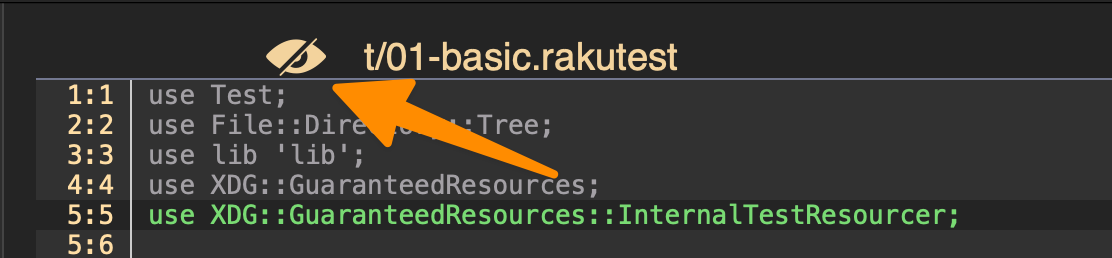
Usually - if any more context is needed - you only need a few more lines to understand the change. Clicking any of the line numbers near a jump will expand 10 lines above it. You can repeat as needed.

Alternately, if you just want to see everything you can click the eye icon at the top of the page will show you the entire file, by toggling the visibility of all the hidden liens.