06 Post Processing
Rather than this being a Prototype game, we're doing what's called a Vertical Slice. That means even though the game isn't complete, we want to show people something that looks awesome (often so they'll give us more money to finish it, or just to build hype).
Post Processing means applying photoshop like image processing effects on every frame that's drawn before it's displayed on the screen.
The bloom effect makes bright areas of the scene seem to glow.
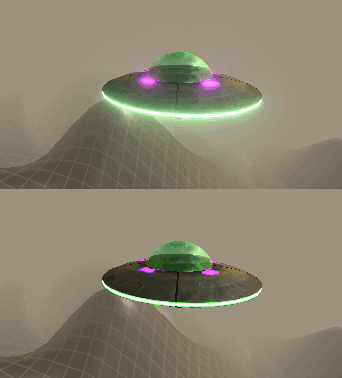
This is especially useful in a scene like this where there is fog since the light seems to be bouncing through the fog. Since this is our first effect, we'll have to set-up our post processing stack.
-
On the camera, add another component Post Processing Volume
-
Click the Is Global checkbox
-
The Profile value is None, we need to create a new profile by pressing the New button.
-
Just below that is an Add Effect button. Press this and choose Unity - Bloom
-
Set the Intensity to 4. This is how much glow there will be.
-
Set and the Threshold to 1. This is how bright something has to be before it starts glowing.
But... Nothing's glowing? That's because there's not anything in the scene bright enough. We need to edit the UFO textures to make the lights extra bright.
-
In your Assets find UFO_texture2. This includes the green ring around the ufo.
-
In the inspector for Emission - Color click on the white box that say HDR.
-
In the color selector there's an Intensity. This will determine how bright the emissive parts will be, therefore how much they'll glow. Set this to 3.
-
Do the same for the UFO_texture for the other lights. Note that you can also change the color of the glow here. I've set mine to purple.
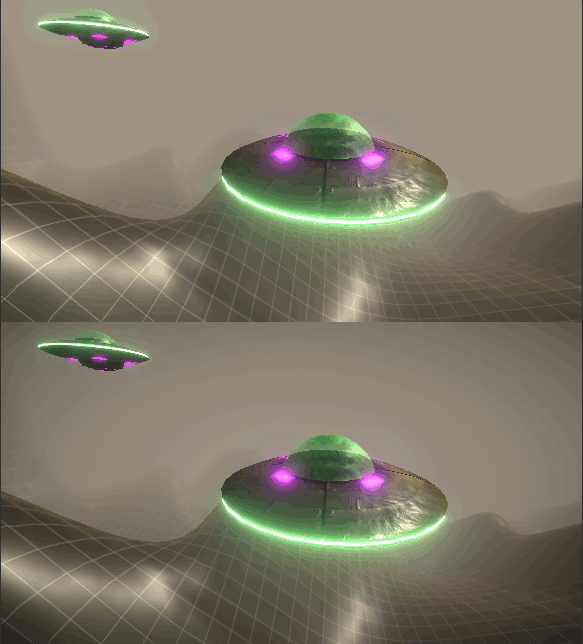
We could add lots of different effects, but I just want to add one more for now. Vignette. This is a darkening of the corners of the image.
-
Under the bloom settings press the button to add another effect and choose Unity - Vignette
-
Activate Intensity and set to 0.4